
Although Windows 11 has been released for many years, many people still use Windows 10 on their desktops or laptops. To manage disk partitions and maximize disk performance, you need a reliable partition manager for Windows 10, no matter whether you use a mechanical HDD, an SSD (Solid State Drive), or even RAID arrays. There are two types of free partition managers for Windows 10/11 computers.
If you just want to initialize a brand new hard disk, create, delete, and format partitions, Windows 10/11 has a built-in Disk Management utility to help you. If you want to resize, move, merge, clone, convert, defrag, wipe, or hide partitions, third-party partition manager software is needed. This article introduces both the native free partition manager in Windows 10/11 and the best free partition software for Windows 10/11 computers.
Native Free Partition Manager in Windows 10/11
As with previous versions, there is a native free partition manager in Windows 10/11 - Disk Management. It is able to create, delete, and format partitions, set Active, and change drive letters. For advanced users, it has Shrink Volume and Extend Volume functions to help change partition size.
However, if you want to extend the C: drive by shrinking D or another volume, Disk Management cannot help you, because the unallocated space shrunk from any volume is non-adjacent to the C: drive, so Extend Volume is greyed out. If you want to do that, disk partition software is needed.
To open Disk Management in Windows 10/11:
- Press Windows + X together on your keyboard and then click it from the list.
- Press the Windows + R keys together, input diskmgmt.msc, and press Enter.
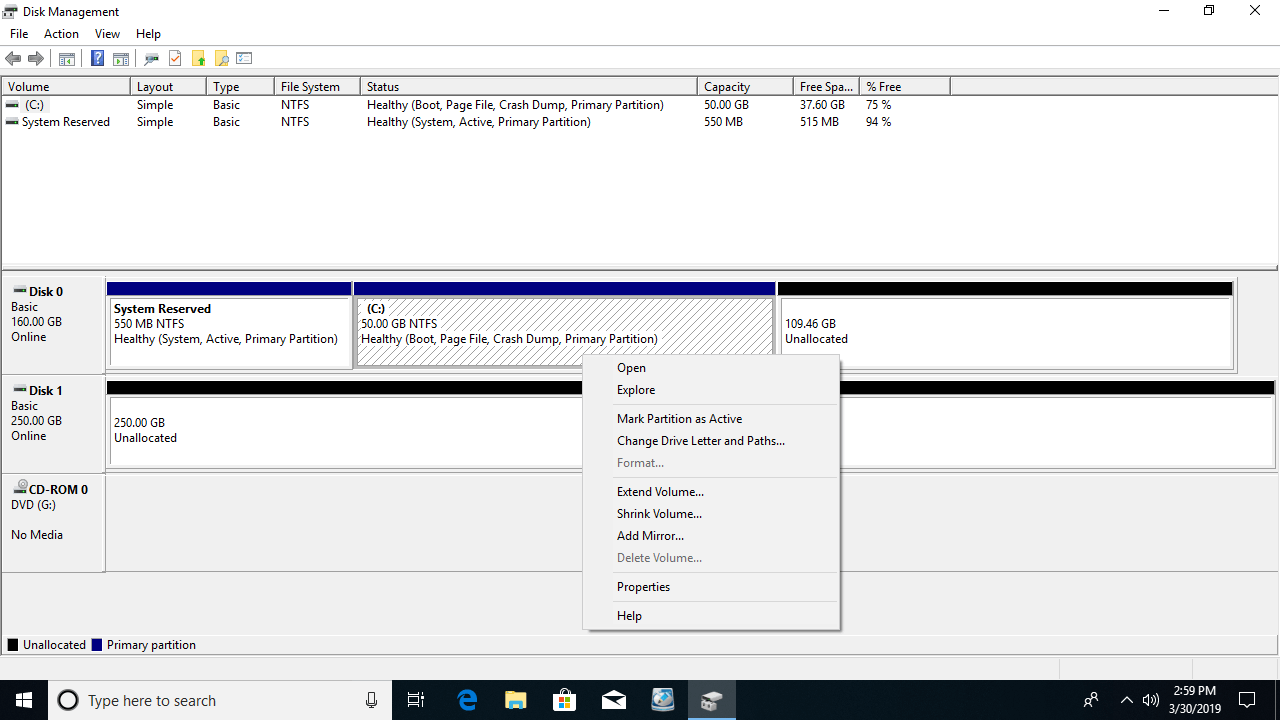
Windows 10/11 Disk Management can convert a disk between MBR and GPT, but you must delete all partitions on this disk in advance. Right-click each partition or the front of a disk in Disk Management, and you will see all options; unavailable operations are grayed out.
Best Free Partition Software for Windows 10/11
There are many free partition software options for Windows 10/11 on the market; both their designs and functions are similar, so how do you select the right tool for your own computer? The most important aspect is data protection ability, because there is a potential risk of system and data damage while repartitioning a hard disk drive. The second aspect is speed; nobody likes a tool that takes a long time to resize, move, copy, or perform other operations.
Among these disk partition managers for Windows 10/11, NIUBI Partition Editor is recommended by many editors and end users. It has a free edition for Windows 11, 10, 8, 7, Vista, and XP (32 & 64-bit) home computer users. It is 100% clean without any bundled plugins or advertisements.
Download this free partition manager on a Windows 10/11 computer, and you will see 4 blocks in the main window.
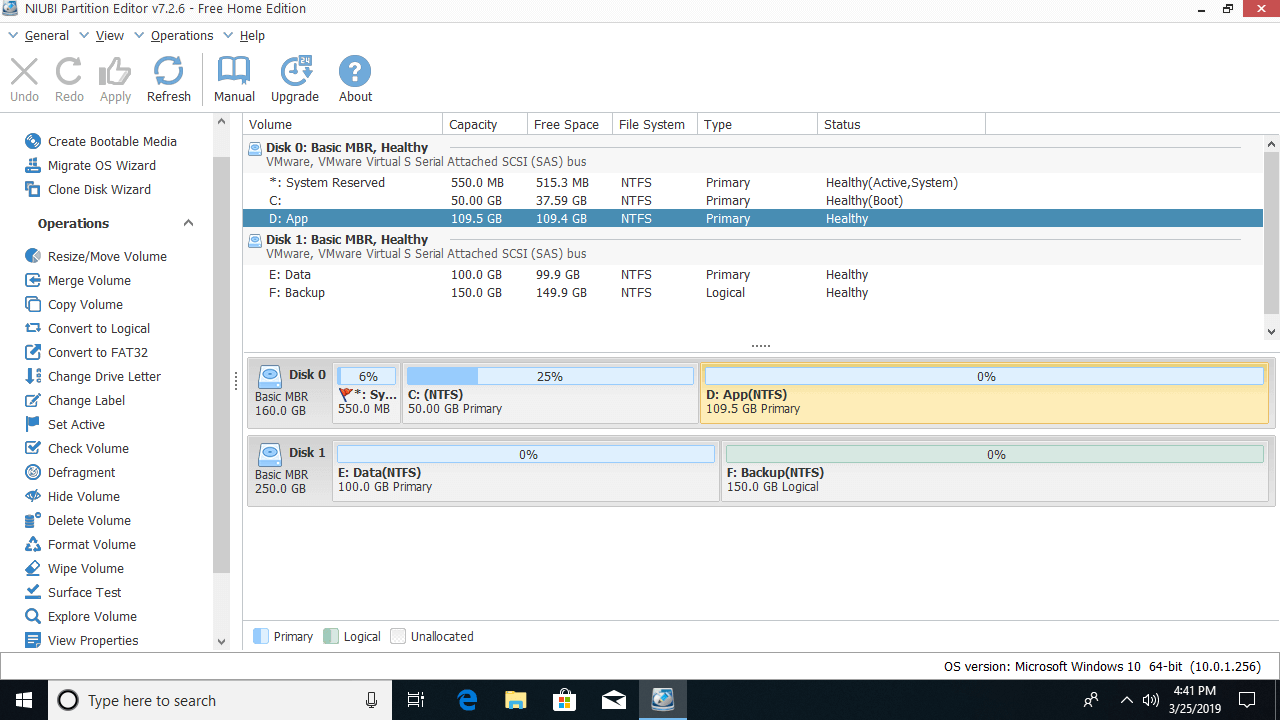
- Disk models and single partitions with detailed parameters such as capacity, free space, file system, type, and status.
- All storage devices with partition structures. Any type of HDD/SSD, hardware RAID array, USB flash drive, memory card, and virtual disk is supported.
- Available operations for the selected disk or partition; unavailable operations are hidden automatically.
- Refresh disk partition info, undo pending operations, redo canceled operations, or click Apply to modify the real disk partitions.
To perform any operation, you just need to click, drag, and drop on the disk map. If you do not understand how to operate, check the video guide. Compared to the built-in partition manager in Windows 10/11, NIUBI Partition Editor can perform many more operations.
For unallocated space:
- Create one or more volumes
- Wipe data in it
- Surface test (scan for bad sectors)
- View properties (detailed parameters)
For an entire disk:
- Initialize
- Change status to offline or online
- Set read-only attribute
- Wipe disk (cannot be recovered)
- Surface test
- View properties
- Clone disk to migrate data and OS
- Convert MBR disk to GPT
- Delete all partitions
- Cleanup disk
For a single partition:
- Resize volume (shrink and extend)
- Move partition
- Merge two adjacent volumes in 1 step
- Clone partition
- Convert to Logical or Primary partition
- Convert NTFS to FAT32
- Optimize file system to repair errors and improve performance
- Change drive letter (such as D:)
- Change label (add a name or modify)
- Set as Active
- Check file system integrity
- Defrag to improve performance
- Hide from File Explorer
- Delete (files can be recovered)
- Format volume to use as new
- Wipe (erase data permanently)
- Surface test
- Explore (view files/folders with directory)
- View properties
Unique Features of This Free Partition Manager
Compared to other Windows 10 partition manager software, NIUBI Partition Editor is much safer and faster because of its advanced technologies and algorithms.
- 1-Second Rollback - automatically reverts the disk partitions to their previous state instantly if it detects any error.
- Virtual Mode - avoids incorrect operations by listing all as pending for preview; real disk partitions will not be changed until you click Apply to confirm.
- Cancel-at-Will - cancels unwanted but ongoing operations without destroying partitions.
- Hot Clone - clone disk partitions in Windows without rebooting.
- Hot-Resize - shrink and extend most partitions without rebooting the computer.
- Advanced file-moving algorithm - resize and move partitions 30% to 300% faster.
Unlike other free Windows 10/11 partition managers that lock many functions or have bundled plugins, the NIUBI Partition Editor Free Edition is 100% free and clean. In addition, as with the commercial editions, it has free 24/7 live chat and remote support. The only difference from the Professional Edition is that the 1-Second Rollback technology and the bootable media builder are not included in the Free Edition.
 © 2009 - NIUBI Technology All Rights Reserved. |