
Many people report that the system C drive becomes full after upgrading to Windows 10 or installing some updates. This is because the system partition is continuously filled up by many types of junk files. You are more likely to encounter this issue if you use an SSD, because it is usually much smaller than a traditional mechanical hard disk. In this situation, you can remove unnecessary and junk files to reclaim disk space. This article introduces how to free up disk space in a Windows 10 laptop/desktop with the native Disk Cleanup utility and additional methods.
Free Up Space with Windows 10 Disk Cleanup Utility
There are many third-party system optimization programs that can help delete junk files, but to free up disk space in Windows 10, the built-in Disk Cleanup utility is good enough. From Windows XP to Windows 11, this utility has been highly reliable for cleaning up disk space. It is easy to use, runs fast, and can clean up the most common types of unnecessary files. Most importantly, it is safe.
How to free up disk space in Windows 10 with Disk Cleanup utility:
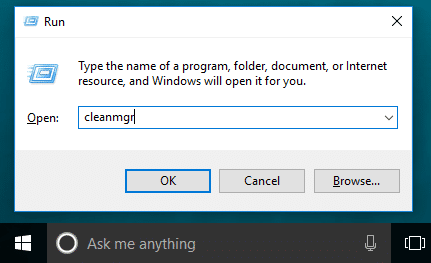
- Press Windows and R on the keyboard, input cleanmgr and press Enter.
![Launch Disk Cleanup]()
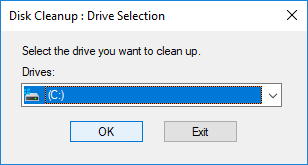
- Select the C: drive in the drop-down list and click OK.
![Select drive]()
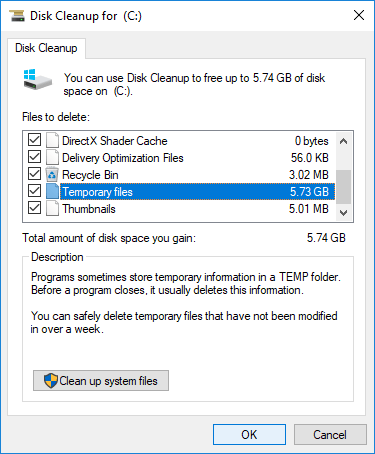
- Check the boxes next to the files that you want to remove. Read the associated description at the bottom before clicking OK if you do not know what kind of files are included.
![Select files]()
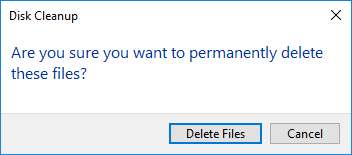
- Click Delete Files to confirm in the pop-up window. Disk Cleanup will begin cleaning up; the time it takes depends on your computer's performance and the number of files.
![Confirm]()
- Repeat to Clean up system files.
8 Useful Methods to Free Up Disk Space in Windows 10
If you have never cleaned up disk space on your computer or have not done so for a long time, Disk Cleanup may help you regain several gigabytes of disk space. To get more, you may try these additional methods to free up disk space for a Windows 10 laptop/desktop.
① Uninstall Apps
You may uninstall some apps and games that you no longer use or that came preinstalled on your computer from the manufacturer.
Steps:
- Press Windows and X on the keyboard, then Settings
- Scroll down in Apps & features
- Click the items that you want to remove and click Uninstall.
② Move Installed Apps and Games
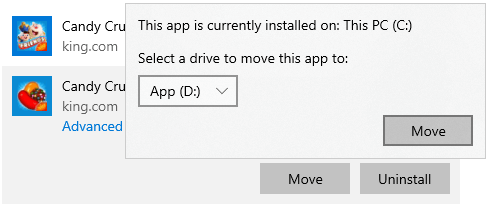
All programs are installed to the system C: drive by default; the more programs you install, the less free space is left. In previous versions, you had to uninstall and reinstall them in another partition. Windows 10 has a new feature to help you move them to another partition. This is a good method to free up disk space in the C drive for Windows 10 computers.
Steps:
- Click Start > Settings > Apps > Apps & features
- Click an app or game.
- Click the Move button.
- Select the new location from the drop-down list.
- Click the Move button.
- Repeat the steps to move more items.
③ Move Files/Folders
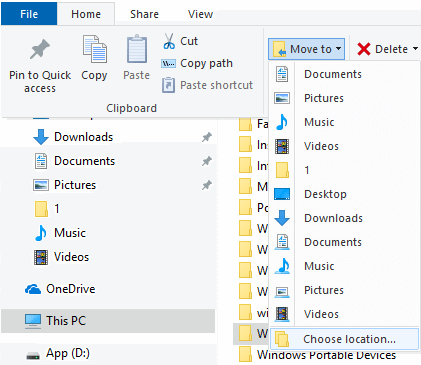
Another option is moving specific files/folders to another volume. Steps:
- Open Windows File Explorer.
- Select the files/folders that you want to move.
- Click the Home menu on the top > Move to > Choose location.
- Select the target location and click the Move button.
④ Reset Recycle Bin
All files that are deleted by pressing DEL without the SHIFT key will go to the Recycle Bin. You can revert these files to their original location manually if you deleted them by mistake. When the system C drive is almost full, you may consider decreasing the disk space usage or changing the location for the Recycle Bin. This is another useful method to free up disk space in Windows 10 and previous versions.
Steps:
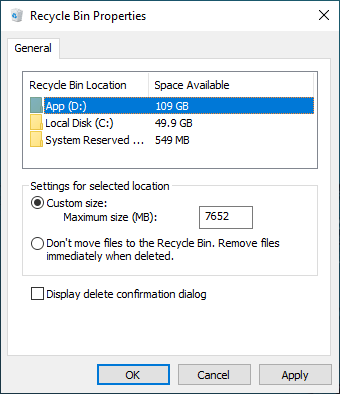
- Right-click the Recycle Bin on the Desktop and click Properties.
- Select a drive for the Recycle Bin.
- Select Custom size and enter an amount.
⑤ Reset Paging File
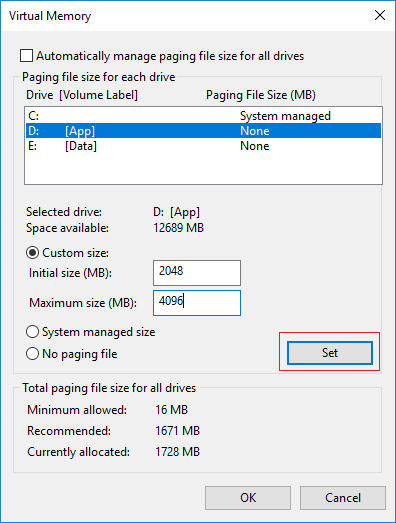
The paging file uses part of the disk space as virtual RAM and it is located in the C drive by default. You can decrease it or change it to another partition to release free space.
How to free up disk space in Windows 10 by resetting the paging file:
- Press Windows and R on the keyboard to start Run.
- Input sysdm.cpl ,3 and press Enter.
- Click Settings under Performance in the Advanced tab.
- Click Change under Virtual Memory.
- Uncheck Automatically manage paging file size for all drives on the top.
- Select D: or another drive, enter the amount of Initial size and Maximum size in the Custom size radio button, and then click Set.
- Select the C: drive, select the No paging file radio button, and then click Set.
- Click OK. (It may require a reboot to take effect.)
⑥ Reset System Protection
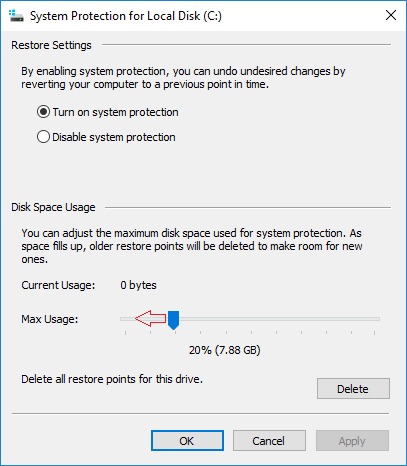
System Protection is another Windows built-in backup feature that is able to create a system restore point. These restore points are created automatically by Windows when some operations are made to the disk drive, and roll back the system to a recent state when you need. This feature reserves quite a big disk space for its functionality.
You can free up disk space by reducing disk space usage. Steps:
- Press Windows and R keys to launch Run, type sysdm.cpl ,4 and press Enter.
- Select the C drive and then click Configure
- Slide to the left to decrease the Max Usage of disk space.
⑦ Reset Hibernation Setting
Hibernation is a feature that saves the content in memory to the hard drive allowing you to shut down your device completely without losing your current session. Hibernation is a useful feature but it requires several gigabytes of space to save the content to the hiberfil.sys file in the C drive.
You can free up disk space by deleting the hibernation files or reducing the size of hiberfil.sys. Steps:
Search cmd on the task bar on the bottom left corner of the screen, right-click Command Prompt and choose Run as administrator.
Input powercfg -h -size 50
The size will be changed from default 75% to the minimum 50%
If you receive an error stating that "The system firmware does not support hibernation", then you cannot use these commands.
Input powercfg.exe -h off
Hibernate mode will be disabled and any associated saved data from previous hibernations will be deleted automatically.
Input powercfg.exe -h on
⑧ Compress Files
Compact OS is a tool introduced with Windows 10 that allows you to compress the installation files and built-in desktop applications reducing the footprint and freeing up space.
This operation will not affect computer performance, but it will modify system files. This operation is only suggested when disk space is extremely low and you have no other choice.
- Search for Command Prompt and run as administrator.
- Input the command: Compact.exe /CompactOS:always
You can revert the changes using the command: Compact.exe /CompactOS:never
Generally speaking, you will get several to over 10GB of free space after completing the steps above. However, there is still an issue: new junk and some necessary files continue to be saved to the C drive. Therefore, the free space will be eaten up again; you had better complete the following additional steps.
Additional Steps After Freeing Up Disk Space for Windows 10 Computers
1. Save Files to a New Location
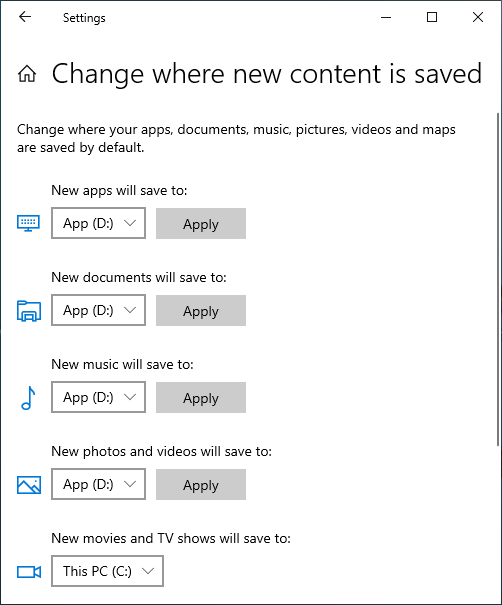
Windows 10 has a new option to save new files from apps, documents, music, pictures, and videos to another location. Steps:
- Press Windows and X on the keyboard, then click Settings
- Click System> Storage.
- Click Change where new content is saved under More storage settings.
- Click the drop-down list to select a new location and click Apply.
2. Turn on Storage Sense
Storage Sense is a relatively new feature in Windows 10 that users may enable to free up disk space automatically when the drive is running low on space.
Firstly, you need to enable this service:
- Press Windows and X on the keyboard, then Settings
- Go to System > Storage
- Toggle Storage Sense from Off to On on the right side.
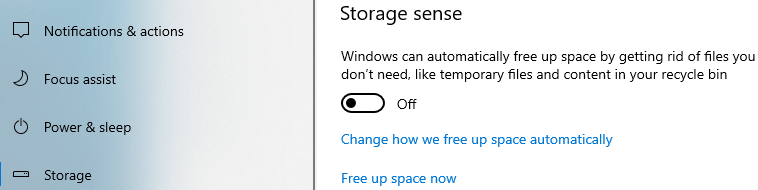
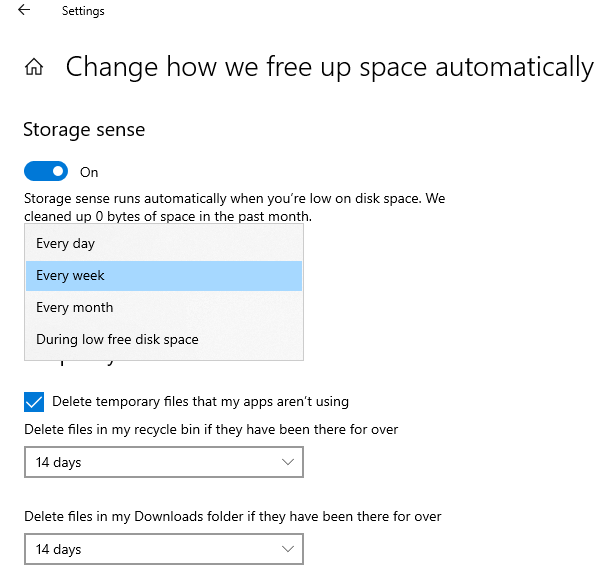
Then click Change how we free up space automatically below it.
You have several options:
- Select from the list to free up disk space when this partition is running low or every day/week/month.
- Then you can select whether to delete temporary files automatically.
- Select from the drop-down list to delete files in the Recycle Bin and Downloads folder if they have been there for over 1/14/30/60 days.
3. Expand C Drive as Large as Possible
This step is very important for computers where the C drive is created small. Similar to a smartphone, if it is 16GB, you have to clean it up frequently, but if it is 256GB, you will not encounter the low space issue for a long time.
With NIUBI Partition Editor, you can move free space to the C drive from other partitions without losing data. The Operating System, programs, and associated settings, as well as everything else, will remain exactly the same as before. It offers a free edition for Windows 10/8/7/Vista/XP home computer users. Besides reallocating free space, it helps you perform many other disk partition management operations.
Download the free edition and follow the steps in the video to expand C drive.
In Summary
To free up disk space in Windows 10 laptop and desktop, first of all, delete the junk files with native disk cleanup utility. Then move programs and some files out of C drive, and then delete some restore point. Finally, expand C drive as large as possible with free space in other partitions.
 © 2009 - NIUBI Technology All Rights Reserved. |