
This article introduces how to merge C and D drive on Windows 10. Two ways to combine C and D partition without reinstalling operating system.
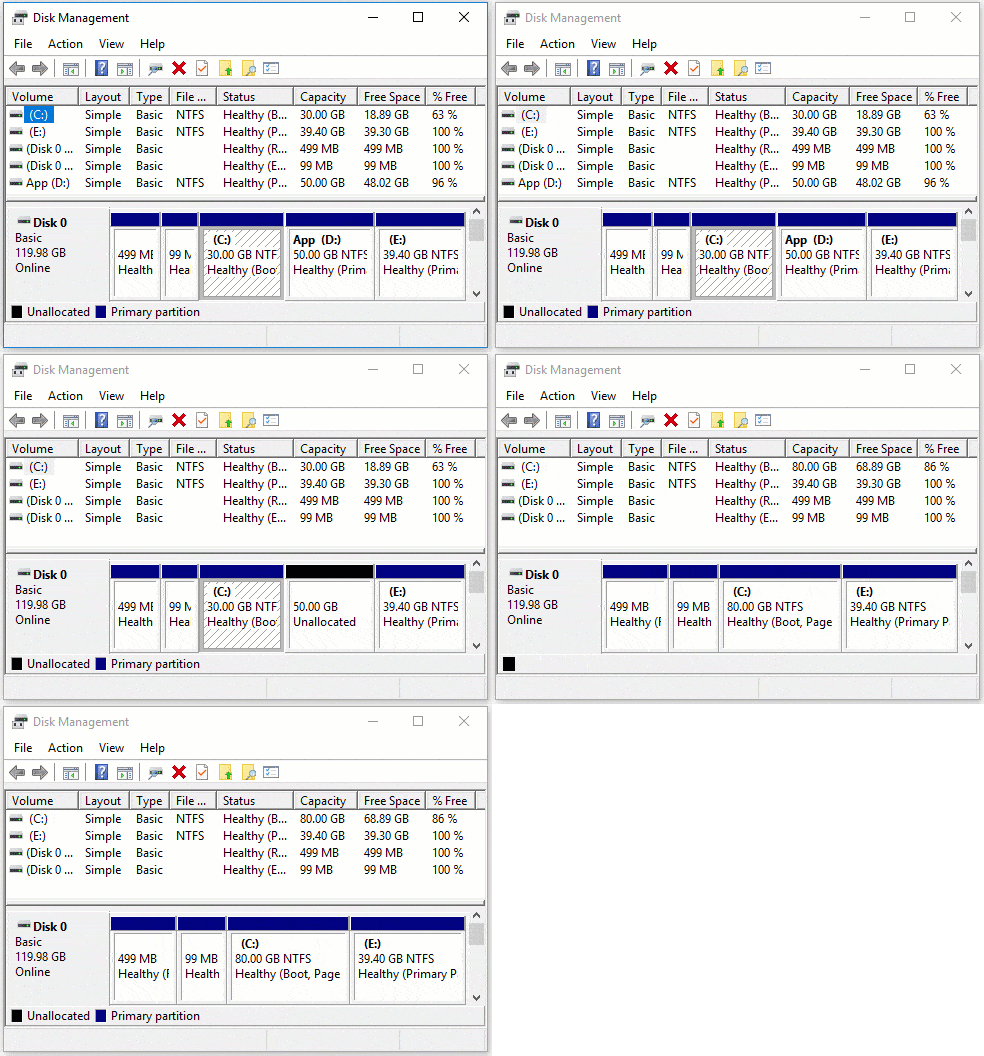
As we know, it is better to create more volumes on a hard disk. Even if you use a small SSD, it is better to create at least two volumes on it: one for the Operating System and the other for programs. The system will become chaotic and slow down if you throw everything into the C drive. Then why do some people want to combine the C and D drives in Windows 10?
One of the common reasons is the C drive getting full. By merging the C and D volumes, free space will be transferred into the "new" C drive. It seems to be a good idea, but in fact, you had better resize partitions instead of merging volumes.
This article introduces how to merge partitions C and D with Windows 10 native Disk Management and professional partition software.
Merge C and D Drive in Windows 10 DM (Manually Transfer Files)
Press Windows and X on the keyboard to open Disk Management. If you right-click a partition, you will see many options such as delete, format, mark partition as active, shrink, and extend volume, but there is no Merge Volume function. What should you do?
If you prefer to use the Windows built-in utility, you may follow the steps below:
- Back up or transfer all files in the D drive to another partition.
- Right-click D in Disk Management and select Delete Volume.
- Right-click the C drive and select "Extend Volume".
- Click Next until Finish in the Extend Volume Wizard window.
Do not use this method if you installed programs in drive D.
Limitations of this method:
- You will lose data if you forget to back up or transfer files.
- You have to back up or transfer files manually.
- Programs will stop working after deleting D if you installed them in this drive.
- Cannot merge non-adjacent volumes.
Combine C and D Drive with Partition Editor (Auto Transfer Files)
It is much easier to merge partitions with professional disk partition software. You just need to select two contiguous partitions, and everything will be done.
Download NIUBI Partition Editor, right-click the C or D drive, and select "Merge Volume".
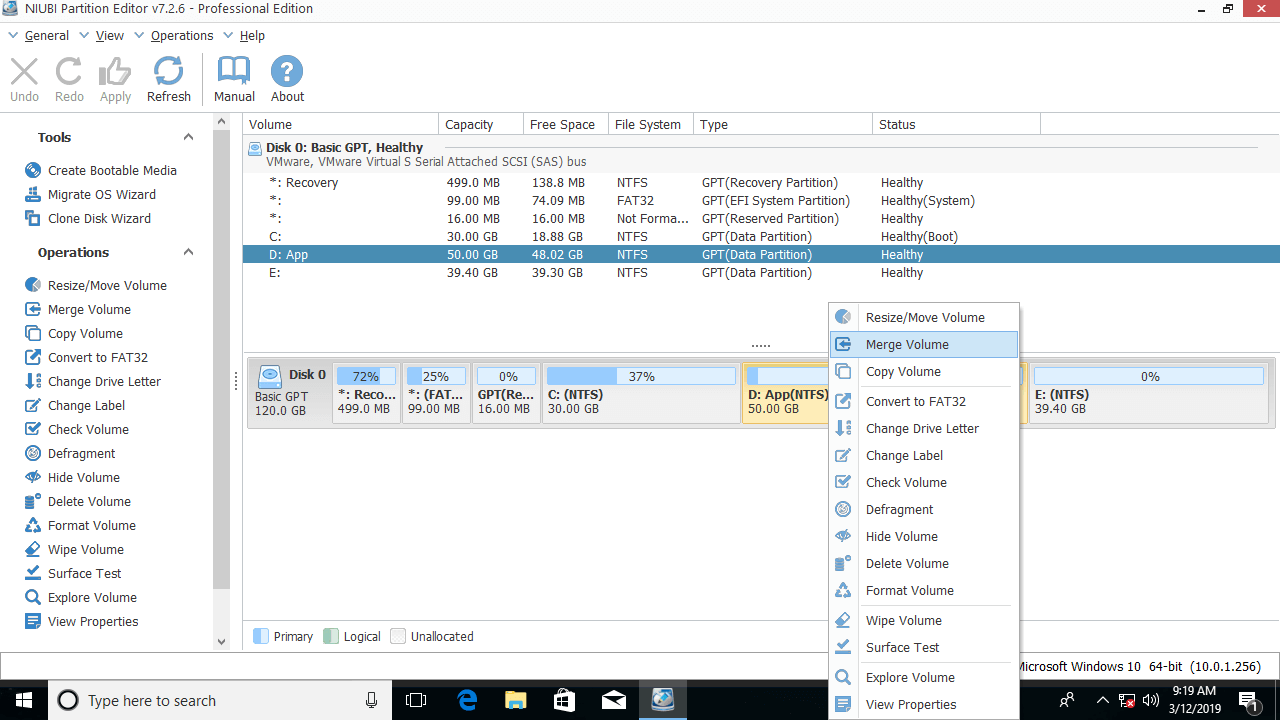
Click the check-box in front of the C and D drives, and then click OK.
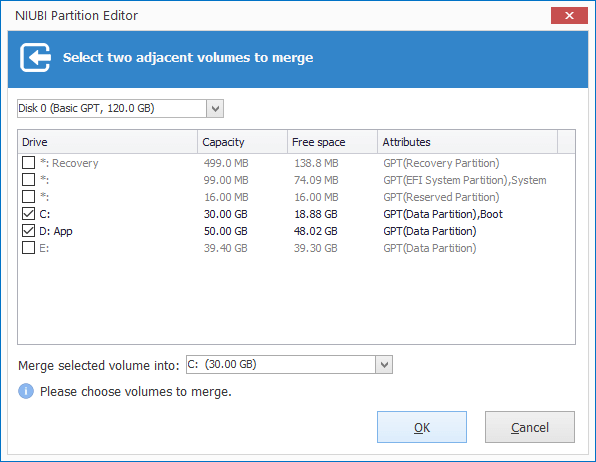
In the drop-down box, you can select D, but you cannot continue because you cannot merge the system C drive into a data volume.
Click Apply on the top left to execute the changes. After it is complete, all files in partition D will be transferred to a folder in the C drive automatically.
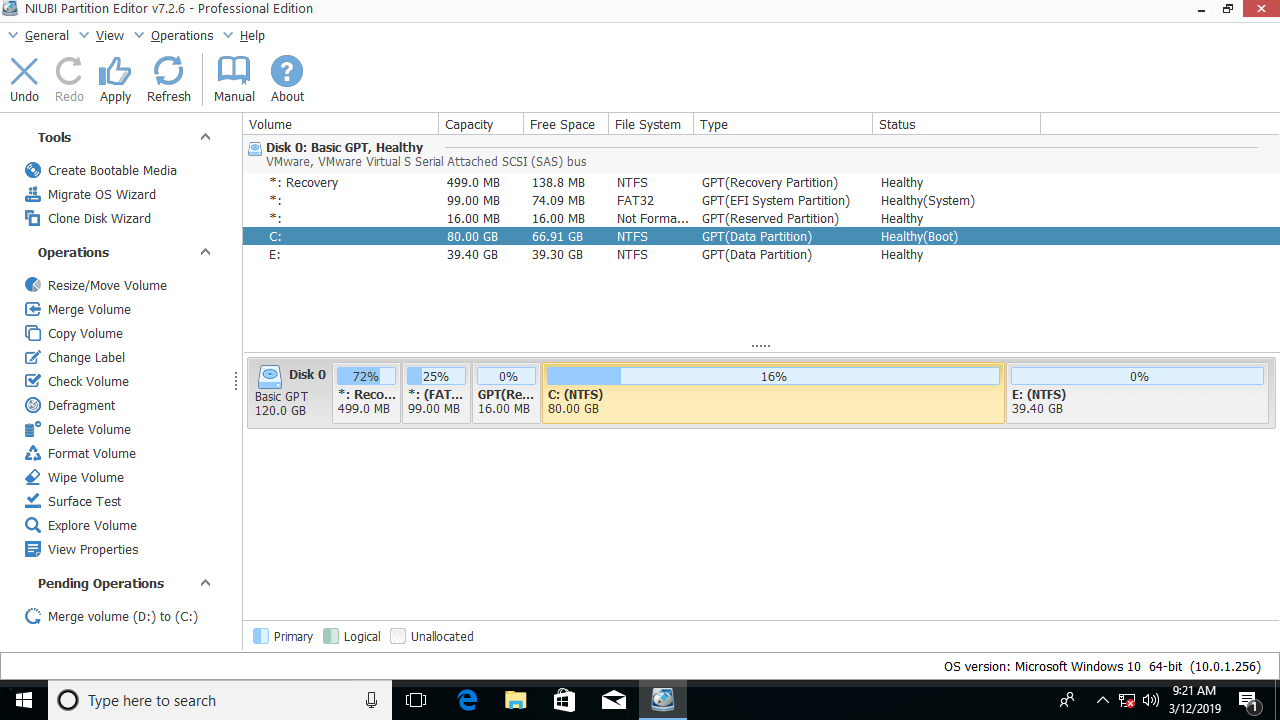
This method is much easier, and files will be transferred automatically. However, similar to Disk Management, partition D will be deleted, which can cause potential issues. If you want to increase the C drive free space, you had better shrink D or another partition. Then the operating system, programs, and corresponding settings, as well as everything else, will remain exactly the same as before.
Resize Partition Instead of Merging Volume D to C
Shrink partition D to the right, then a portion of the unused space will be converted to unallocated space on the left. Finally, add the unallocated space to the C drive. Steps:
Step 1: Right-click drive D and select "Resize/Move Volume", then drag the left border to the right in the pop-up window.
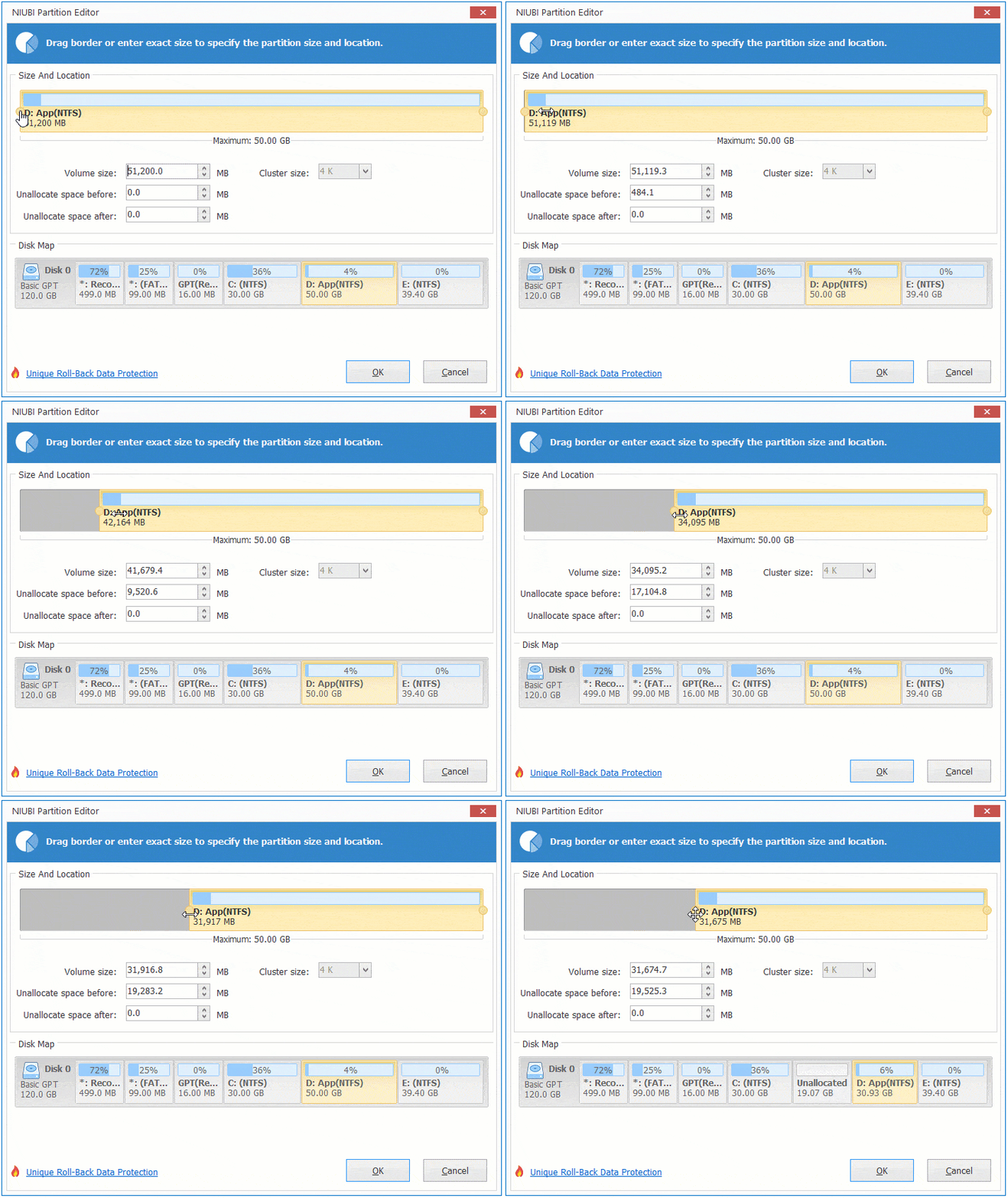
Drive D is shrunk and unallocated space is created on its left side.
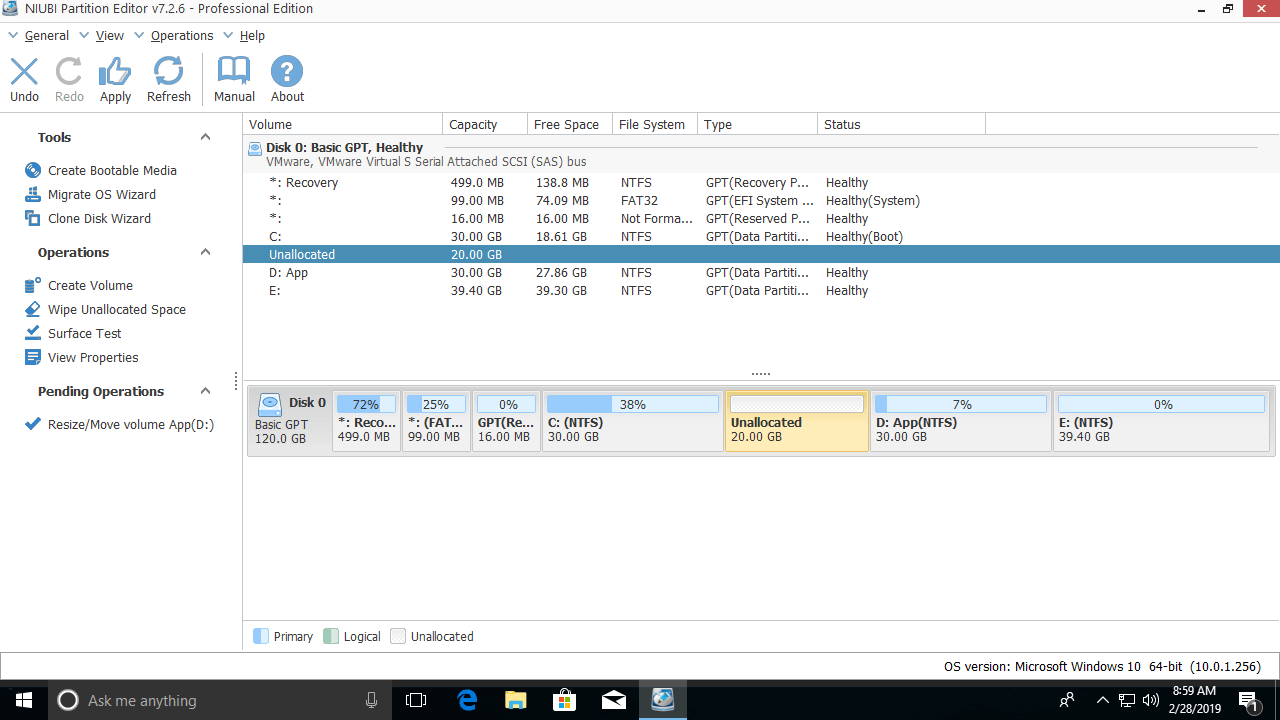
Step 2: Right-click the C drive and select "Resize/Move Volume" again, then drag the right border to the right.
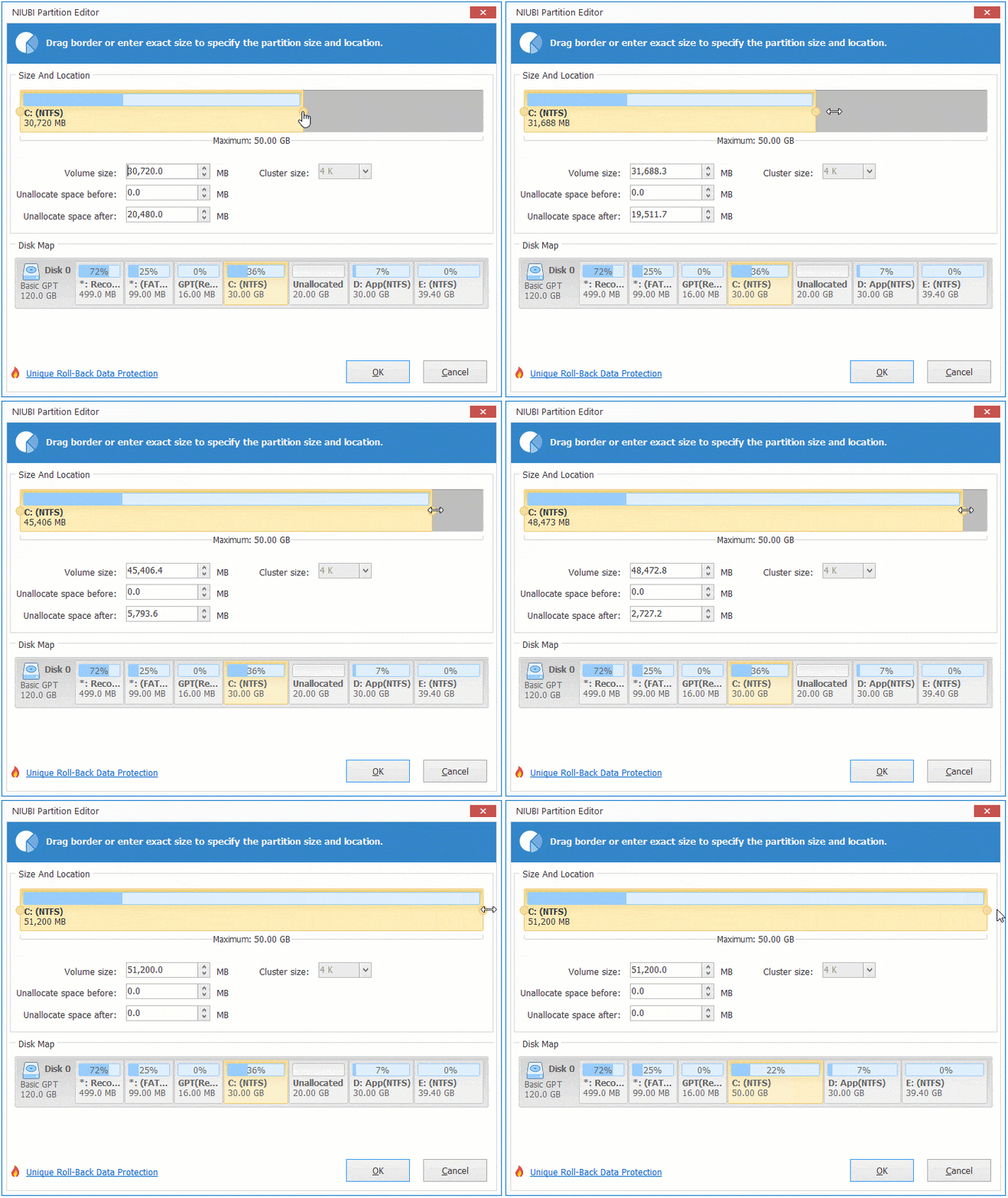
The unallocated space is merged into the C drive.
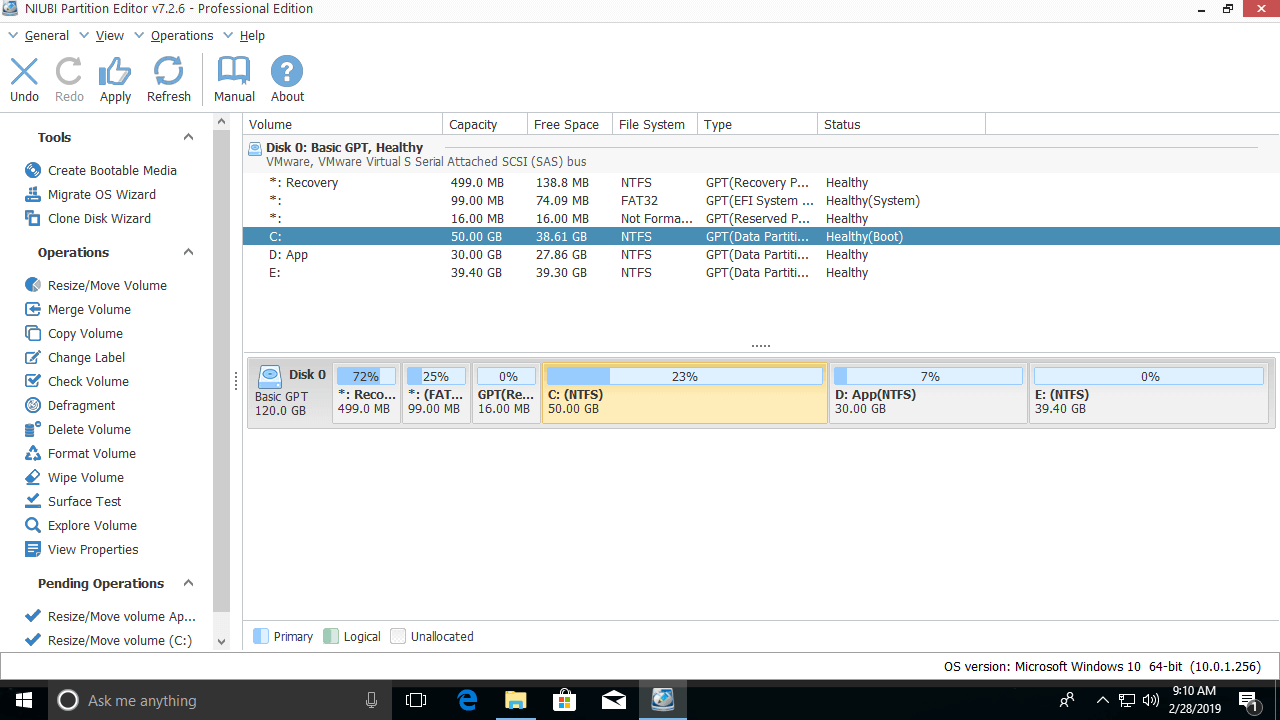
Remember to click Apply on the top left to execute the changes. Check the full solution to extend the system partition in Windows 10.
Compared with other tools, NIUBI Partition Editor features 1-Second Rollback, Cancel-at-will, Hot-Resize, and Virtual Mode technologies, along with an advanced file-moving algorithm to help repartition hard drives much faster and more safely.
 © 2009 - NIUBI Technology All Rights Reserved. |