
This article introduces how to move a partition on Windows 10 (32 & 64 bit). Move a volume to the left or right side, or move a hard drive partition to the front, end, or another disk.

Sometimes you need to move a hard drive partition on Windows 10. For example:
- The C drive is getting full, but you cannot extend it after shrinking another partition via Disk Management.
- Some special programs require moving a specific partition to the front or end of the disk.
- The entire disk is full, so you may consider moving all partitions to another disk along with the Operating System.
Windows native tools, including Disk Management, cannot move partitions in any way, so you need to run professional disk partition software. There are many choices on the market. Compared with other software, NIUBI Partition Editor features unique 1-Second Rollback, Cancel-at-Will, Virtual Mode, and Hot-Resize technologies, along with an advanced file-moving algorithm to repartition hard drives more safely and faster. This article introduces how to move a Windows 10 partition with detailed steps.
Move Partition to Left or Right (with Adjacent Unallocated Space)
When resizing partitions with Windows 10 Disk Management, you cannot extend a volume (such as C:) by shrinking another one (such as D:) because of inherent limitations. In that case, you can move partition D and create unallocated space behind C; then "Extend Volume" will be enabled.
To do this: Download NIUBI Partition Editor, right-click D, and select "Resize/Move Volume", then drag the middle of the partition to the other side in the pop-up window.
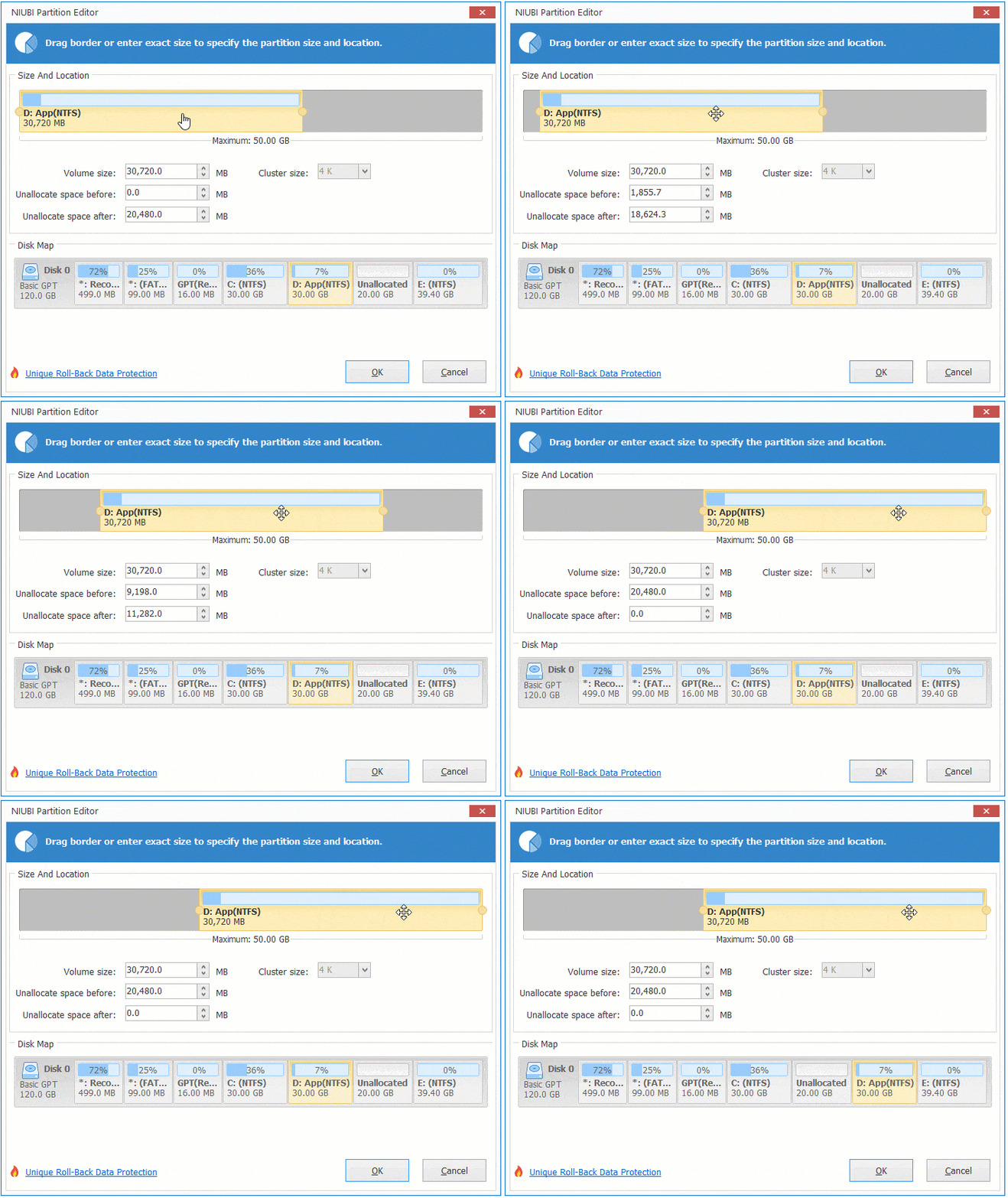
Then partition D will be moved to the right and the unallocated space will be moved to the left.
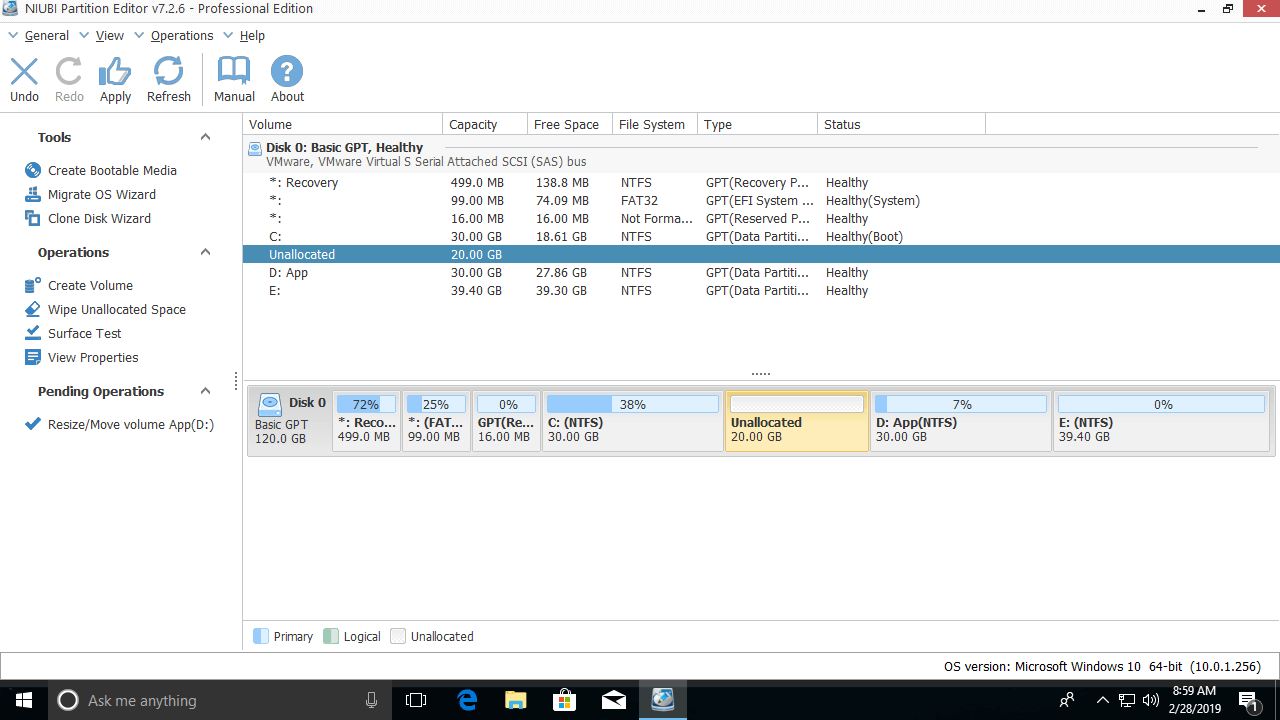
Similarly, right-click E and use the same method; you can move partition E to the left and move the unallocated space to the right.
This method is used to exchange the position of a volume and the adjacent unallocated space on either side. Remember to drag the middle of the partition to move it.
Move Partition to Front or End of Disk (Over Another One)
If you want to move a partition over another one, it is more complicated. No software can exchange the positions of two non-adjacent partitions because their sizes are different.
Some people want to move a volume to the front of the disk, while others want to move a volume to the end of the disk. In addition, because the number and layout of a disk, and the size and position of each partition are all different, there are no unified steps. However, after reading the example below, you will understand how to do this.
Example of moving a partition (D:) in Windows 10 to the end of the disk:
Step 1: Right-click drive E and select "Resize/Move Volume".
Drag the right border to the left in the pop-up window.
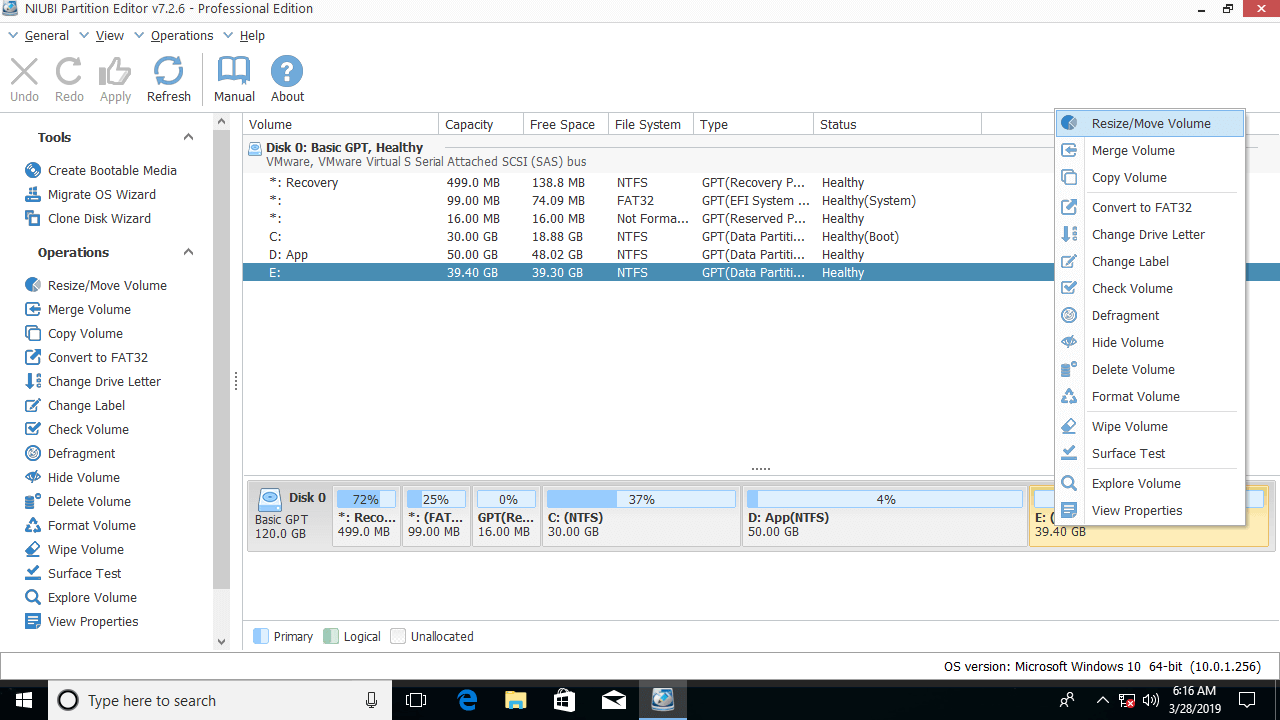
Then unallocated space will be created at the end.
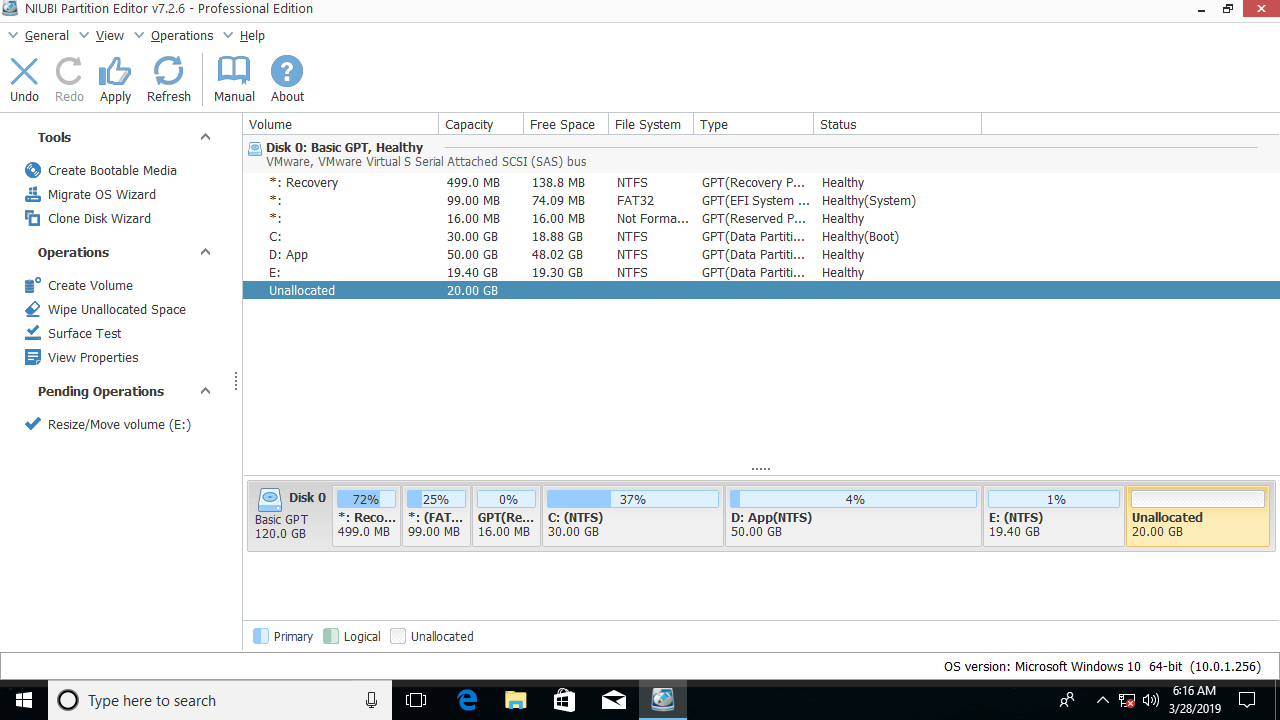
The unallocated space should be equal to or larger than the used space of drive D. If there is not enough unused space in the last drive E, you have two options:
- Transfer all files in E and then delete it to get unallocated space (right-click it and select "Delete Volume").
- Shrink the original drive D or any partition behind it (if there is any), then move the unallocated space to the end.
Step 2: Right-click drive D and select "Copy Volume".
Select the Unallocated space in the pop-up window.
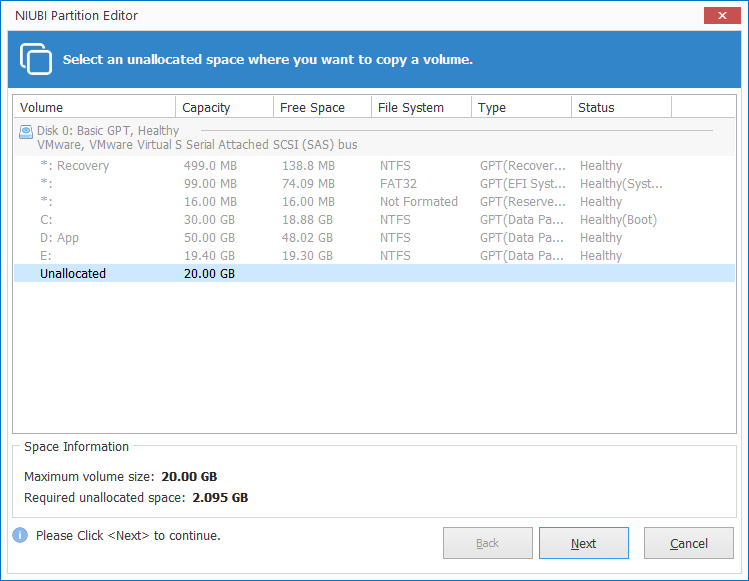
Click Finish or edit the target partition first.
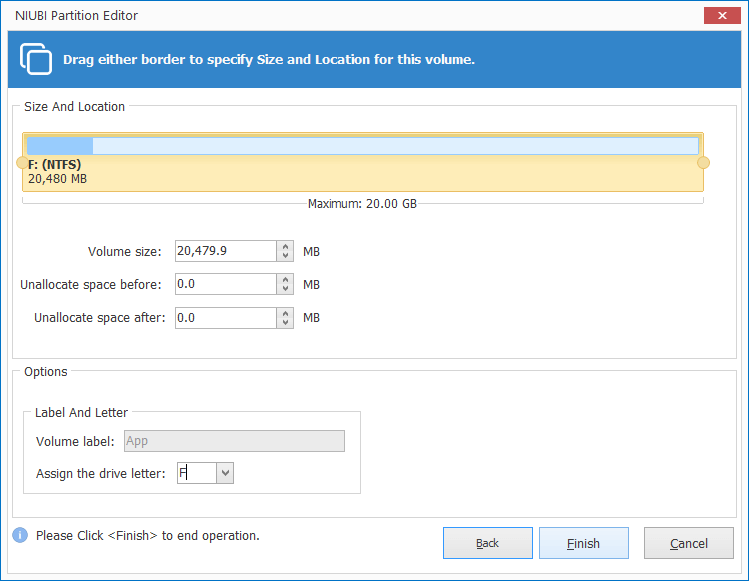
If the unallocated space is larger than the used space of the D drive, you may drag the right border to the right to merge all unallocated space.
Then partition D is copied to F.
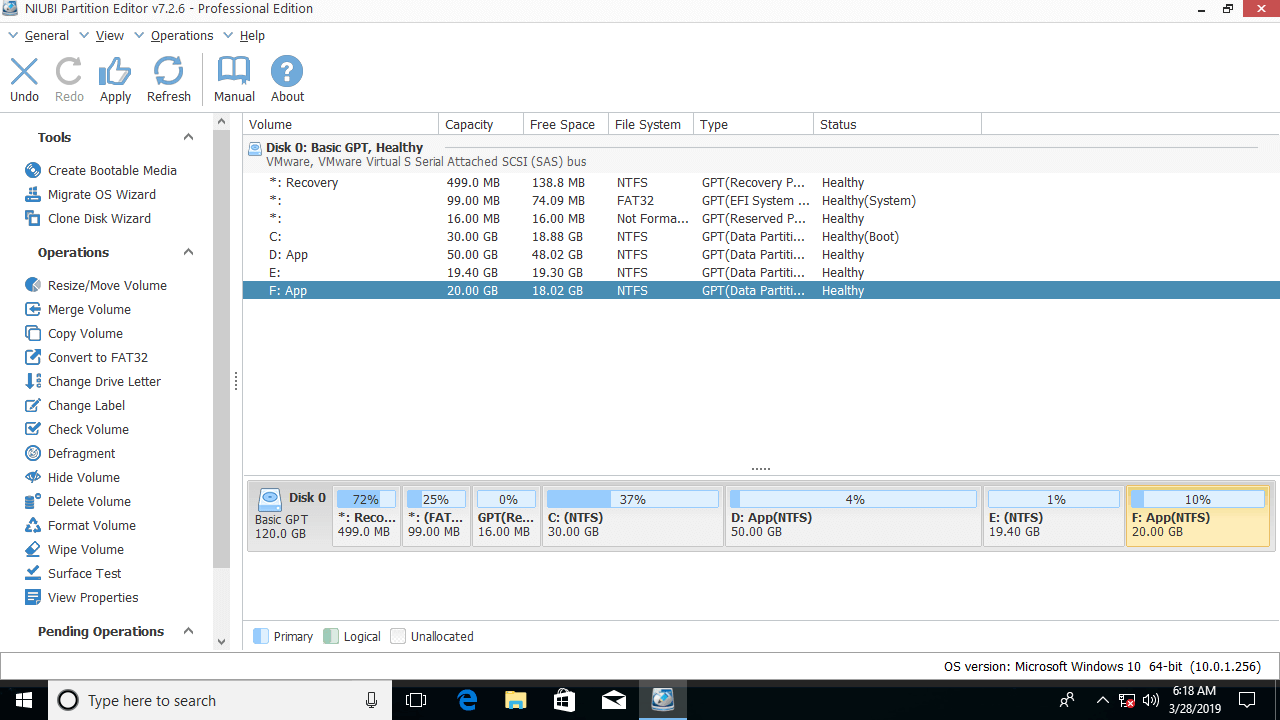
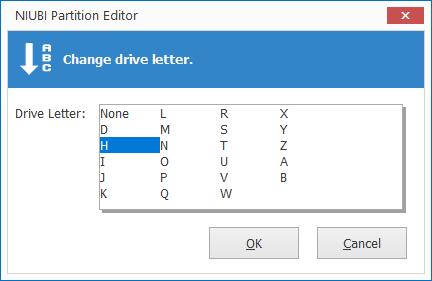
Step 3: Right-click drive D and select "Change Drive Letter", then change it to any other one. Next, change the drive letter of drive F to D.
Regarding the original drive D, you have several choices:
- Delete it to create a new volume.
- Delete it and merge the unallocated space into either contiguous partition.
- Delete it, move the unallocated space to the right side of E, and then merge it into the new drive D.
After clicking Apply on the top left to execute the changes, partition D will be "moved" to the end of this disk.
If the partitions are out of order and you want to correct them, you can fix this issue without moving partitions. Simply right-click the partitions and select "Change Drive Letter" one by one.
How to Move Partition to Other Disk
If you want to move a data volume to another disk, the steps are the same as above. But if you want to move the system partition to another disk, it is different.
The C drive is where the Operating System boots from. To ensure the OS remains bootable, you should run the Clone Disk Wizard to copy the entire disk. After that, replace the original disk or boot from the new disk.
In Summary
This article introduces several ways to move a partition volume on Windows 10. Find out your disk partition layout and decide how you want to move the hard drive partitions. With NIUBI Partition Editor, you can move a partition inside a disk or copy it to another one.
 © 2009 - NIUBI Technology All Rights Reserved. |