
If there is only a C drive on your server system disk, you can shrink the C drive to create separate partitions for programs. Storing all files and applications on the system partition is not recommended. When database or exchange drives are getting full, you can shrink other drives to get free space. This article introduces both native and software methods to shrink volume in Windows Server 2019/2022 without losing data.
How to Shrink Volume in Windows Server 2019/2022 Without Software
Like previous releases, Windows Server 2019 and 2022 include the native Disk Management utility. It provides a built-in tool to shrink NTFS partitions without losing data. However, compared to professional server partition software, Disk Management has several limitations. Extra caution is required when shrinking partitions on a disk that contains both Primary and Logical partitions.
Steps to shrink volume in Windows Server 2019/2022 with Disk Management:
- Press Windows + X on your keyboard and select Disk Management from the list.
- Right-click the targeted NTFS partition and choose Shrink Volume.
- Enter a value in megabytes and click Shrink to execute. If you don't enter an amount, it will use the maximum available free space by default.
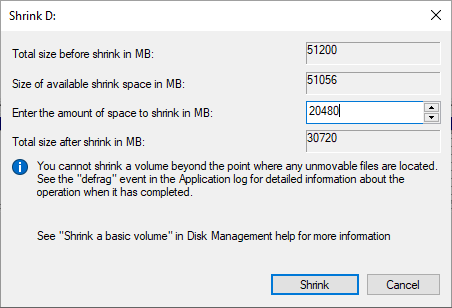
The shrinking process completes quickly, making Unallocated space on the right side of the drive.
Limitations of the Shrink Volume Function in Windows Server 2019/2022
As mentioned above, Disk Management has several limitations when shrinking a partition, which are detailed below:
1. Only NTFS Partitions Are Supported
Disk Management only supports shrinking NTFS partitions. FAT32 and other types of partitions are unsupported. If you right-click a FAT32 partition, the Shrink Volume option is grayed out.
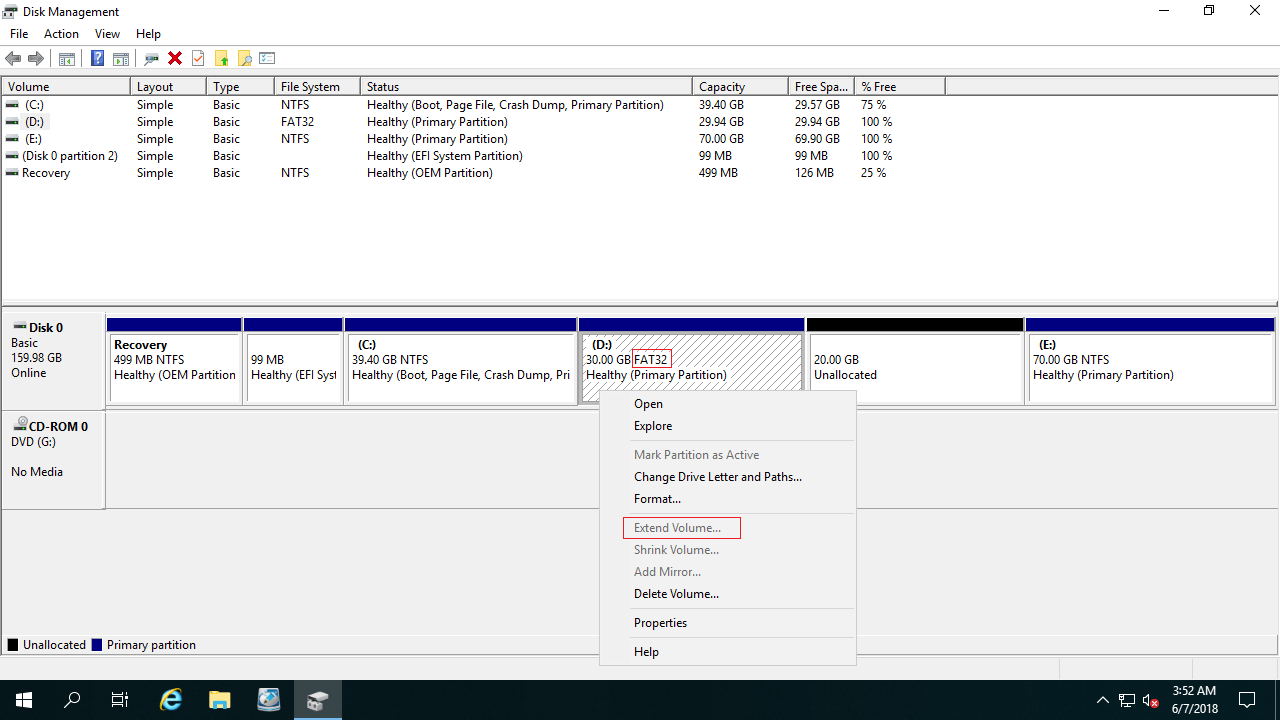
2. Partitions Can Only Be Shrunk Toward the Left
When shrinking a partition with Disk Management, the tool can only shrink it towards the left. This means Unallocated space can only be made on the right side. You cannot change this behavior in the wizard.
3. Volumes Cannot Be Shrunk Beyond the Point of Unmovable Files
The Shrink Volume dialog explicitly warns that you cannot shrink a volume beyond the point where any unmovable files are located.
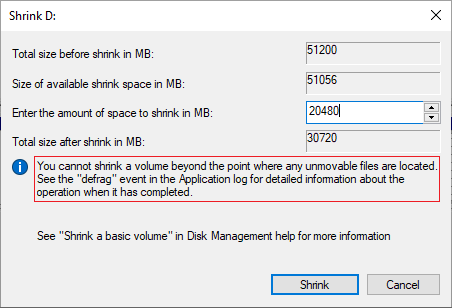
For example, if a drive consists of 4 blocks, and there are unmovable files in block 3, you cannot shrink this drive to block 1 or 2.
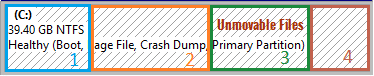
Because of this restriction, you cannot shrink the drive to your desired size, even if there is ample free space. These unmovable files typically include page files, hibernation files, and system restore points.
Better Way to Shrink Partition in Windows Server 2019/2022
Compared to Disk Management, NIUBI Partition Editor supports both NTFS and FAT32 partitions. It can make Unallocated space on either the left or right side when shrinking a volume. Furthermore, it can move unmovable files, allowing you to shrink a partition to its minimum size. It can also safely move and merge Unallocated space to either contiguous or non-adjacent partitions on the same disk.
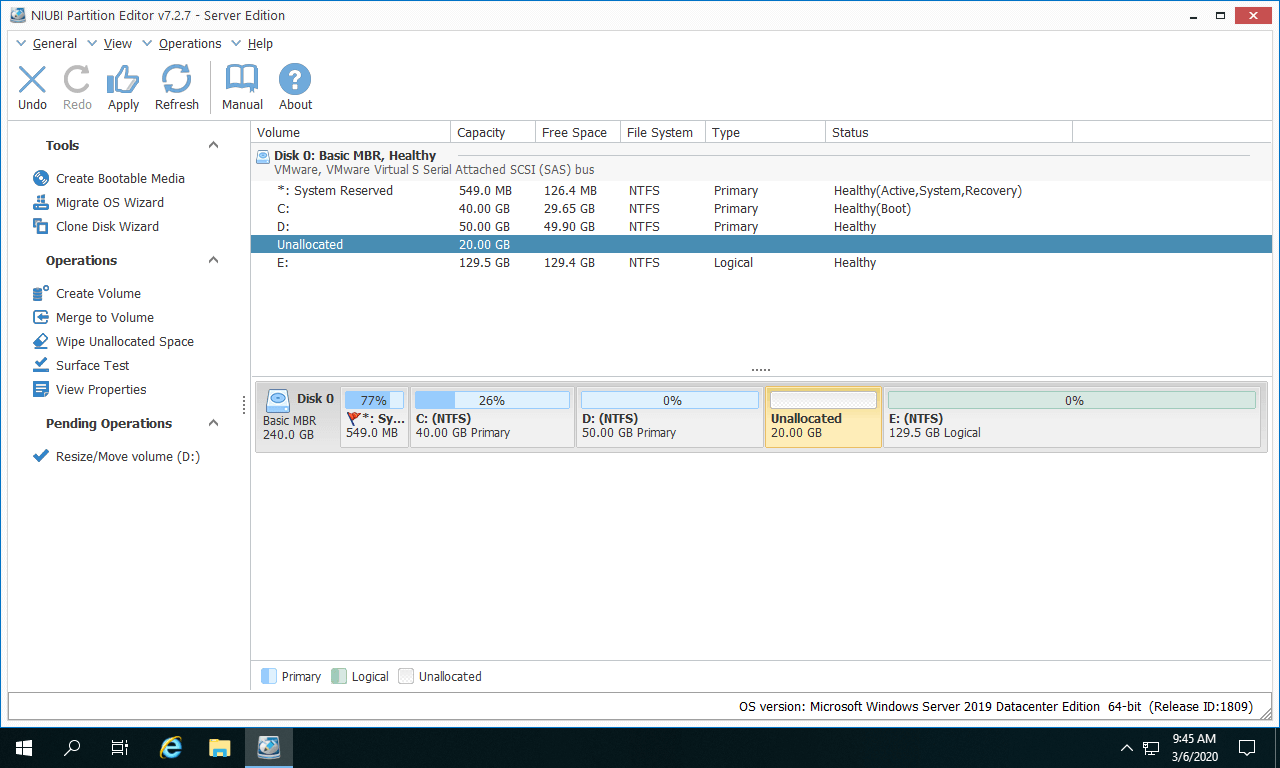
After launching NIUBI Partition Editor, you will see all disk partitions with detailed information on the main window.
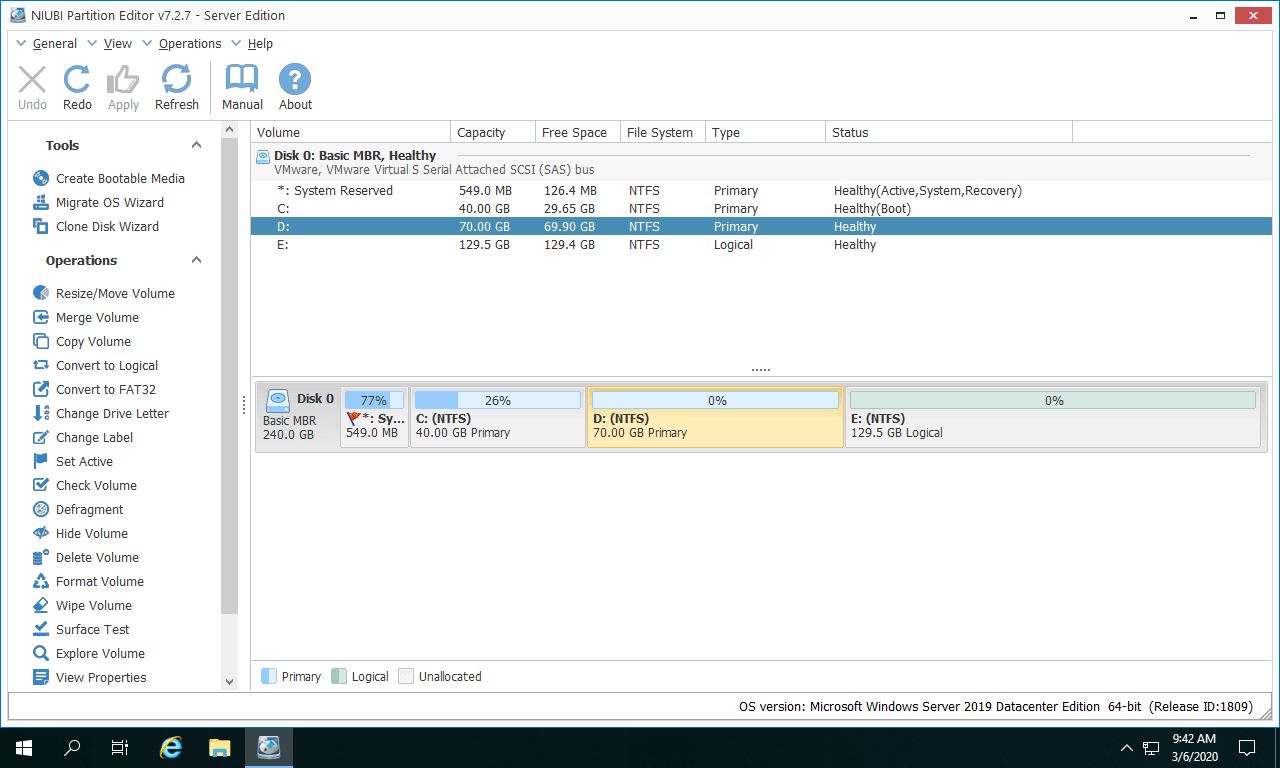
Right-click the drive that you want to shrink (here is D:) and select "Resize/Move Volume". In the pop-up window, you have two options:
If you drag the left border rightward or input a value into the "Unallocated space before" field:
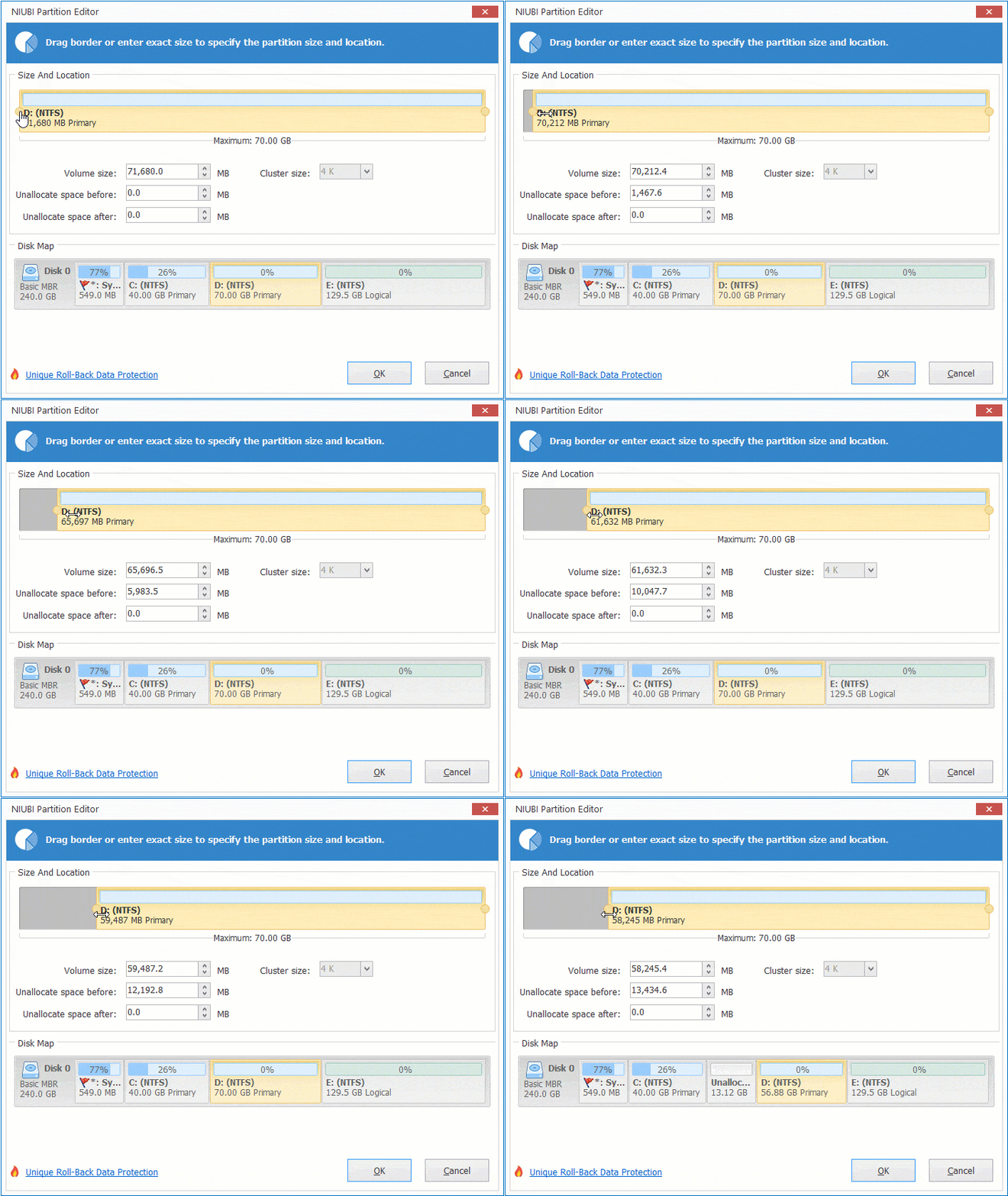
Unallocated space will be made on the left side.
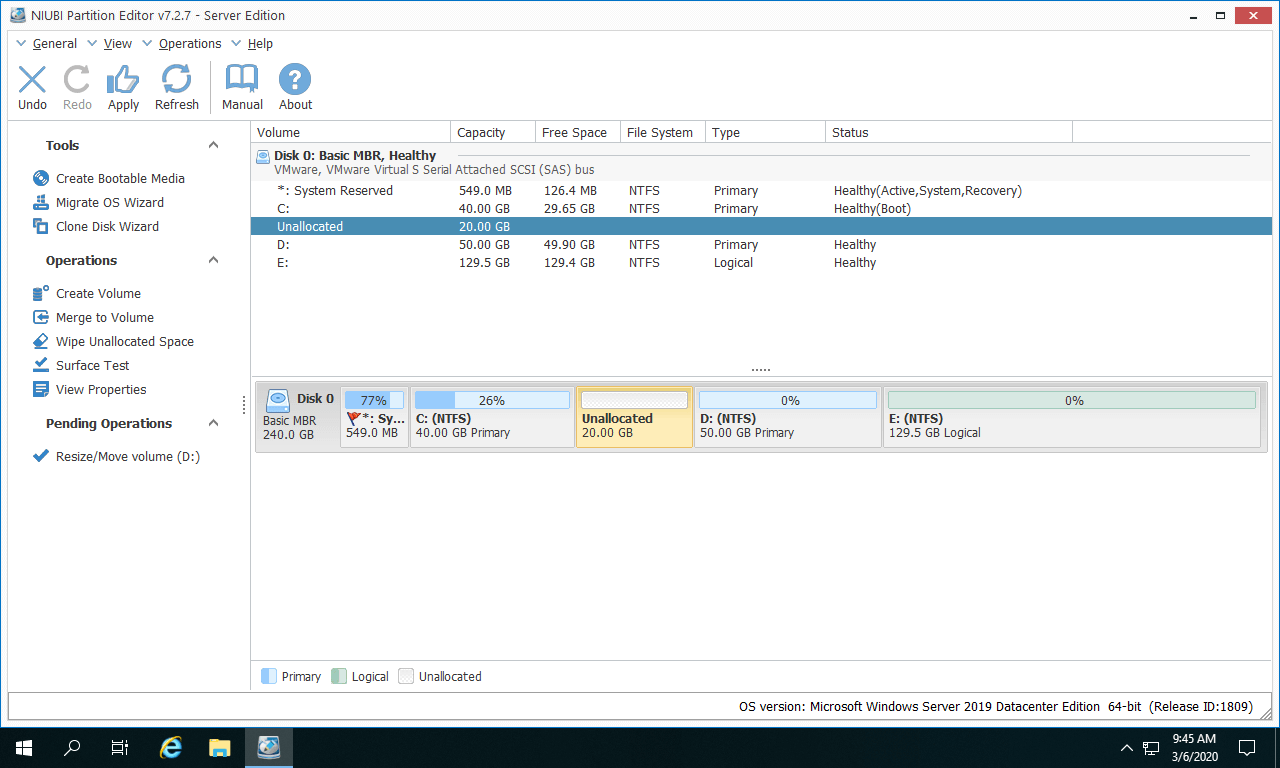
If you drag the right border leftward or input a value into the "Unallocated space after" field:
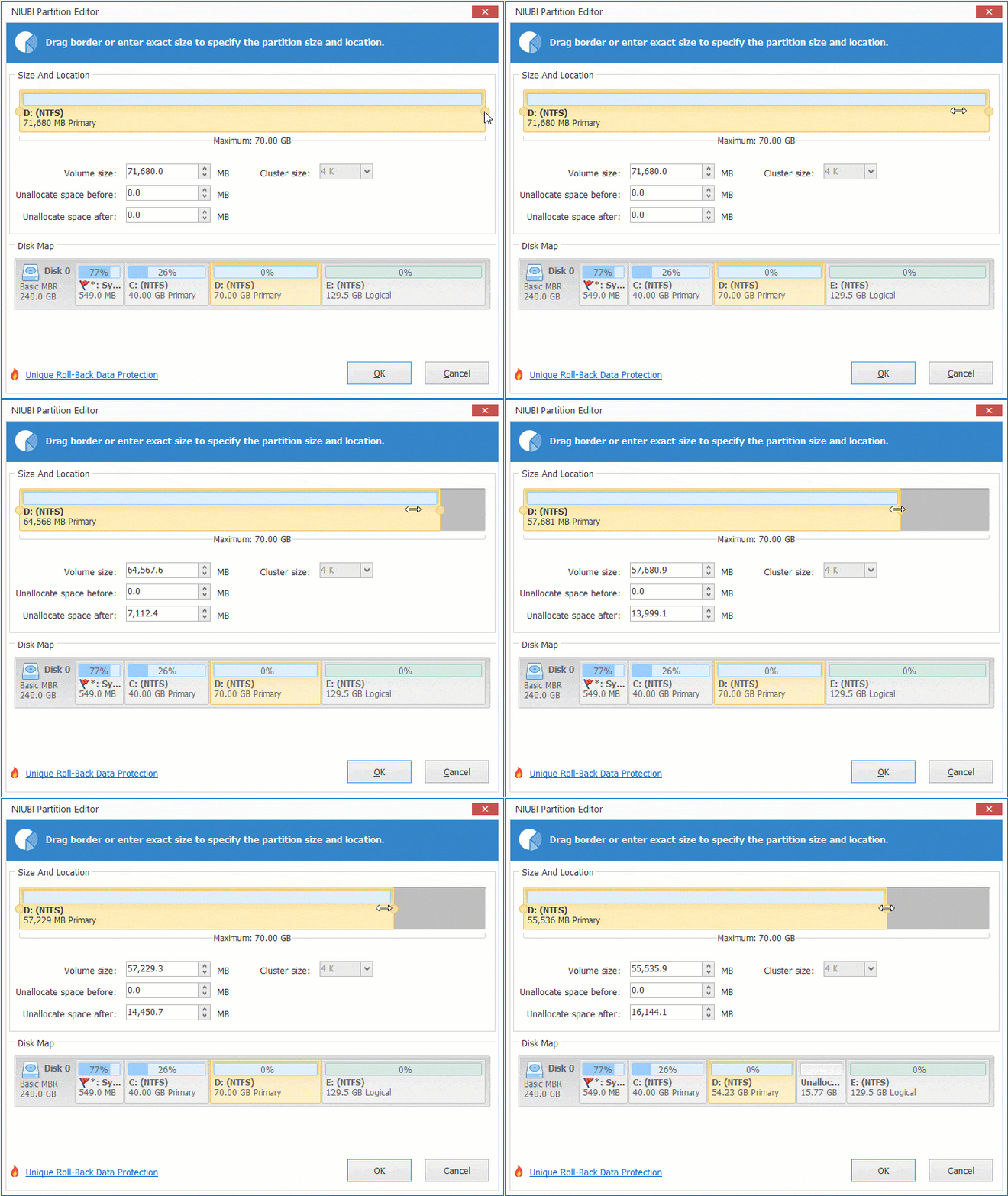
Unallocated space will be made on the right side.
Steps to shrink volume in Windows Server 2019/2022 without losing data via video guide:
Once Unallocated space is made, you can right-click it and select "Create Volume" to make a new drive. If your goal is to extend a partition using this space, right-click that partition and select "Resize/Move Volume", then drag the border to combine the Unallocated space. If the target partition and the Unallocated space are not adjacent, you can easily move the partition to make them contiguous and then merge them.
Besides shrinking partitions in Windows Server 2019/2022/2025, NIUBI Partition Editor helps you perform many other disk and partition management operations, such as extending, merging, copying, converting, defragmenting, hiding, and wiping partitions.
 © 2009 - NIUBI Technology All Rights Reserved. |