
Besides the basic ability to delete, create, and format a partition, the Windows 10/8/7 native Disk Management utility has advanced "Shrink Volume" and "Extend Volume" functions to help resize a partition without losing data. However, it can only shrink a partition to the left and create unallocated space on the right side. In addition, in some cases, it even cannot shrink a volume in Windows 10/8/7. This article explains the reasons why you cannot shrink a Windows 10 partition with Disk Management and what to do when you are unable to shrink a volume in a Windows 10/8/7 laptop/desktop/tablet computer.
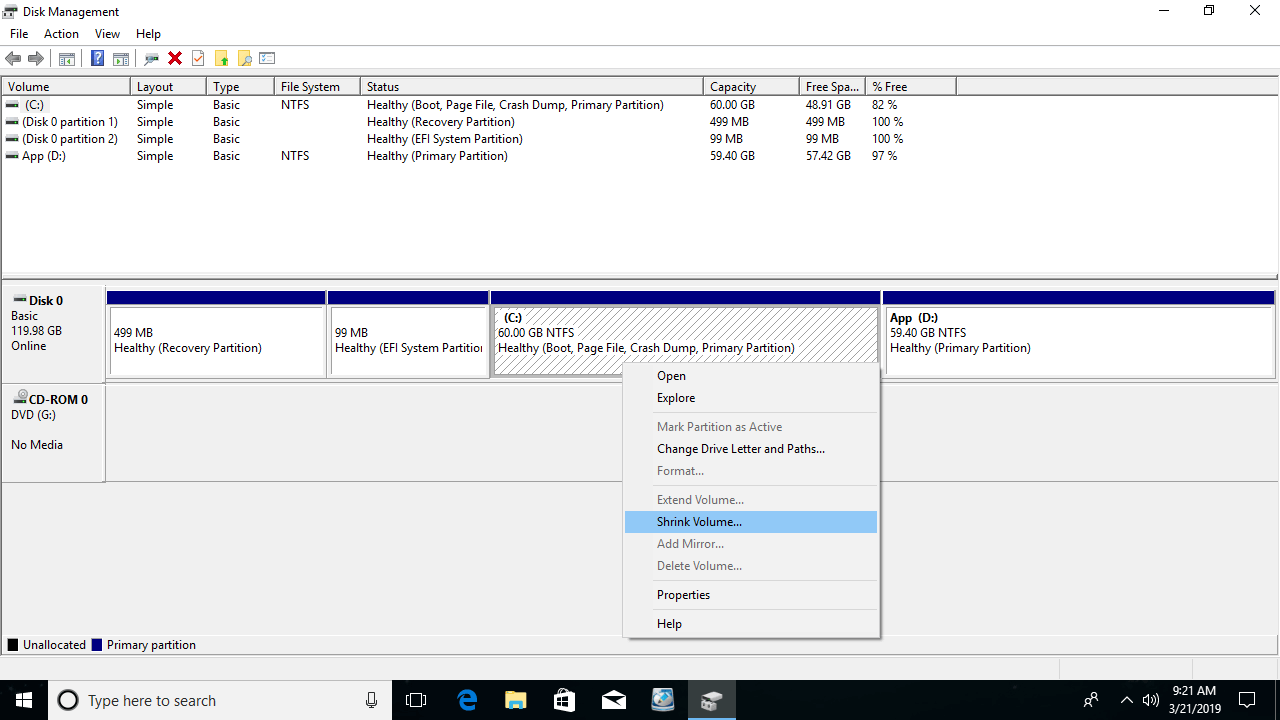
Why Disk Management Cannot Shrink a Partition in Windows 10/8/7
There are 4 common reasons why you cannot shrink a volume in Windows 10/8/7 with the native Disk Management tool.
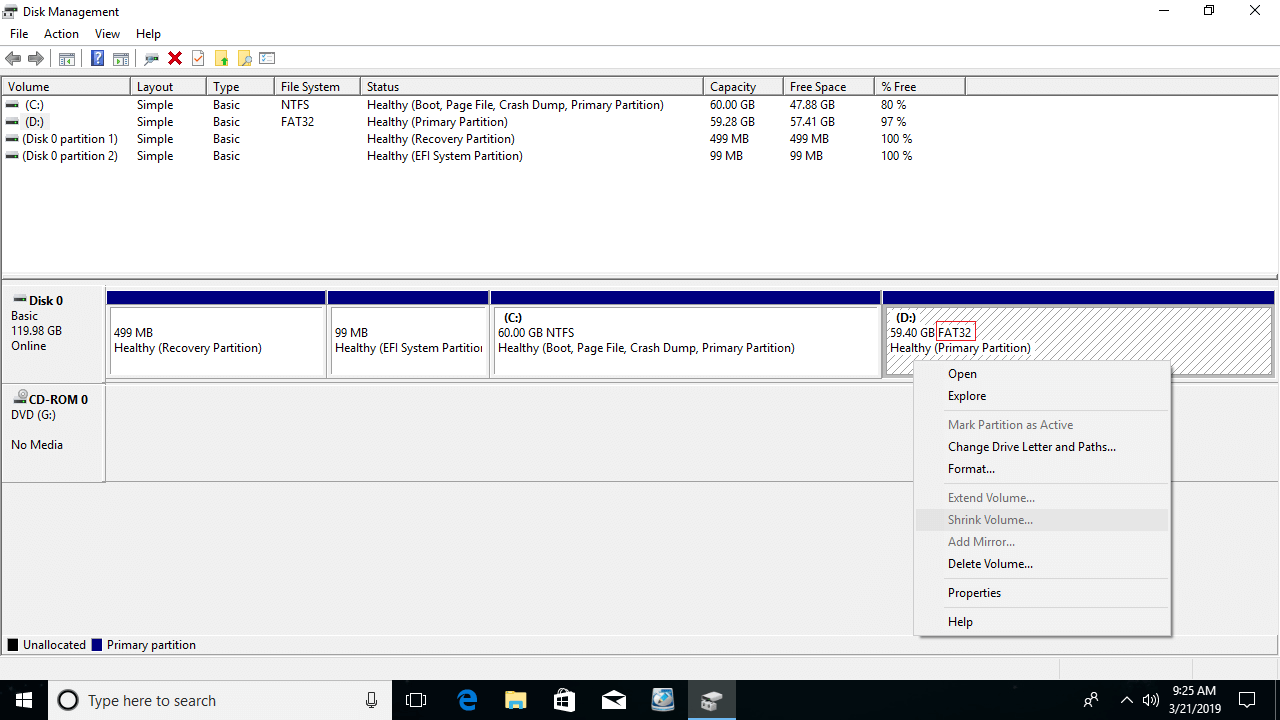
Reason 1: File System Is Not Supported
Disk Management can only shrink and extend partitions that are formatted with the NTFS file system; FAT32 and any other types of partitions cannot be shrunk or extended.
Reason 2: Not Enough Free Space
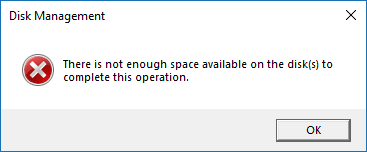
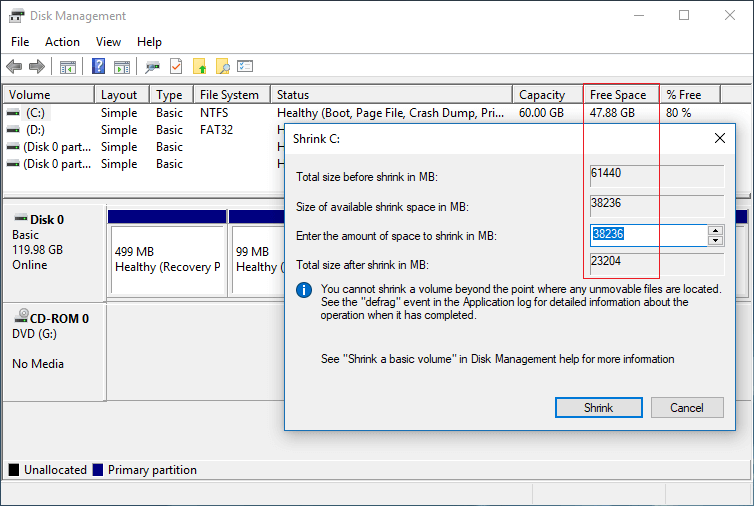
After running Shrink Volume, Disk Management calculates disk space usage and gives you the maximum available space by default. If you do not enter a smaller amount, you may receive the error that "there is not enough space available".
Reason 3: File System Error
If there is a file system error or another system issue, Disk Management cannot shrink a partition by even 1MB.
Reason 4: There Are Unmovable Files
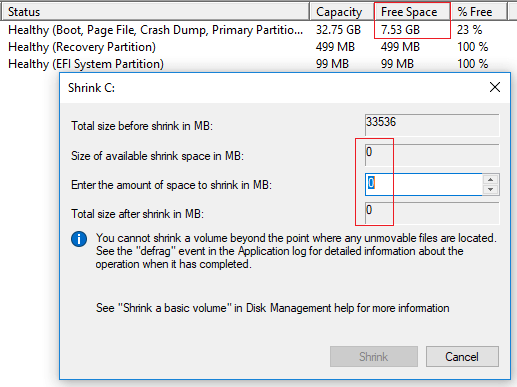
If there are some unmovable files, such as the Paging file and hibernation files located in this partition, Disk Management can only shrink a little space.
What to Do When You Are Unable to Shrink a Volume in Windows 10/8/7
When you cannot shrink a volume in Windows 10/8/7 with Disk Management, find out the reason above and follow the corresponding solution below.
Solution 1: Shrink with Partition Software
If you want to shrink a FAT32 partition, "Shrink Volume" is grayed out in Windows 10/8/7 Disk Management. In that case, you need to run third-party software such as NIUBI Partition Editor.
Solution 2: Shrink with Less Space
As mentioned above, Disk Management will calculate the disk space of the partition that you want to shrink and then give you the maximum available space. If you entered a larger space or many files were saved to this partition before you clicked the Shrink button, the real available space and the calculated amount of space will conflict. In that case, you just need to run "Shrink Volume" again or enter a smaller amount by yourself.
Solution 3: Fix File System Error
Many computers have a file system error in one or more partitions. In general, you will not find any difference in daily usage, but you may encounter issues while shrinking and extending partitions. If there is plenty of free space in a partition, but Disk Management gives you 0MB available space or the "Shrink" button is grayed out, try to repair the file system.
How to repair the file system when you cannot shrink a volume in Windows 10/8/7:
- Click the Windows icon or Start menu, type cmd, and you will see a result; right-click it and select Run as Administrator.
- In the command window, type chkdsk X: /v/f and press Enter. (X is the drive letter of the partition that you want to shrink.)
- For the system C: drive, the command window will report that this partition cannot be locked and ask you if you want to schedule this task; type Y and press Enter.
- Restart your computer and shrink the C drive again.
Solution 4: Shrink Partition with NIUBI
If there is plenty of free space in a partition but Disk Management gives little available space when shrinking, it means that there are "unmovable" files in this partition. In that case, shrink with NIUBI Partition Editor. Compared with Disk Management, NIUBI can move these unmovable files; therefore, you can shrink this volume to the minimum size if you want.
What to Do When You Cannot Shrink D to Extend the C Drive
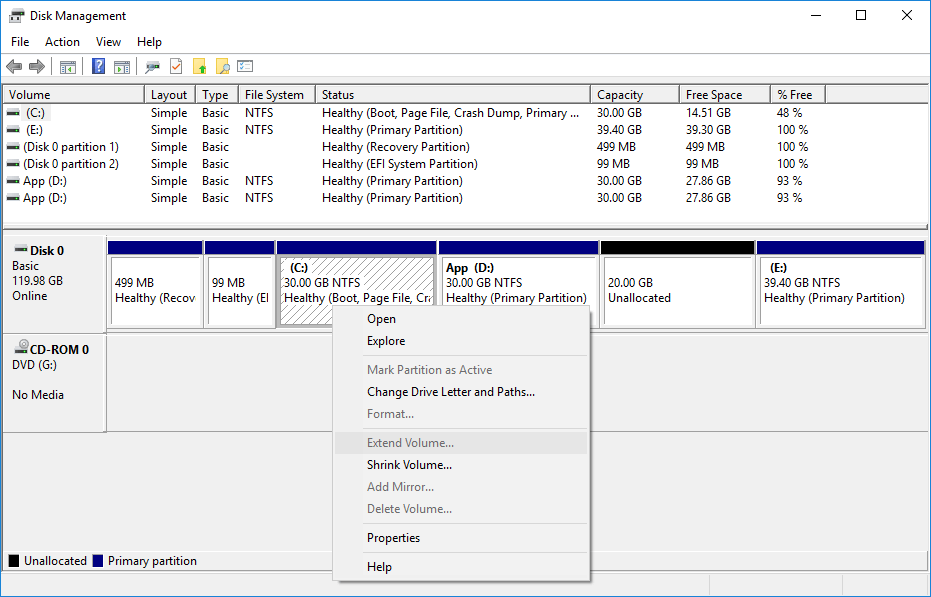
The Windows Disk Management tool cannot change the start position of a partition, so it cannot shrink a partition to the right in Windows 10/8/7. It only gives you the option to enter an amount, and then it shrinks a volume to the left and creates unallocated space on the right automatically.
If you just want to shrink a partition to create a new volume, it does not matter. But it is a big issue if you want to shrink D to expand the C drive, because the unallocated space shrunk from D cannot be added to the C drive with Disk Management.
As seen in the screenshot, after shrinking the D drive, E is on the right side of the unallocated space, and the C drive is non-adjacent; therefore, "Extend Volume" is disabled for both partitions.
Compared with Disk Management, NIUBI Partition Editor has more advantages when repartitioning a hard drive:
- It can shrink and extend both NTFS and FAT32 partitions.
- It can move unmovable files and shrink a partition to its minimum size.
- It can create unallocated space on either the left or the right when shrinking a partition.
- It can merge unallocated space into either contiguous or non-adjacent partitions on the same disk.
NIUBI Partition Editor offers a free edition for Windows 10/8/7/Vista/XP home computer users. It is the same as the commercial edition except for the lack of the 1-Second Rollback technology and bootable media builder. To shrink a partition in a Windows 10 laptop/desktop/tablet, you just need to drag and drop on the disk map.
Download this program, right-click drive D (or another one) and select "Resize/Move Volume". You have 2 options in the pop-up window.
Option 1: If you drag the left border to the right
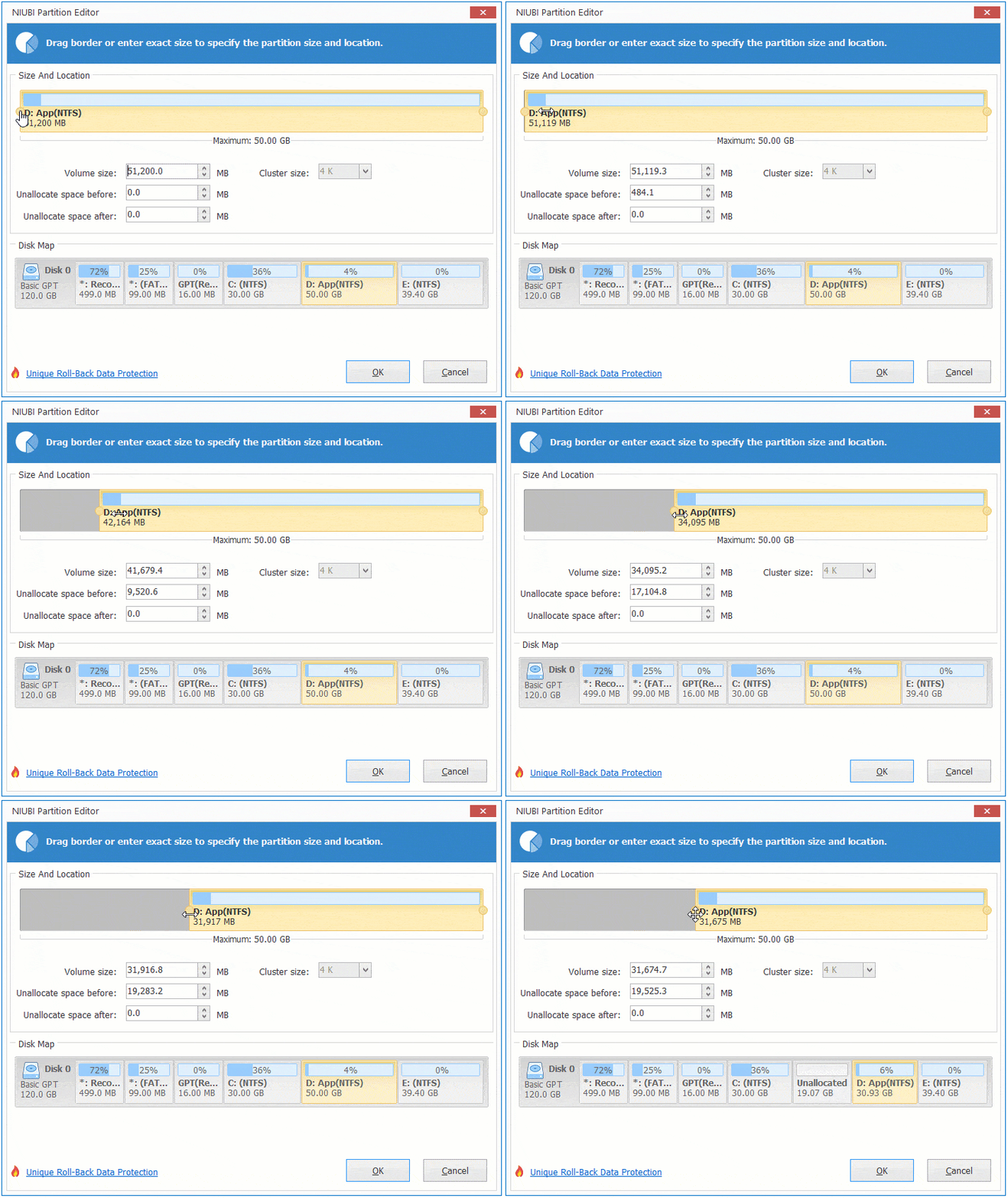
Unallocated space will be created on the left side.
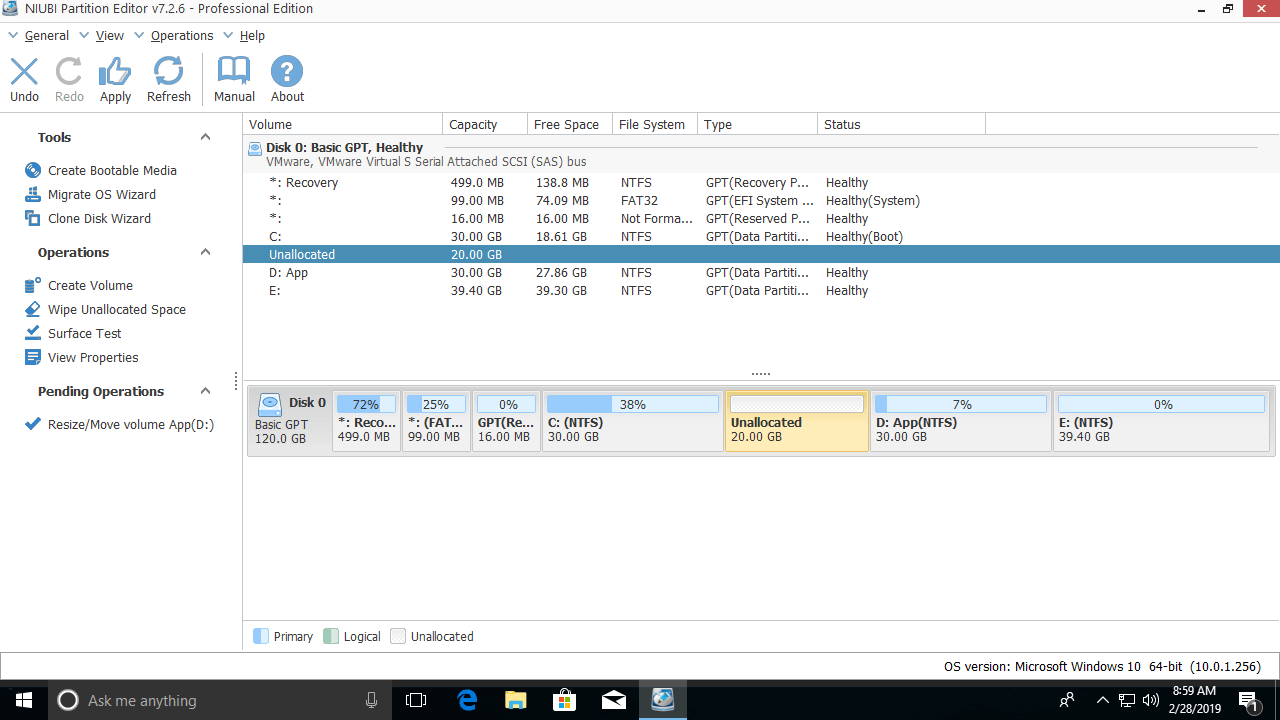
Option 2: If you drag the right border to the left
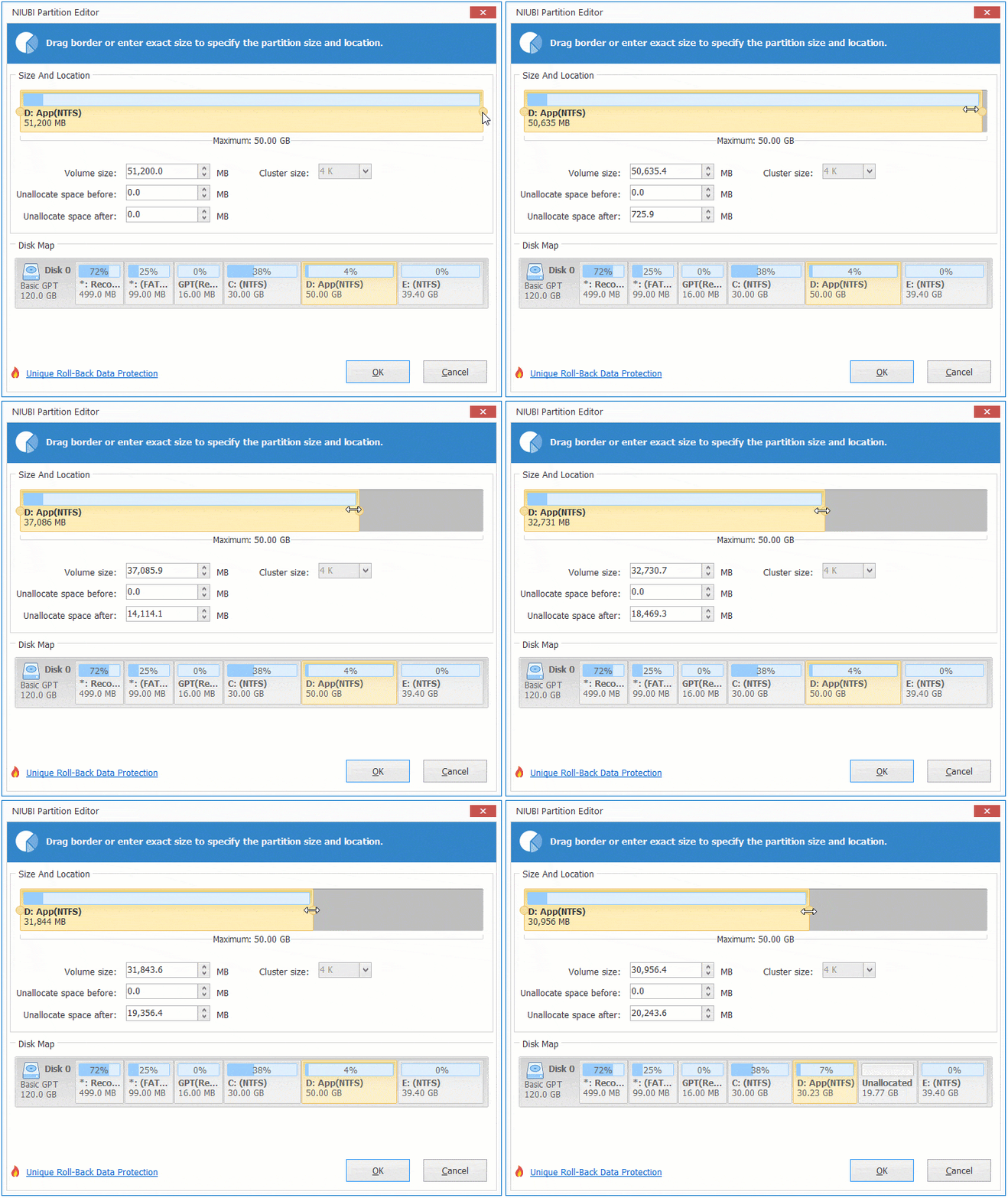
Unallocated space will be created on the right side.
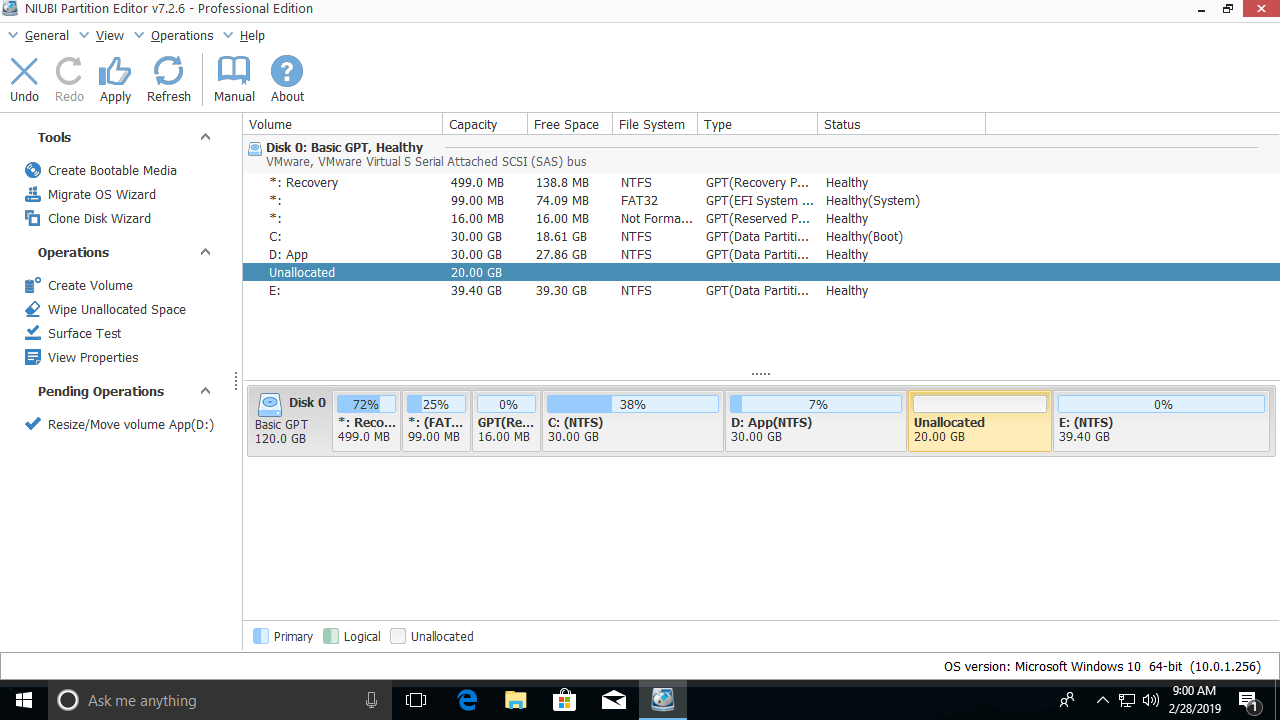
Follow the steps if you want to expand the C drive, extend the system reserved partition, or increase the D drive by shrinking another partition on a disk. Besides shrinking and extending a volume, NIUBI Partition Editor helps you perform many other operations such as moving, merging, converting, wiping, defragging, hiding, and copying partitions. Compared with other tools, it has unique 1-Second Rollback, Virtual Mode, and Cancel-at-Will technologies to protect your system and data.
 © 2009 - NIUBI Technology All Rights Reserved. |