
Disk partitions are allocated when installing Windows or by computer manufacturers. Many people wonder if it is possible to resize a partition in Windows 10 without losing data, because the C drive often runs low on disk space and nobody likes to start from scratch. For many people, it is not an easy task to change the partition size on a Windows 10 computer. In technical forums, many people ask whether it is safe and which tool is the best to resize Windows 10 partitions. This article introduces how to resize a partition in Windows 10 with the native Disk Management tool and the best free partition software.
Partition Resizing Tools for a Windows 10 Computer
There are two kinds of tools to help adjust partition sizes in Windows 10: the native Disk Management and third-party disk partition software. Disk Management can help you shrink an NTFS partition to create a new volume. If you want to extend a partition by shrinking another one, disk partition software is required.
Some people like to use Windows native tools, thinking they have the best compatibility, but this is not always true. Disk Management has been known to destroy partitions when shrinking a partition. Be careful when there are both Primary and Logical partitions on a disk.
To change the partition size on a Windows 10 laptop/desktop/tablet, third-party software is much more powerful. However, few partitioning tools are safe enough. Therefore, you had better make a backup before resizing a partition and run safe software. Otherwise, your system and partitions may be damaged.
Compared with other tools, NIUBI Partition Editor features unique 1-Second Rollback, Virtual Mode, Cancel-at-Will, and Hot Clone technologies to protect your system and data. Its advanced file-moving algorithm helps move, clone, or resize partitions 30% to 300% faster.
How to Resize Partition in Windows 10 via Disk Management:
Windows 10 Disk Management has no "resize volume" function, partition resizing is realized by Shrink Volume and Extend Volume functions. Note: only NTFS partition is supported. FAT32 and any other types of partitions can't be resized by this native tool.
To shrink a volume in Windows 10:
- Press the Windows and X keys on the keyboard and click Disk Management in the list.
- Right-click an NTFS partition and select "Shrink Volume".
- In the pop-up window, enter the amount of space and then click Shrink to execute.
To extend a volume in Windows 10:
- Right-click the right adjacent partition (such as D:) and select "Delete Volume".
- Right-click the left adjacent partition (such as C:) and select "Extend Volume".
- Simply click Next in the pop-up Extend Volume Wizard window.
- Confirm the operation and click Finish to proceed.
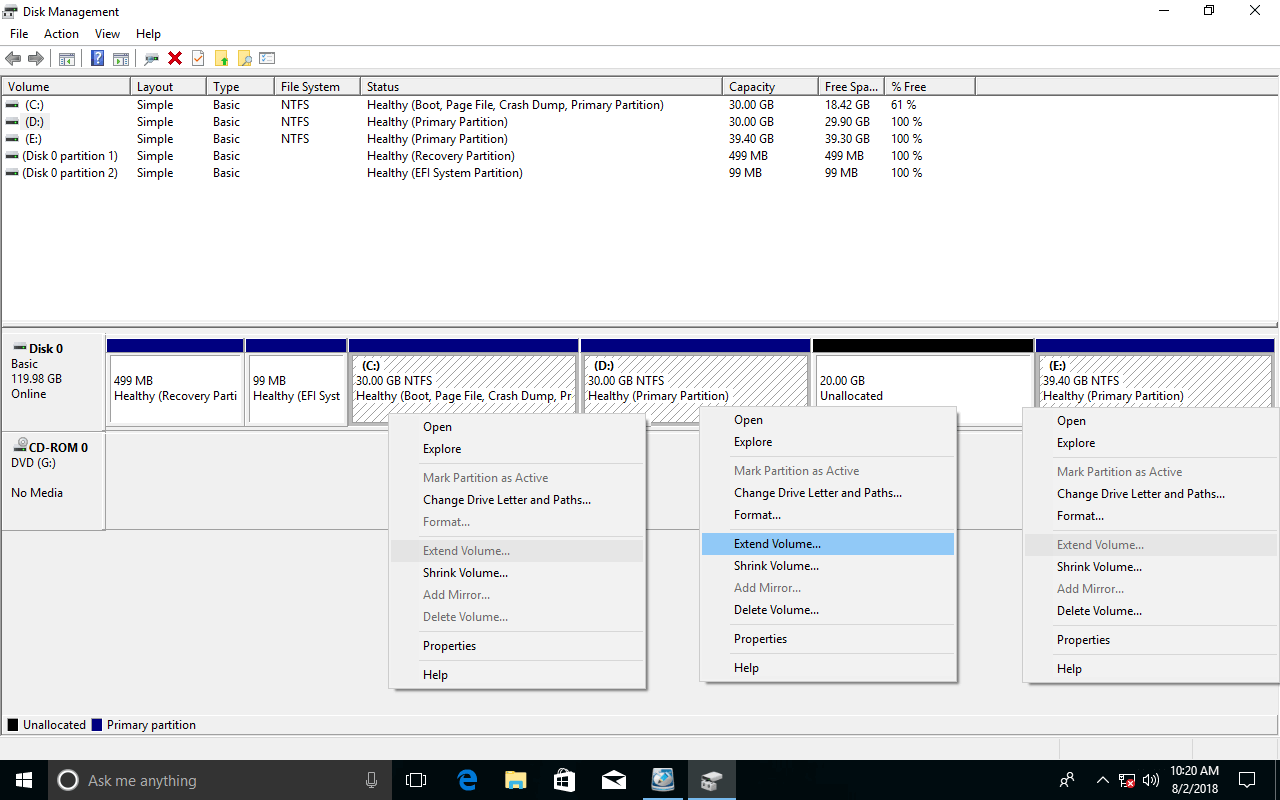
Some people may ask why not shrink D to extend the C drive. This is because Disk Management has no such ability. The "Extend Volume" function only works when there is contiguous unallocated space on the right. The "Shrink Volume" function cannot create such required unallocated space. As you see in the screenshot below, after shrinking the D drive, the unallocated space is on the right of D. It is non-adjacent to the C drive and is on the left of the E drive. This is the reason why "Extend Volume" is disabled for both partitions.
Disadvantages of resizing a Windows 10 partition with Disk Management:
- It can only shrink and extend an NTFS partition; any other partitions are not supported.
- It can only shrink a partition to the left and create unallocated space on the right.
- It cannot shrink a partition to the point where unmovable files are located.
- It can only extend a partition when there is contiguous unallocated space on the right.
Change Partition Size in Windows 10 with Free Partition Software
To resize a partition in Windows 10 without losing data, NIUBI Partition Editor is a better choice. Both NTFS and FAT32 partitions can be resized. Unallocated space can be created on either the left or the right when shrinking a partition. This space can be merged into any contiguous and non-adjacent partitions on the same disk. It offers a free edition for Windows 11/10/8/7/Vista/XP home computer users.
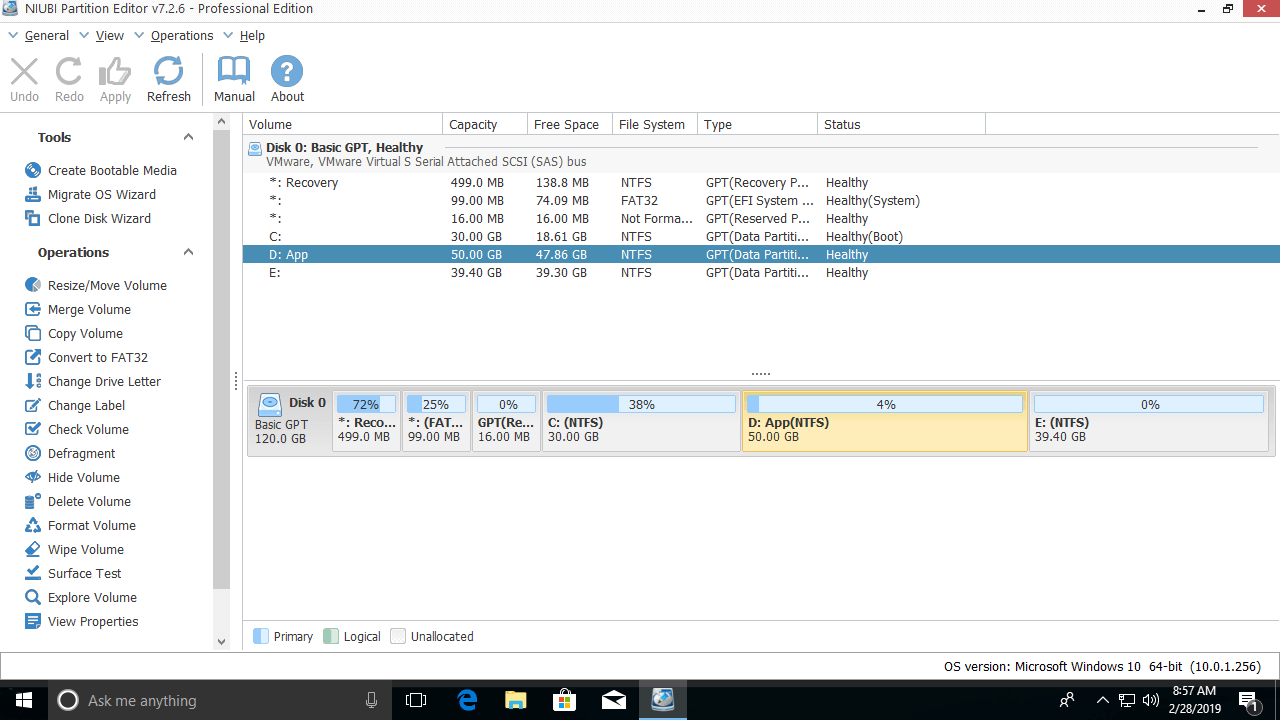
Download the free edition, and you'll see all storage devices with partitions structure and other information on the right. Available operations are listed on the left and by right-clicking.
How to resize a partition in Windows 10 with the free partition editor:
Right-click a partition (here it is D:) and select "Resize/Move Volume". You have two options in the pop-up window.
Option 1: If you drag the left border to the right in the pop-up window,
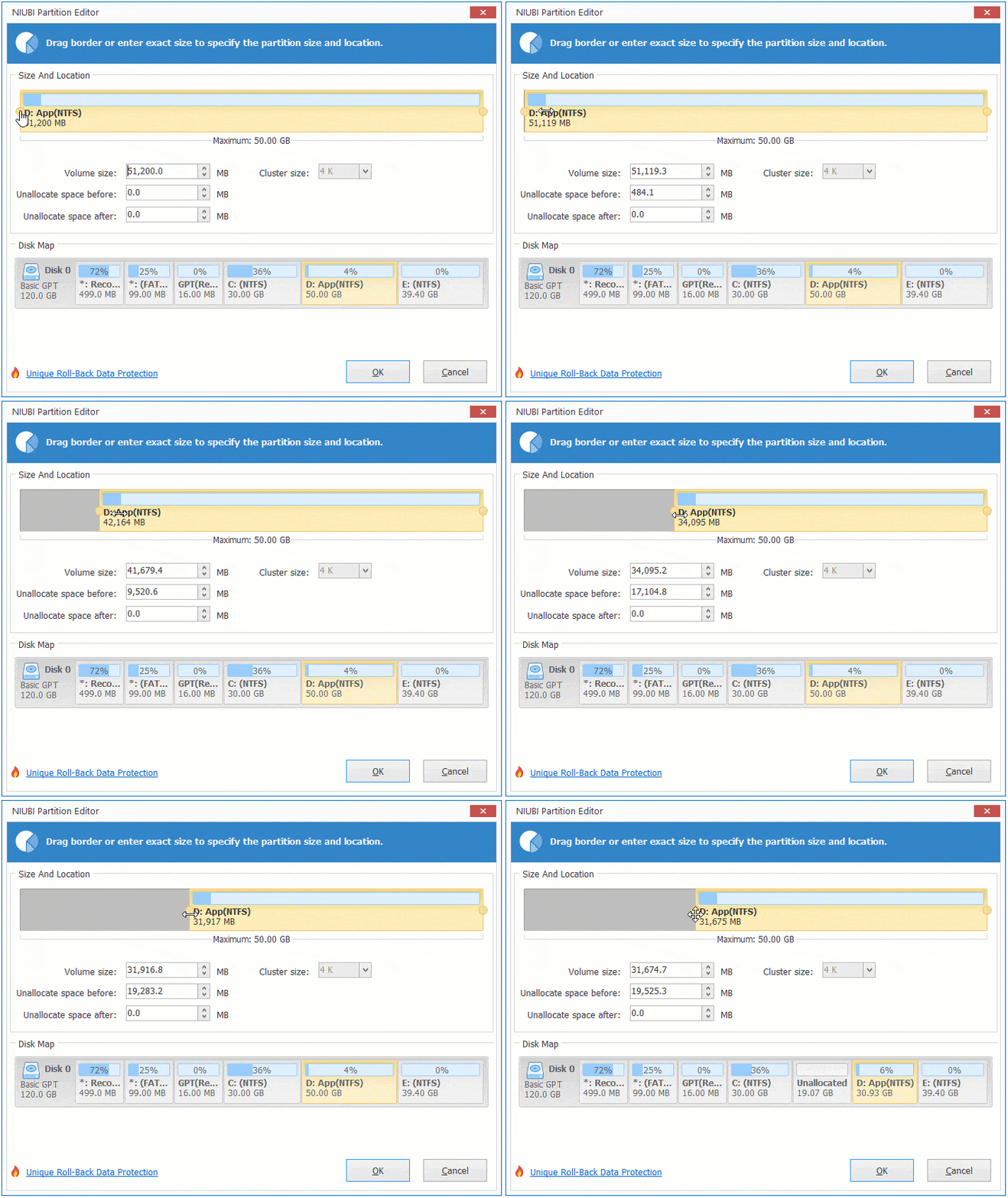
Then partition D is resized and unallocated space is created on the left.
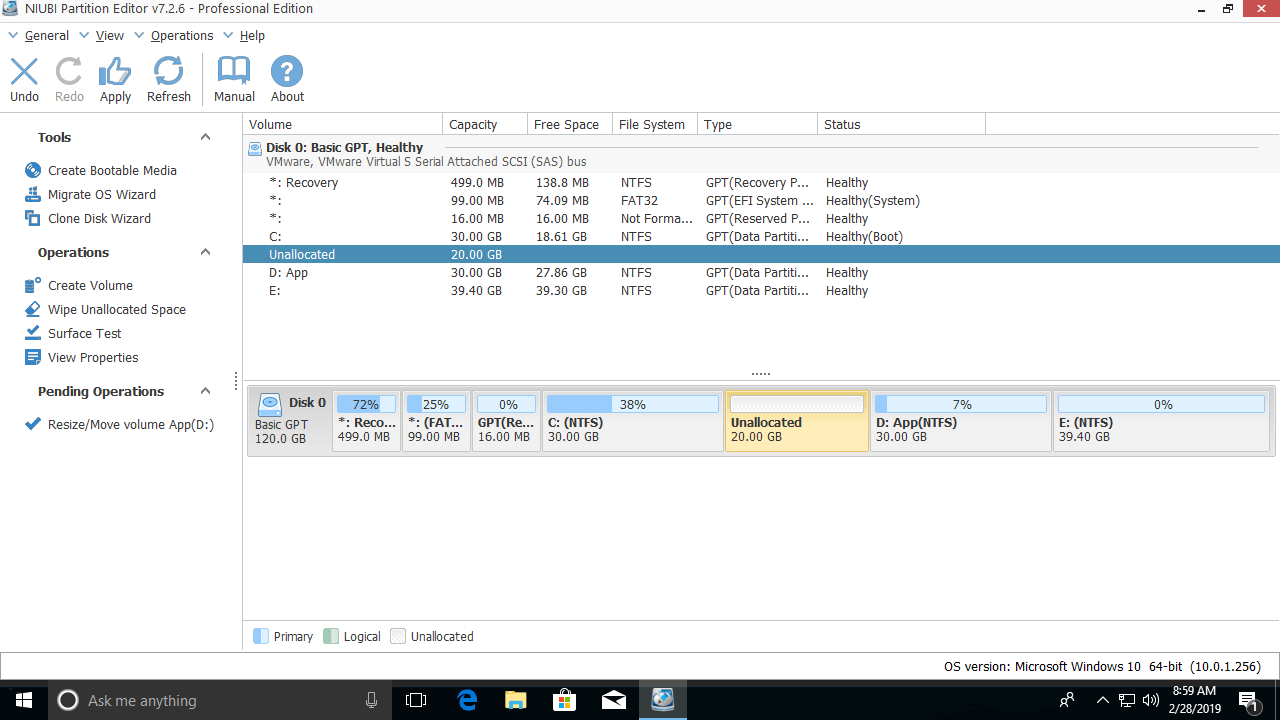
Option 2: If you drag the right border to the left in the pop-up window,
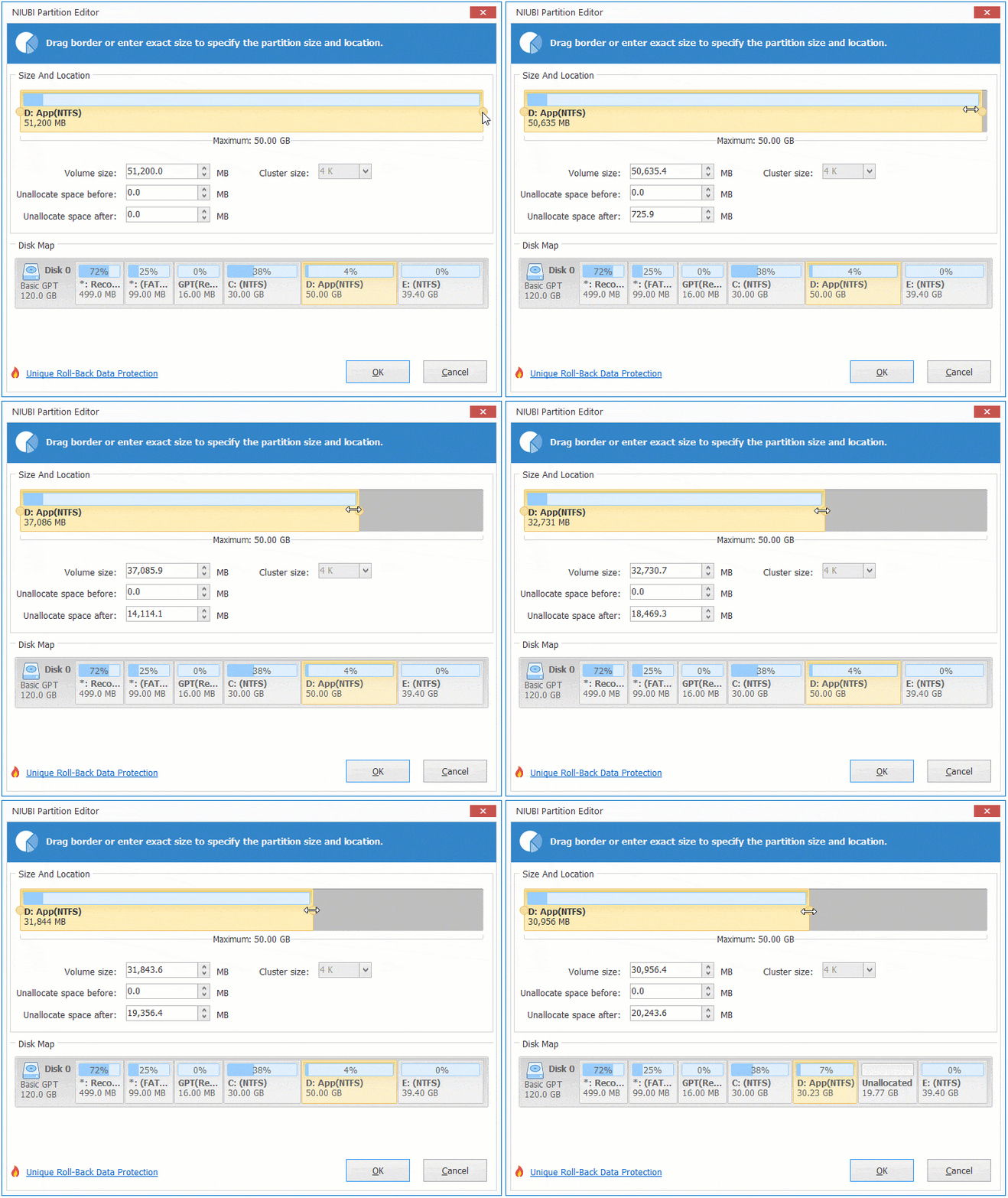
Then unallocated space will be created on the right side of the D drive.
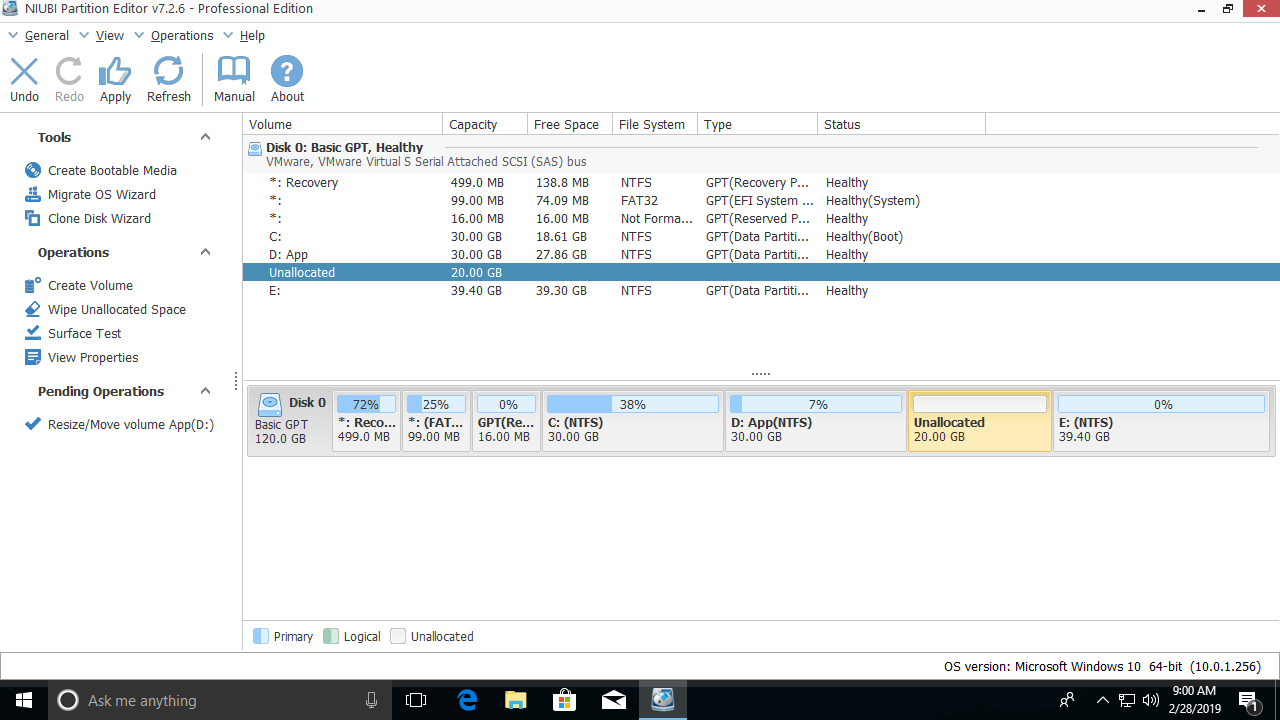
If you want to extend the C drive partition, follow Option 1 above to create unallocated space on the left of D. Then right-click the C: drive and select "Resize/Move Volume" again; drag the right border to the right to merge this unallocated space.
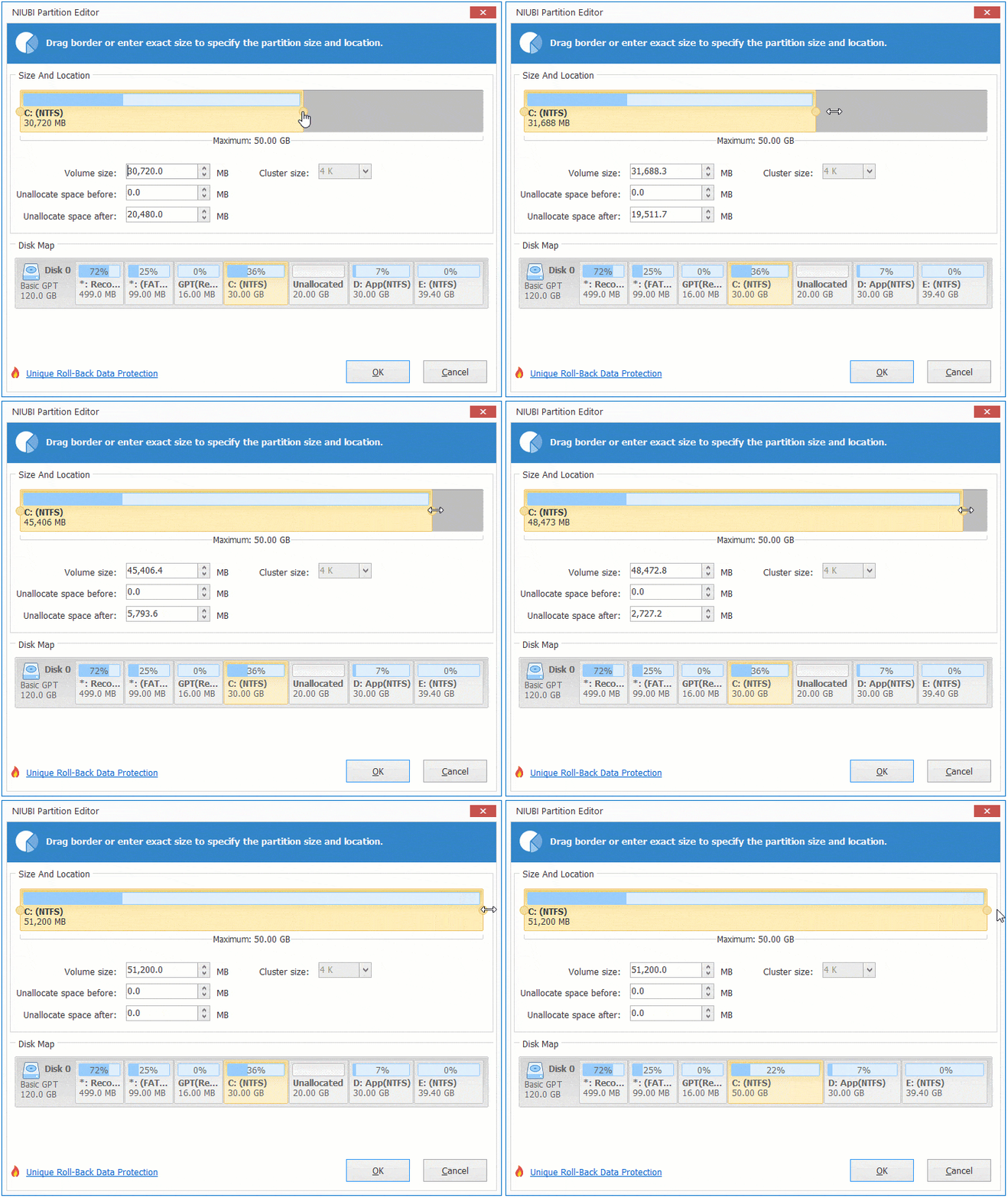
Then two pending operations are created on the bottom left. You need to click Apply on the top left to take effect.
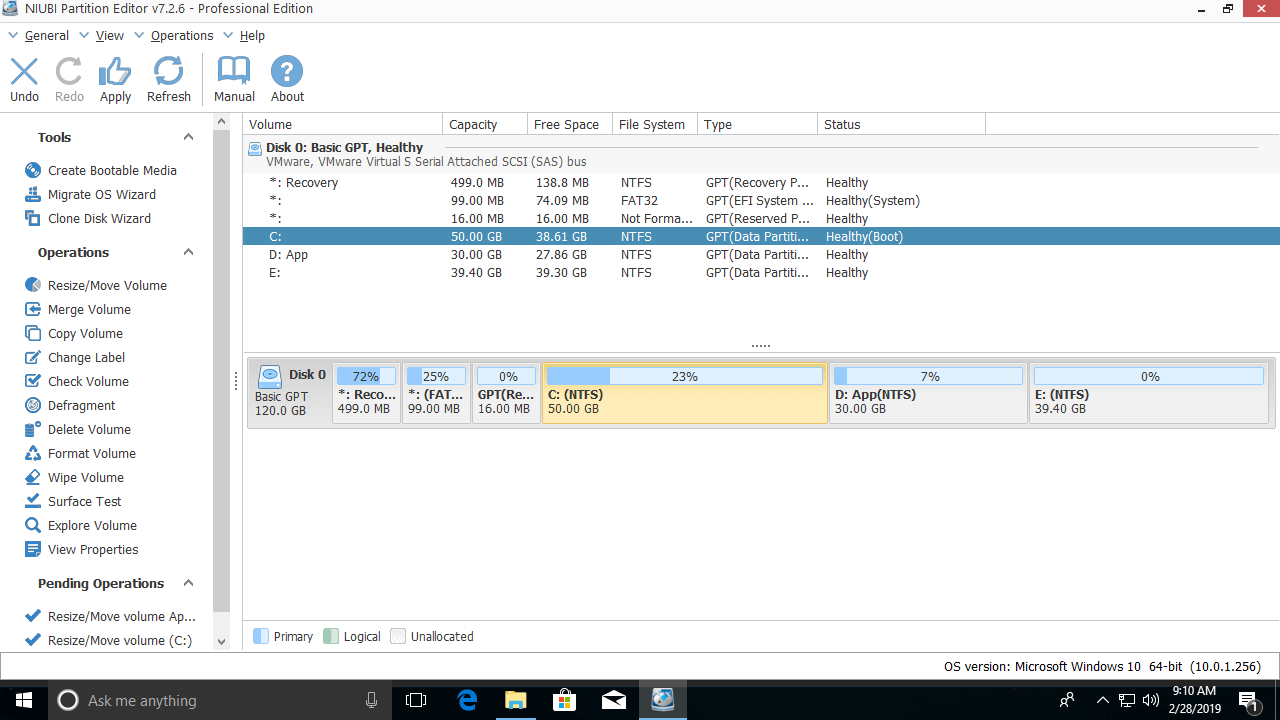
If you want to extend partition E, follow Option 2 above to create unallocated space on the right of the D drive. Then right-click E: and select "Resize/Move Volume" again; drag the left border to the left to merge the unallocated space.
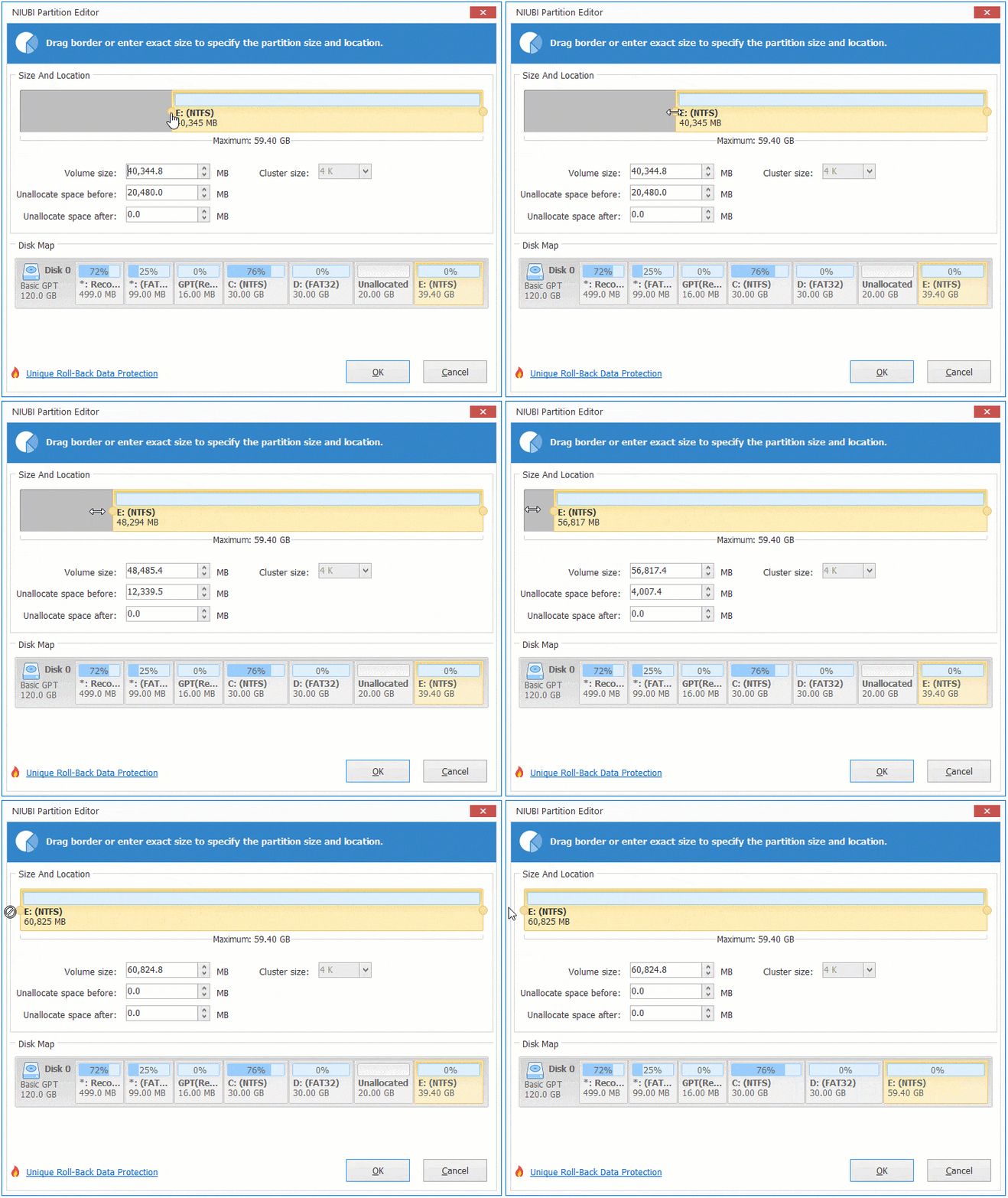
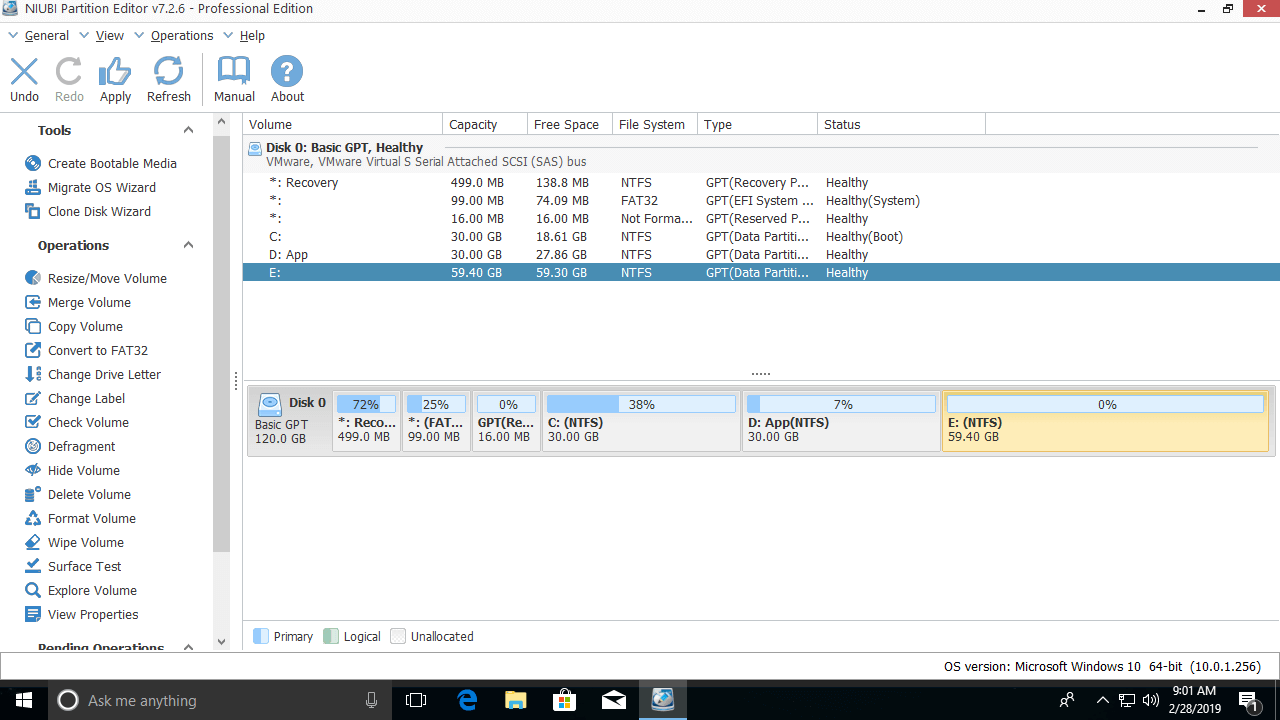
If you want to shrink E to extend the non-adjacent partition C, follow the steps below:
- Shrink drive E: and create unallocated space on the left side.
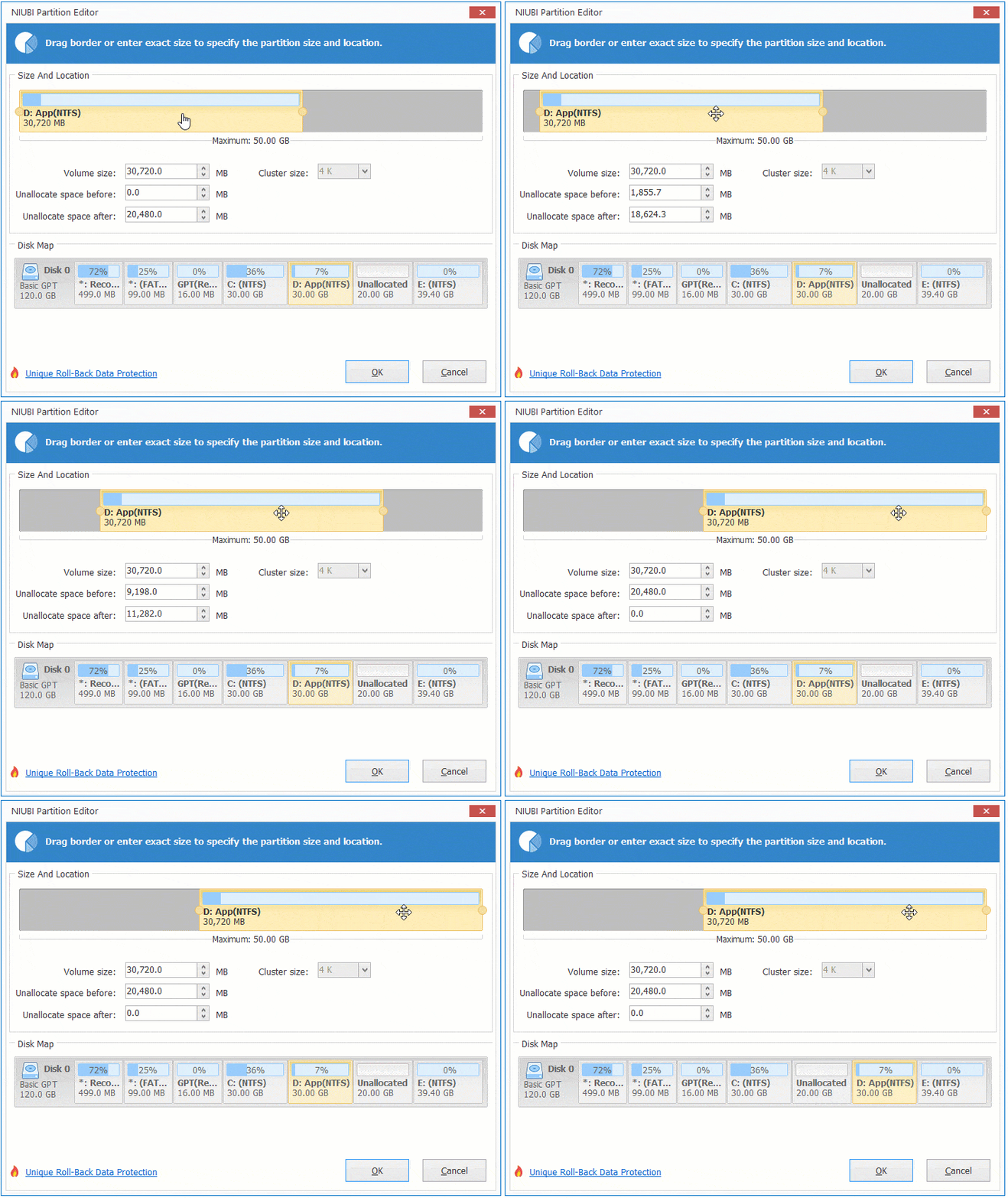
- Move the unallocated space from the right side of drive D: to the left.
- Add the unallocated space to the C drive.
To move the unallocated space from the right to the left, right-click drive D: and select "Resize/Move Volume", then drag the middle of the D drive to the right in the pop-up window:
Watch the video guide on how to change partition size in Windows 10 without losing data:
Besides resizing partition in Windows 11/10/8/7/Vista/XP, NIUBI Partition Editor helps you move, merge, copy, convert, defrag, wipe, hide partition, scan bad sectors and much more.
 © 2009 - NIUBI Technology All Rights Reserved. |