
Similar to previous versions, low disk space on the C drive is a common issue in Windows 10. Many people report that the C drive is almost full after installing Updates. When the C drive runs out of space, you had better fix this issue as fast as possible. Otherwise, you will suffer from decreased computer performance. Your computer may get stuck, reboot unexpectedly, or even crash. This article explains why the C drive runs out of space and how to fix the Windows 10 low disk space issue with the most effective methods.
Symptoms of Low Disk Space on the C Drive in Windows 10
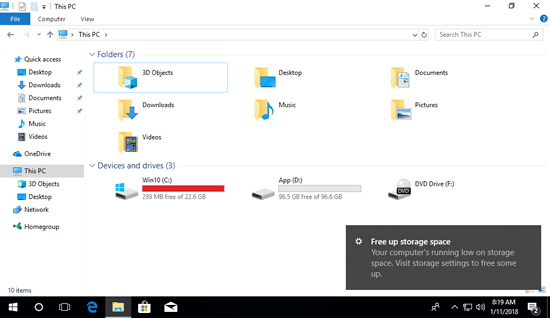
On a Windows 10 laptop/desktop/tablet computer, when the free space is less than 10%, the C drive will be shown in red instead of the default blue bar in File Explorer. This is to alert people to fix this issue as fast as possible.

When the C drive is showing red, you begin to suffer from decreased computer performance. It may get stuck when you perform some operations, or reboot unexpectedly. In this situation, if Windows 10 downloads and installs Updates, the C drive may become full immediately.
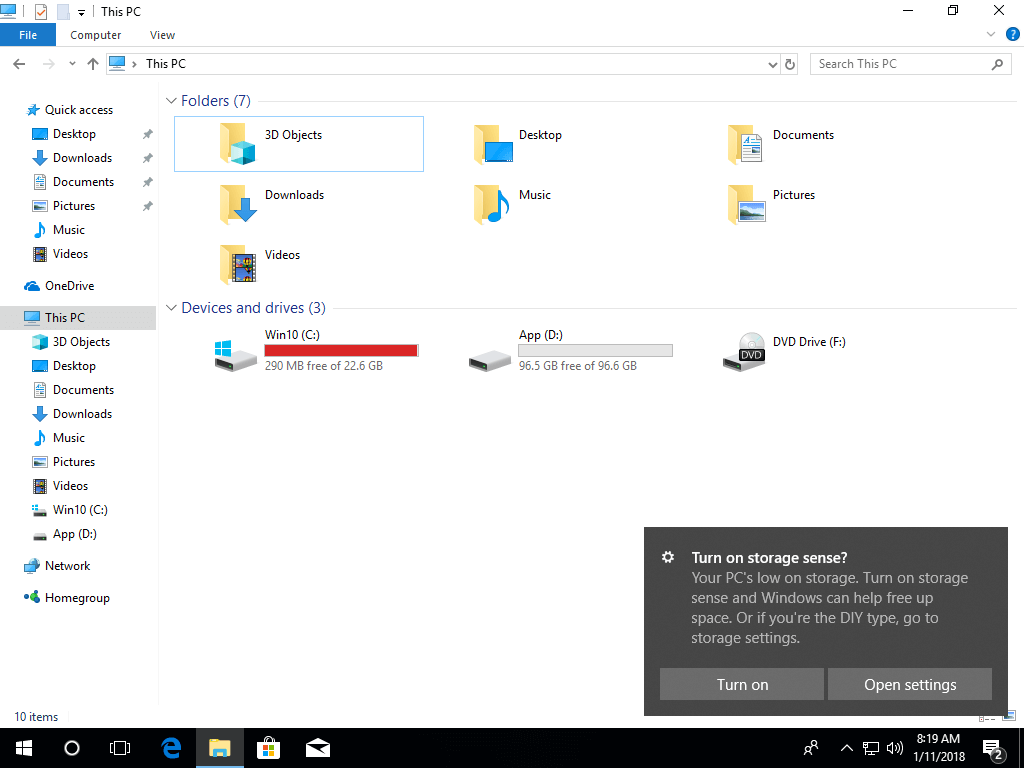
When the free space reaches the threshold, Windows 10 pops up a low disk space alert on the bottom right and asks you to turn on Storage Sense - "Your PC's low on storage. Turn on storage sense and Windows can help free up space."
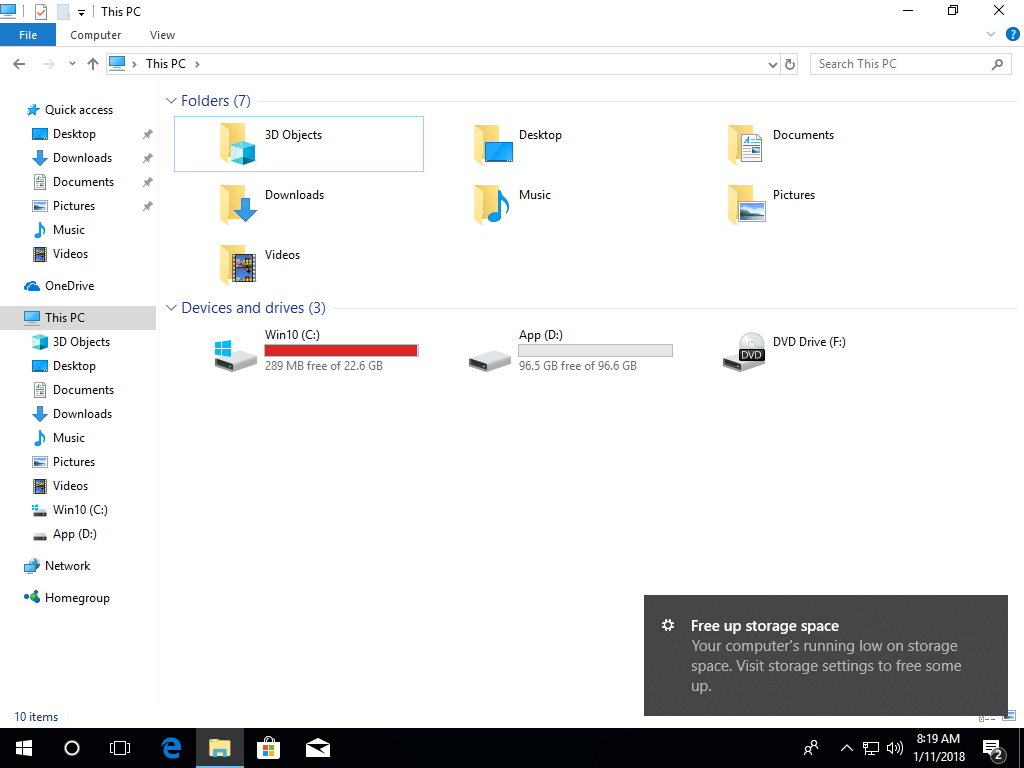
If the free space keeps running low, Windows 10 will pop up another notification with the message "Your computer's running low on storage space. Visit storage settings to free some up".
Why Does the C Drive Run Low on Disk Space in a Windows 10 Computer?
The Windows 10 low storage space issue may be caused by 3 kinds of reasons, including:
- A virus attack
- Displaying incorrectly
- Filling up with junk files
If the computer is attacked by a particular virus, a large amount of files will be copied or generated. If the C drive has plenty of free space but becomes full in a short time, you had better run your anti-virus software to scan it.
In previous Windows Vista and Windows 7 versions, some people reported the issue that the C drive usage percentage was showing incorrectly; in Windows 10 this problem seems to be solved, but it is still a possible reason.
The most possible reason why the C drive runs low on disk space in Windows 10 is that it is filling up with many types of junk and unnecessary files. Windows 10 downloads Updates frequently. Temporary, log, hibernation, backup, and Internet browser cache files also eat up free space quickly. Furthermore, many people install applications to the system partition C by default. The more you install, the less free space is left. Many applications for Games, Projects, Videos, and Photography will output very large files. If you do not pay attention, the C drive will get full very quickly, even if you create it very large.
4 Most Effective Methods to Fix the Windows 10 Low Disk Space Issue
After searching Google, you will find many similar articles; some articles even provide over 10 methods. Of course, you may try all of them, but to fix the Windows 10 low disk space issue fast and efficiently, it is enough to complete the following 4 methods:
1. Clean Up the Disk to Remove Junk Files
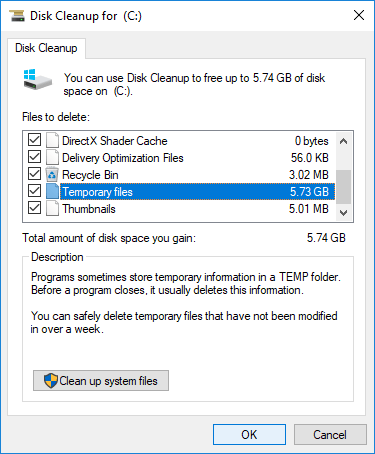
When the low disk space alert pops up, you may turn on Storage Sense and click the "Free up storage space" window to reclaim disk space, or run the standalone Disk Cleanup utility. This Windows native tool is excellent at accomplishing the cleanup task.
How to fix low disk space on the C drive in Windows 10 with Disk Cleanup:
- Press the Windows and R keys together on your keyboard, input cleanmgr, and press Enter.
- Select the C: drive to continue.
- Click the check-boxes of the files that you want to delete and click OK.
- Repeat to Clean up system files.
This step is useful for computers that have never been cleaned up or have not had space freed up for a long time. By doing this, you may reclaim several gigabytes of free space.
However, the free space may be eaten up again by newly generated junk files. If you cannot get over 20GB of free space, you had better enlarge the C drive and add more free space from another partition.
2. Enlarge the C: Drive
Hard disk drives are allocated while installing Windows or by the OEM manufacturer, but you can change the partition size without losing data via safe tools. Shrink another partition to release unallocated space and add it to the C drive. In this way, there will be plenty of free space in the C drive again. The Operating System, programs, and everything else will remain exactly the same as before. To fix the Windows 10 low disk space issue, this step is the most important.
How to fix low disk space on the C drive in Windows 10 by adding free space:
Download NIUBI Partition Editor Free Edition and follow the steps to shrink a partition and extend the C drive.
If your disk partition structure is different, follow the full solution to increase C drive free space. Besides resizing and extending disk partitions, this free partition manager helps you move, merge, copy, convert, defrag, wipe, hide partitions, scan bad sectors, and much more.
3. Remove Junk Files Automatically
Unlike all previous versions, Windows 10 has the ability to remove junk files automatically. So, it can keep your C drive clean at all times.
Firstly, you need to enable this service:
- Press the Windows and X keys on the keyboard, then click Settings.
- Go to System > Storage.
- Switch from Off to On under Storage Sense on the right side.
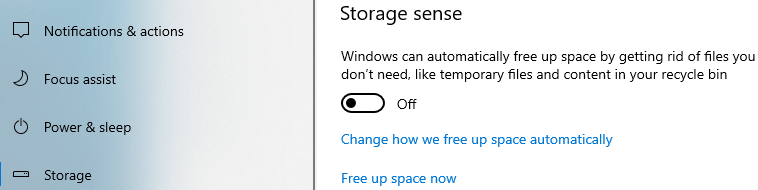
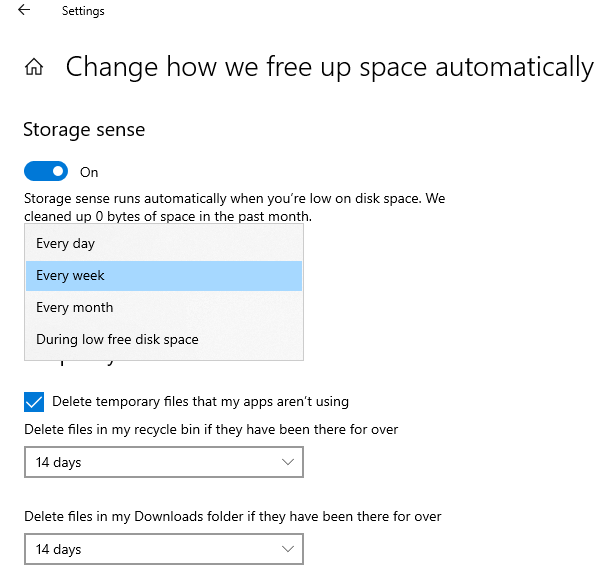
Then click Change how we free up space automatically below it.
You have several options:
- Select from the list to free up disk space when this partition is running low or every day/week/month.
- Then you can select whether to delete temporary files automatically.
- Select from the drop-down list to delete files in the Recycle Bin and Downloads folders if they have been there for over 1/14/30/60 days.
4. Change the Location for New Files
Some types of files, such as apps, documents, music, pictures, and videos, are not junk but could use a large amount of free space.
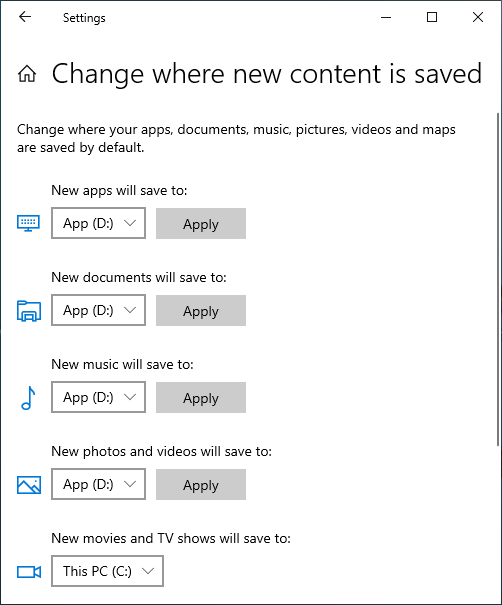
Windows 10 has another wonderful feature to save new files of these types to another partition.
- Press the Windows and X keys on the keyboard, then click Settings.
- Click System > Storage.
- Click Change where new content is saved under More storage settings.
- Click the drop-down list to select a new location and click Apply.
In Summary
After finishing the 4 steps above, you can fix the C drive low disk space issue on a Windows 10 computer completely. To prevent this issue from happening again in the future, it is highly recommended to allocate more space to the C drive with NIUBI Partition Editor.
 © 2009 - NIUBI Technology All Rights Reserved. |