
Unallocated space can be used to create a new volume or expand other partitions. To get unallocated space, you may either delete or shrink a partition. Many people shrink the D drive with the Windows 10 Disk Management tool but cannot merge the unallocated space into the C drive. To solve this problem, you need to move the unallocated space to the left, because no native tool has this ability. This article introduces how to move unallocated space on a Windows 10 computer using the best free disk partition software.
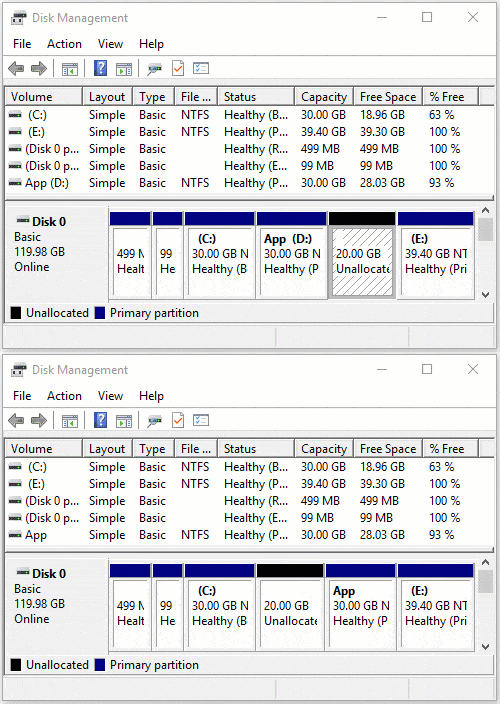
Cannot Move Unallocated Space in Windows 10 Disk Management
Low disk space on the C drive is a common issue on Windows 10/11 computers. Because there are "Shrink Volume" and "Extend Volume" functions in Disk Management, many people have shrunk the D drive and obtained unallocated space successfully. However, they cannot add the unallocated space to the C drive, because "Extend Volume" is grayed out.
Windows Disk Management cannot change the start position of a partition, so it cannot move unallocated space or shrink a partition to the right. It can only shrink an NTFS partition to the left and create unallocated space on the right. To add unallocated space to the C drive in this situation, you must run third-party software to move the unallocated space to the left of the D drive.
There are many disk partitioning tools on the market, but you had better use the safest one, because there is a potential risk of data loss when moving unallocated space with an adjacent partition. Compared with other software, NIUBI Partition Editor features 1-Second Rollback, Cancel-at-will, and Virtual Mode technologies to protect your system and data. In addition, with the help of an advanced file-moving algorithm, it is 30% to 300% faster when moving a partition with unallocated space. It offers a free edition for Windows 11/10/8/7/Vista/XP home computer users.
How to Move Unallocated Space to the Left on a Windows 10/11 Computer
Download this program and you will see all disks with their partition layout and other information in the main window. In the example below, there is 20GB of unallocated space shrunk from the D drive.
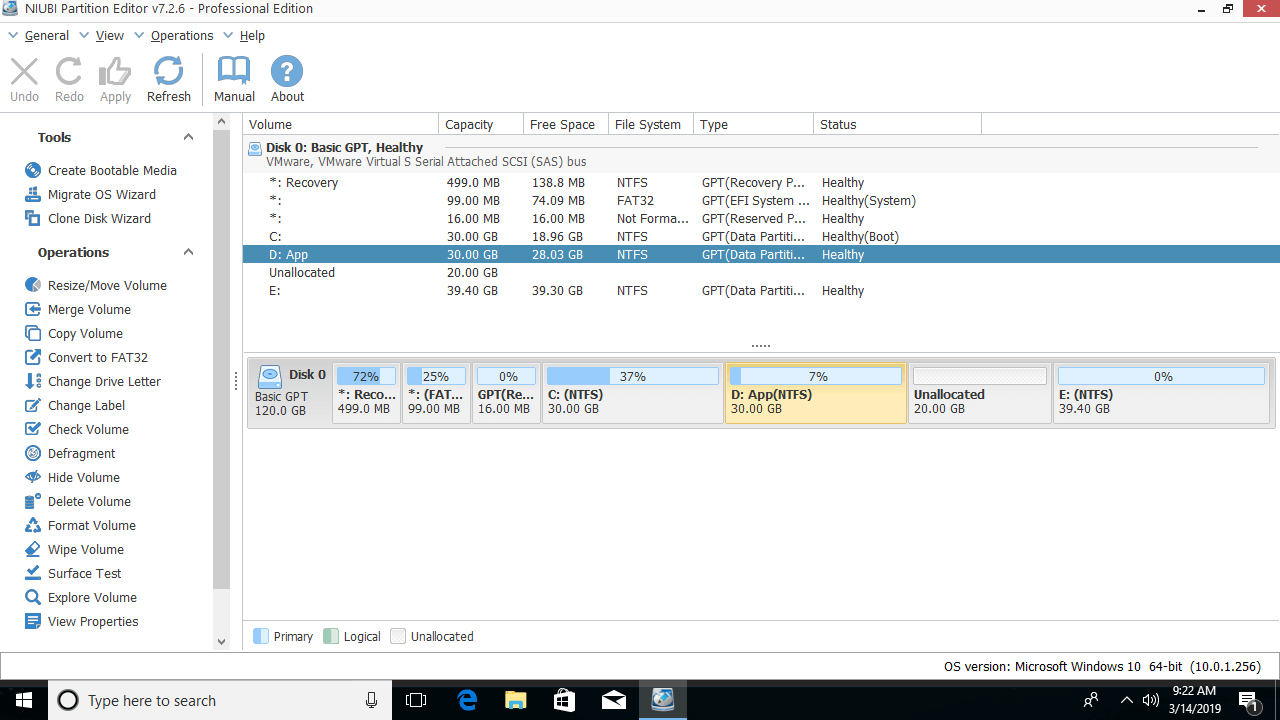
Right-click drive D and select "Resize/Move Volume", then drag the middle of the partition to the right in the pop-up window.
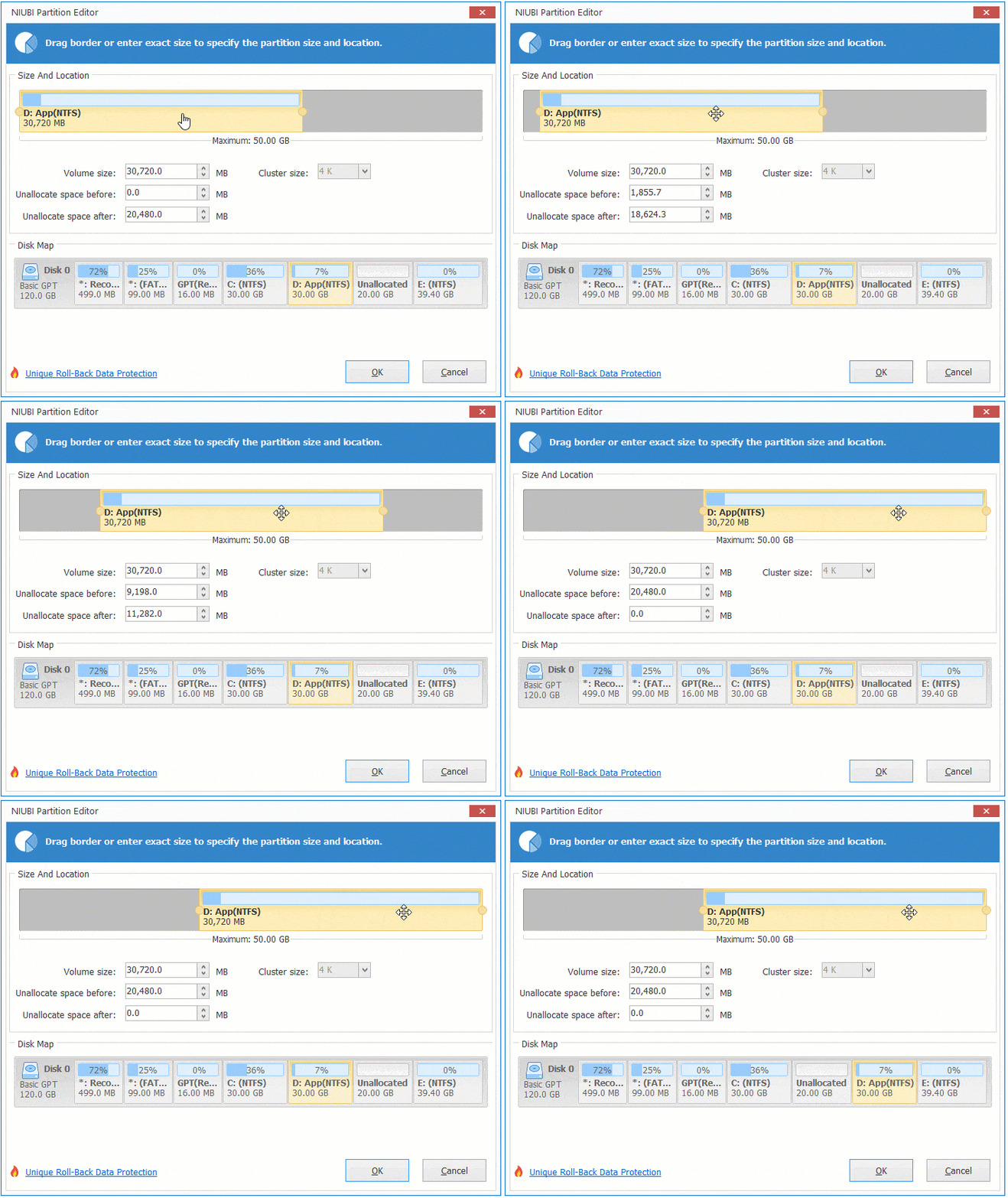
Then the unallocated space is moved to the left of the D drive.
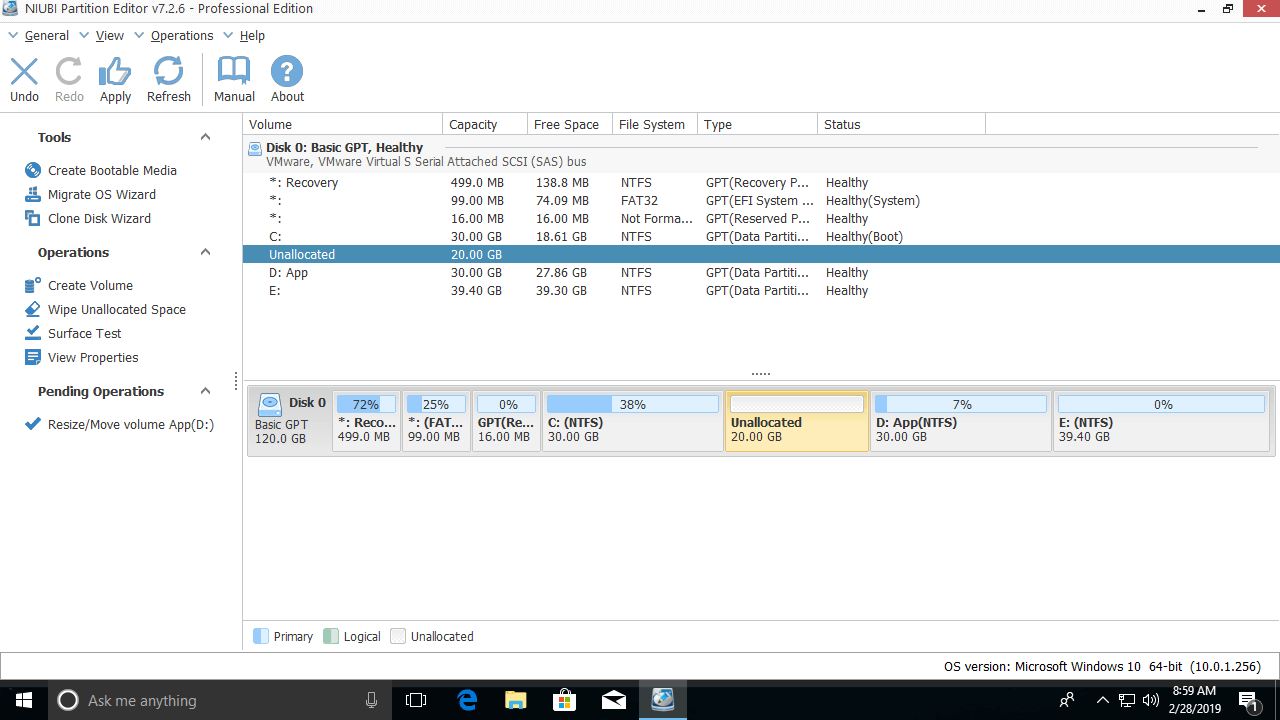
How to Move Unallocated Space to the Right in Windows 10/11:
If you want to move the unallocated space to the right of the E drive, right-click E and select "Resize/Move Volume". Unlike the method above, you should drag the middle of the partition to the left in the pop-up window:
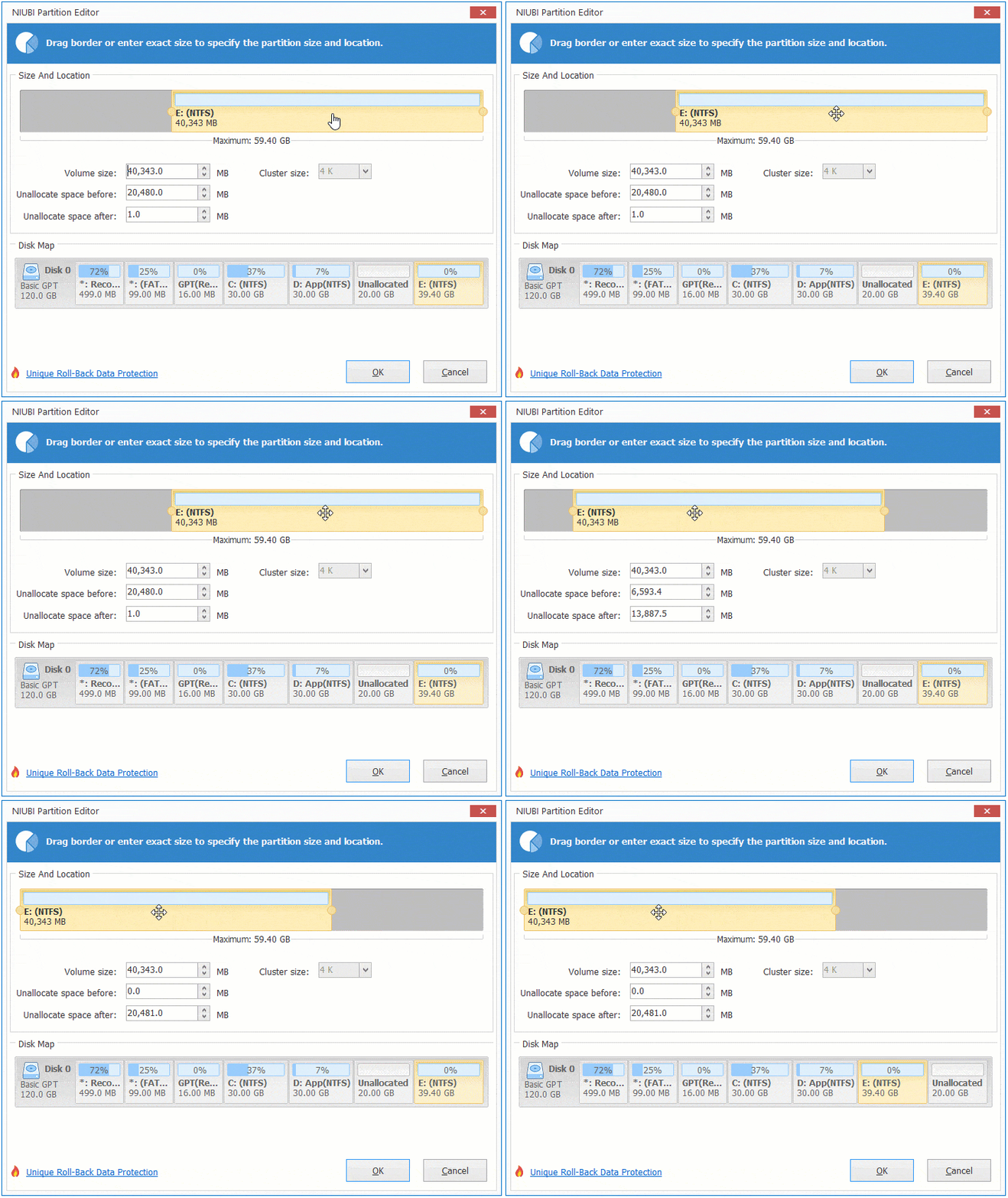
If you want to extend the E drive with the unallocated space on the left, you can achieve this without moving the unallocated space to the right side.
To do this, right-click E and select "Resize/Move Volume", then drag the left border to the left to merge this unallocated space:
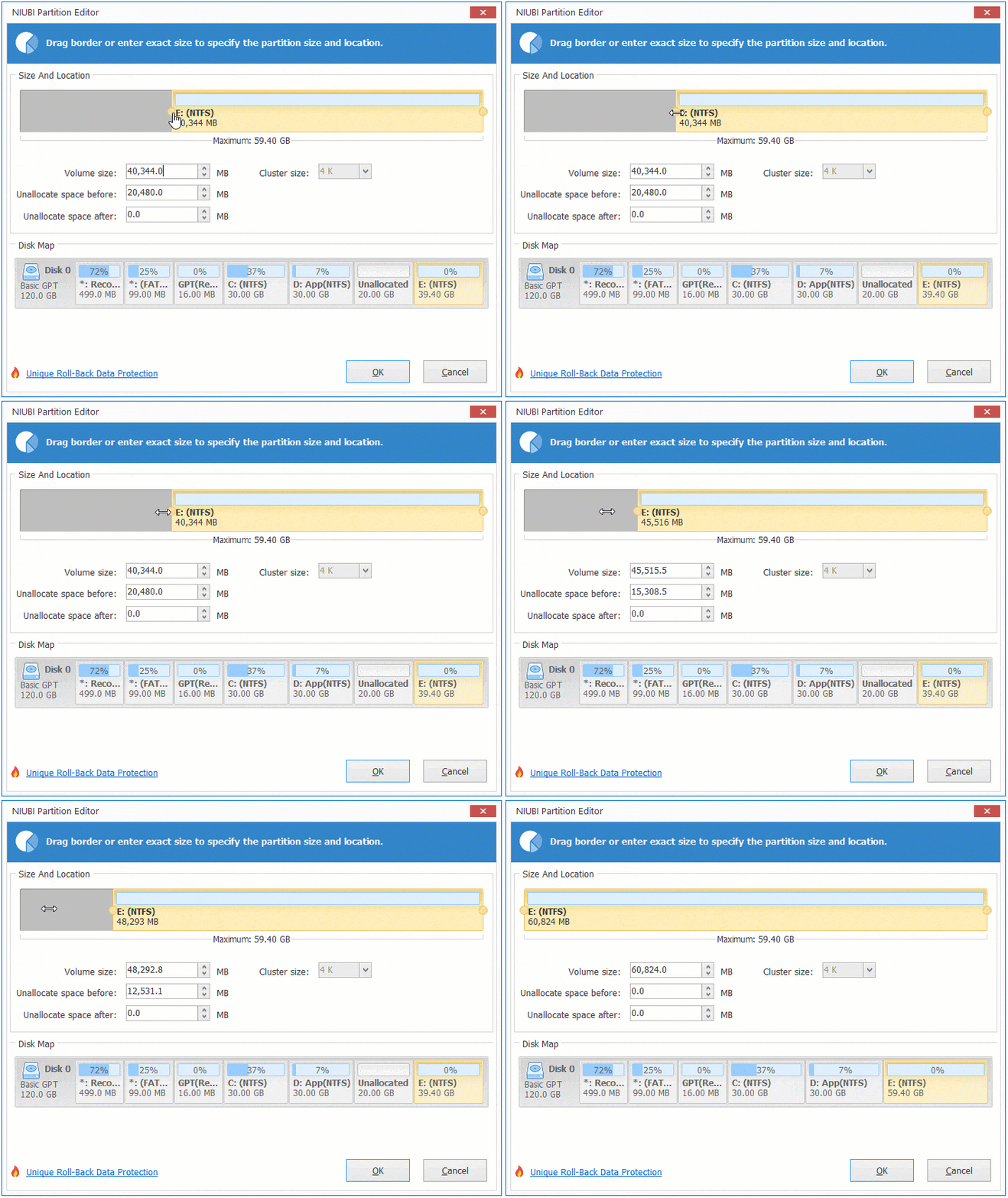
How to Move Unallocated Space to the End of the Disk
If you want to move the unallocated space to the end of the disk to create a new volume or for other reasons, simply right-click drives E, F, etc., to move them one by one.
If you want to move unallocated space to another disk, it is impossible, because the size of a hard disk is fixed. No partition software can combine or move unallocated space to a different disk.
If you want to extend a partition but there is no other drive on the same disk, you can clone this disk to a larger one with NIUBI Partition Editor. While cloning, you can expand this partition with the extra disk space.
 © 2009 - NIUBI Technology All Rights Reserved. |