
Nowadays, many Windows 10 computers use an SSD for the Operating System and programs. It is helpful for improving computer performance. However, on the other hand, an SSD is much smaller because it is still expensive. So, the C: drive is more likely to run out of space. In Windows 7/8/10 Disk Management, there are "Shrink Volume" and "Extend Volume" functions to help resize a partition without losing data. Many people successfully shrink the D (or E) drive but cannot extend the C drive in Windows 10 Disk Management, because the "Extend Volume" option is grayed out. This article explains the reasons why Disk Management cannot extend a volume in Windows 10/8/7, and what to do when you cannot extend the C drive in a Windows 10/8/7 computer.
Why You Can't Extend C Drive in Windows 10/8/7 Disk Management
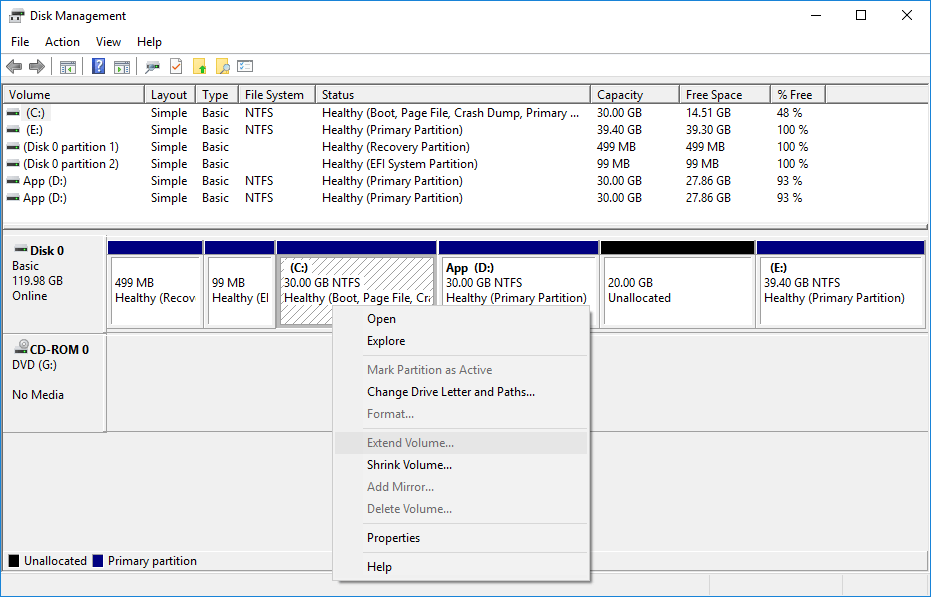
Reason 1: No Unallocated Space Next to C Drive
In a Windows computer, there are 3 types of space on a hard disk:
- Used space - already occupied by various types of files.
- Free space - blank space in a partition that can be used for new files.
- Unallocated space - blank space on a disk that does not belong to any partition.
Besides creating a new volume, unallocated space can be used to extend another partition. Because the size of a physical disk is fixed, before extending a partition, you must delete or shrink another partition to get unallocated space on the same disk. Without this kind of space, you naturally cannot extend a volume in Windows 10/8/7 with any tools.
Obviously, it is better to get unallocated space by shrinking a partition, because you will not lose the files in it. The problem is, you still cannot extend the C drive in Windows 10/8/7 even after shrinking D or any other partitions, because Disk Management has 2 major shortages:
- The "Shrink Volume" function can only create unallocated space on the right when shrinking a partition.
- The "Extend Volume" function can only merge unallocated space into the adjacent partition on the left.
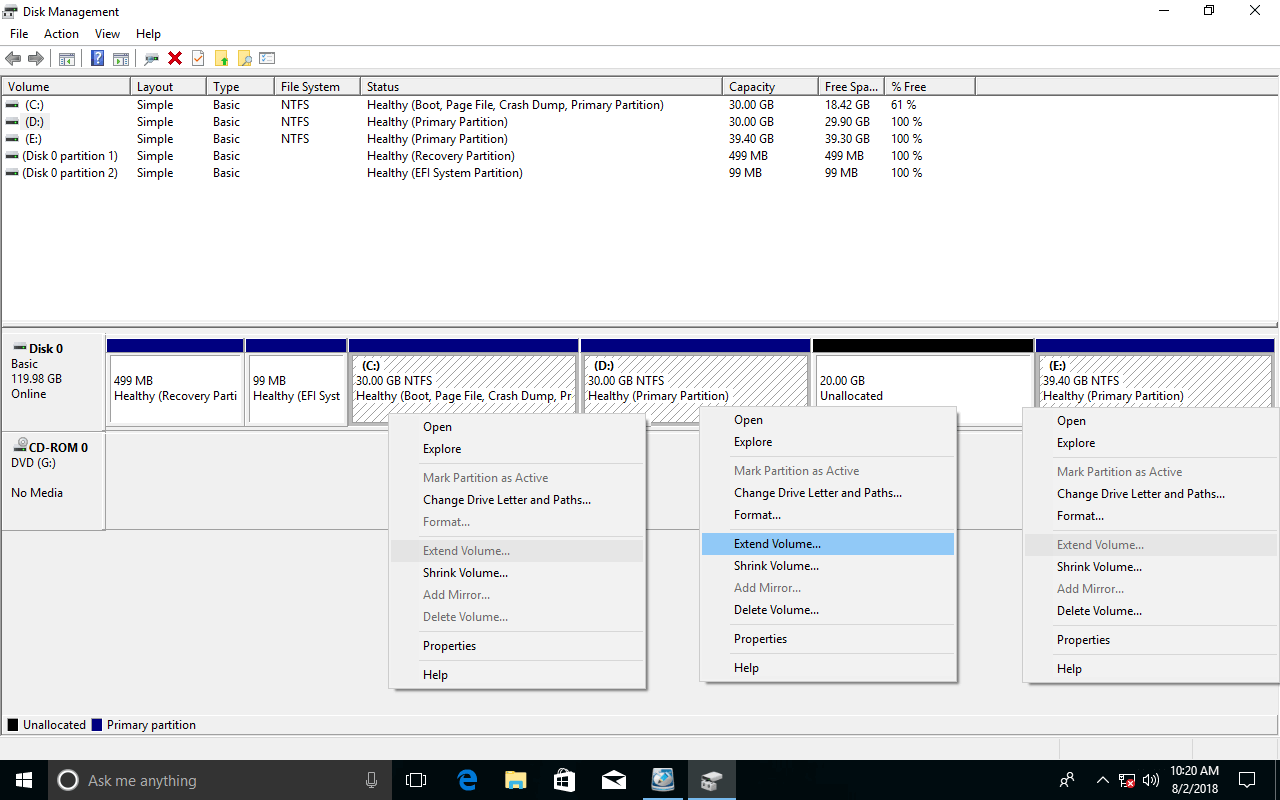
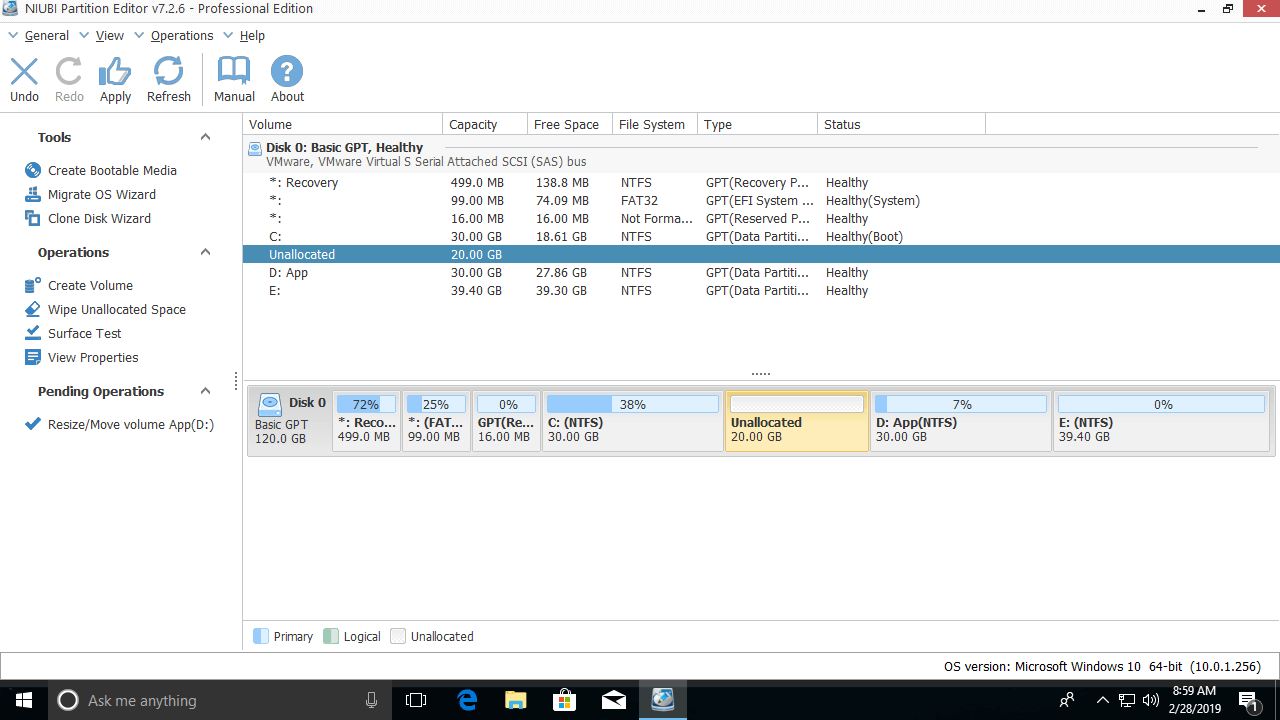
As seen in the screenshot, there is 20GB of unallocated space on the right of D after shrinking this partition. This space is non-adjacent to the C drive, so the C: drive cannot be extended. This is the most common reason why you cannot extend the C drive in Windows 10/8/7 with the Disk Management tool.
Reason 2: The Contiguous Partition Is Logical
Because "Extend Volume" is disabled for the C drive after shrinking D, some people wonder if it will work if they delete the D drive to get adjacent unallocated space. To test this, the adjacent D drive was deleted in a test computer. As you see, Disk Management is still unable to extend the C drive in Windows 10.
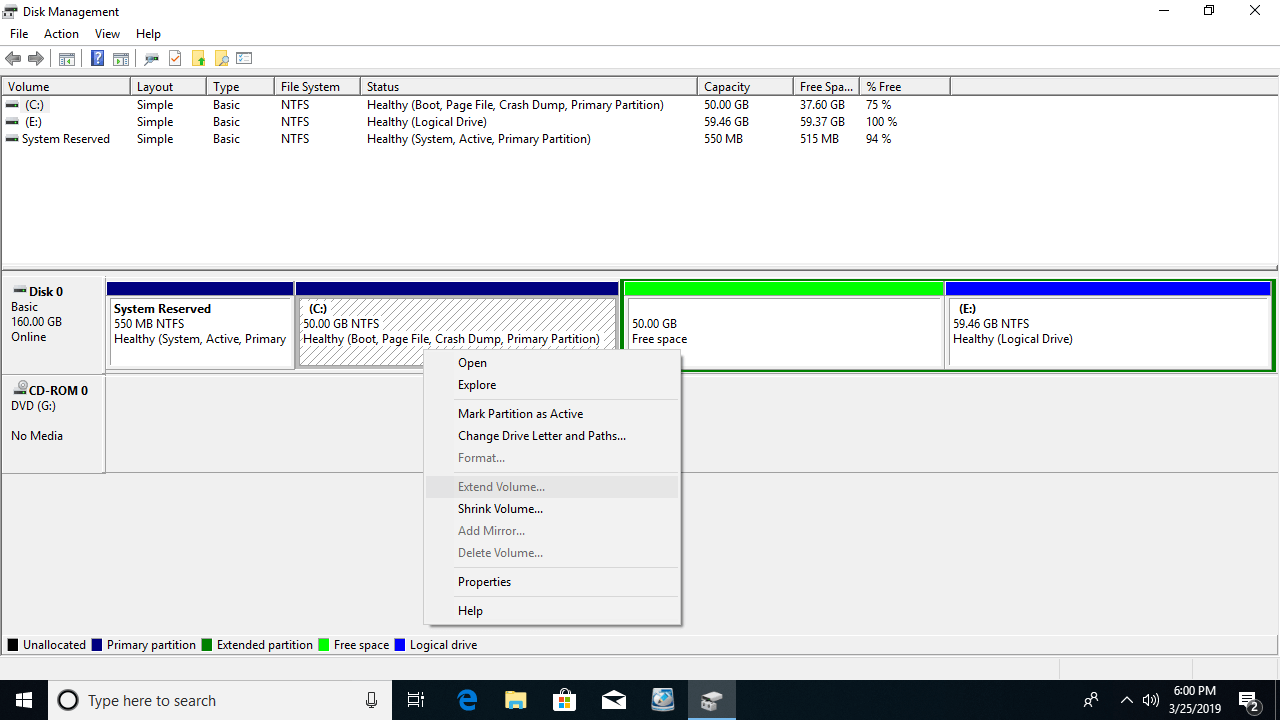
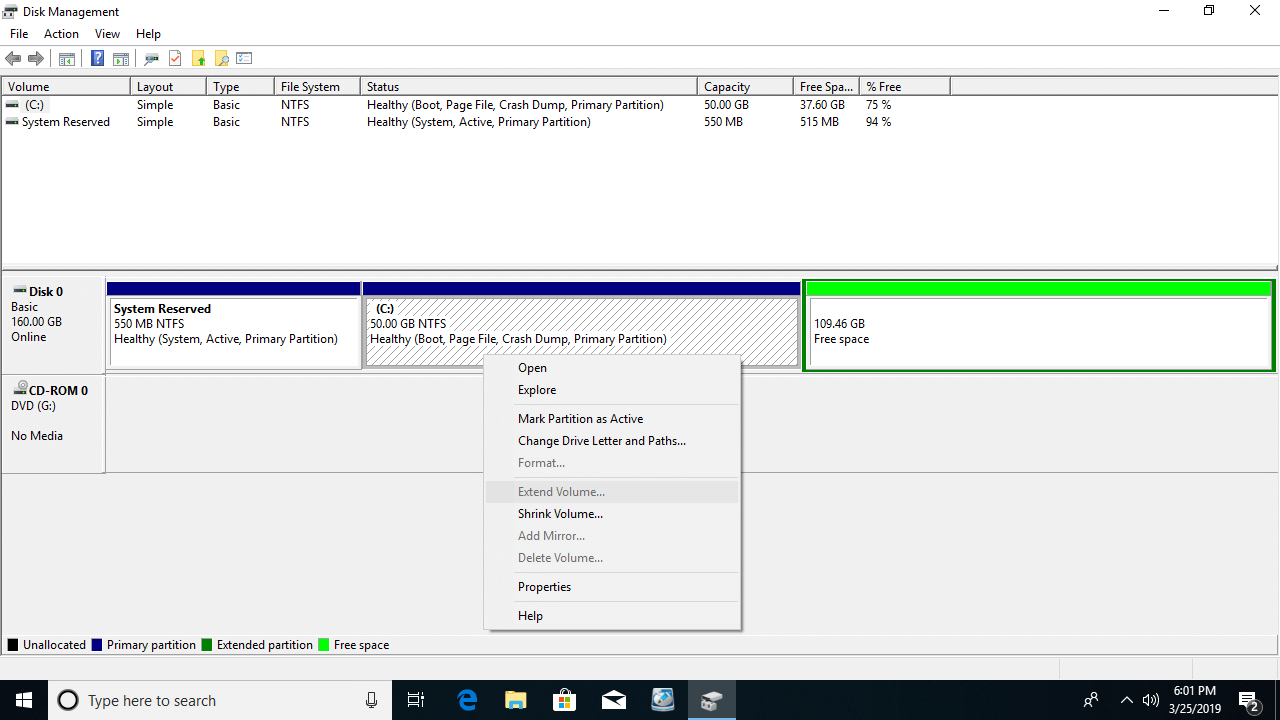
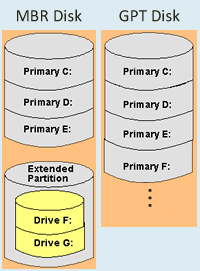
In a Windows computer, there are 2 types of disks - GPT and MBR. On a GPT disk, all partitions are created as primary. But on an MBR disk, there could be both primary and logical partitions. In addition, you can only create a maximum of 4 primary partitions, or 3 primary partitions plus an "Extended partition" on an MBR disk.
A primary partition works as an independent unit, but a logical partition is part of the extended partition. After deleting a primary partition, its disk space will be changed to "unallocated", but after deleting a logical drive, it will be changed to "Free space".
In Disk Management, unallocated space cannot be merged into any logical drive, and "Free space" cannot be merged into any primary partition. In short, if you want to extend the C drive by deleting D in Disk Management, D must be a primary partition, because the C drive is always primary. (Note: the D drive here refers to the adjacent partition right behind the C drive.)
What to Do When You Cannot Extend the C Drive in Windows 10/8/7
Method 1: Move the Partition and Unallocated Space
As explained above, Disk Management cannot extend the C drive with non-adjacent unallocated space. Therefore, you need to move the unallocated space from the right side of D to the left.
Steps when you cannot extend the C drive in Windows 10/8/7 after shrinking D/E:
Step 1: Download NIUBI Partition Editor, right-click the D: drive and select "Resize/Move Volume"; drag the middle of the D drive to the right in the pop-up window.
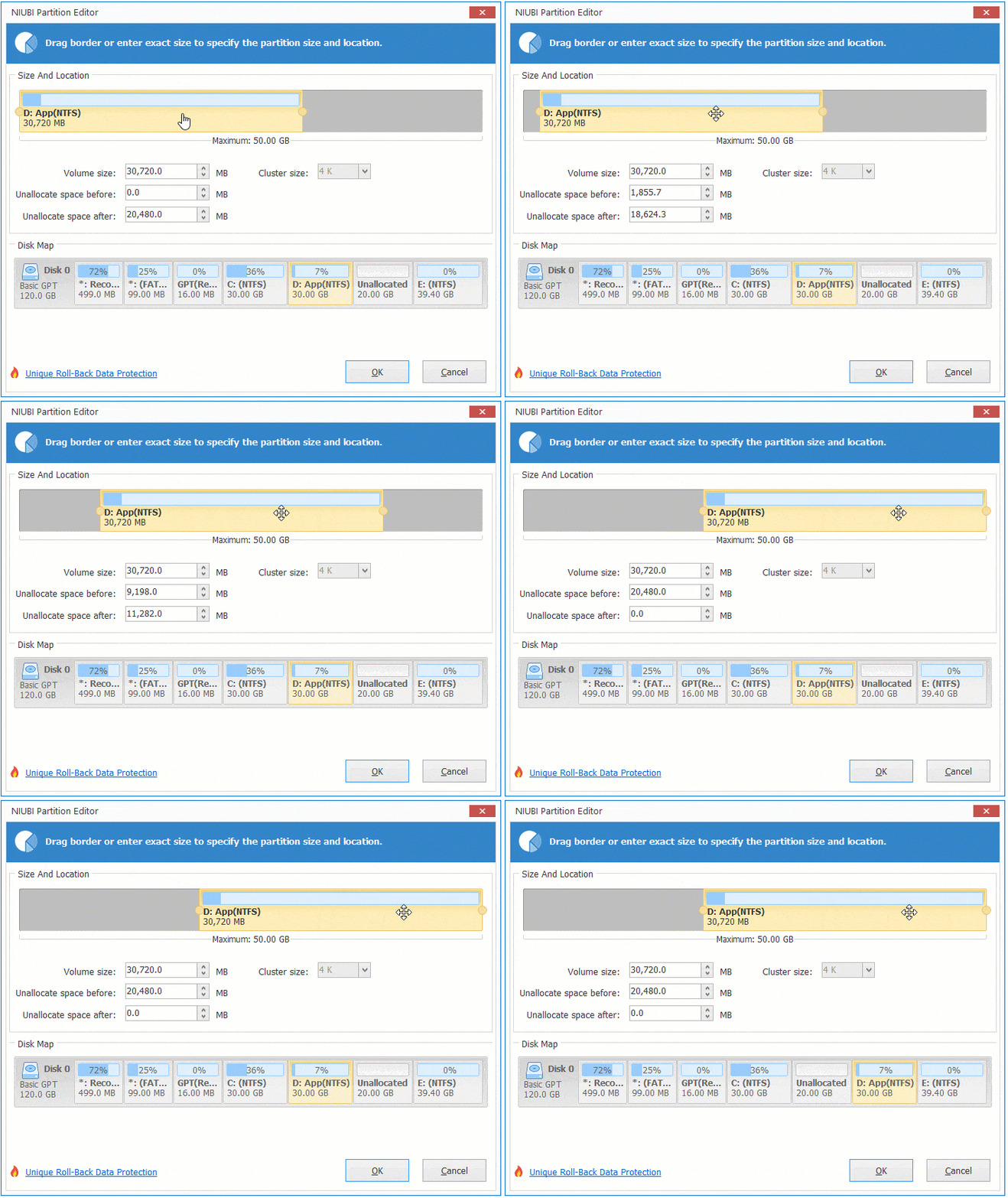
Then unallocated space will be moved to the left side.
Step 2: Right-click the C: drive and select "Resize/Move Volume" again; drag the right border to the right in the pop-up window.
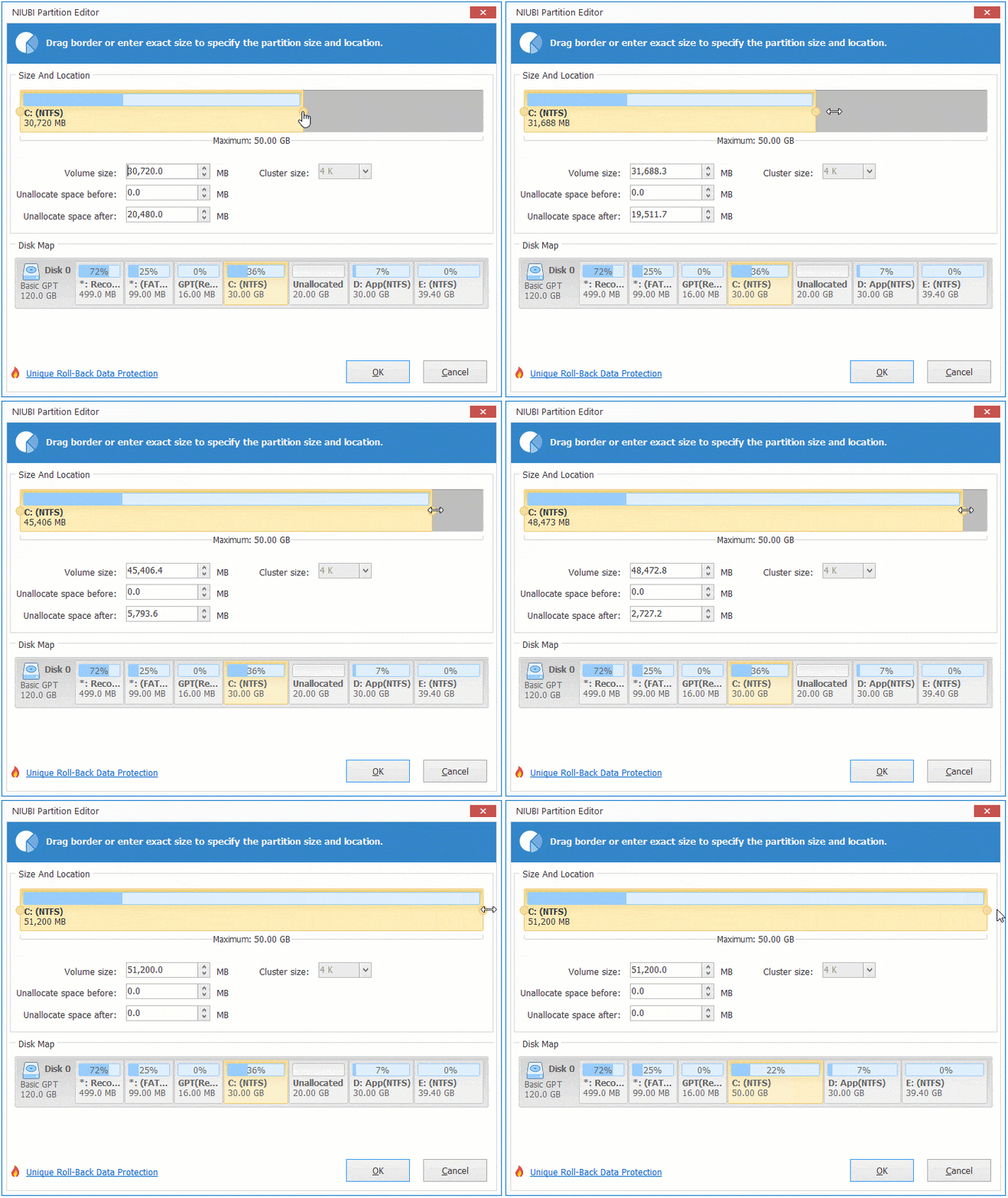
Then C drive will be extended by merging this unallocated space.
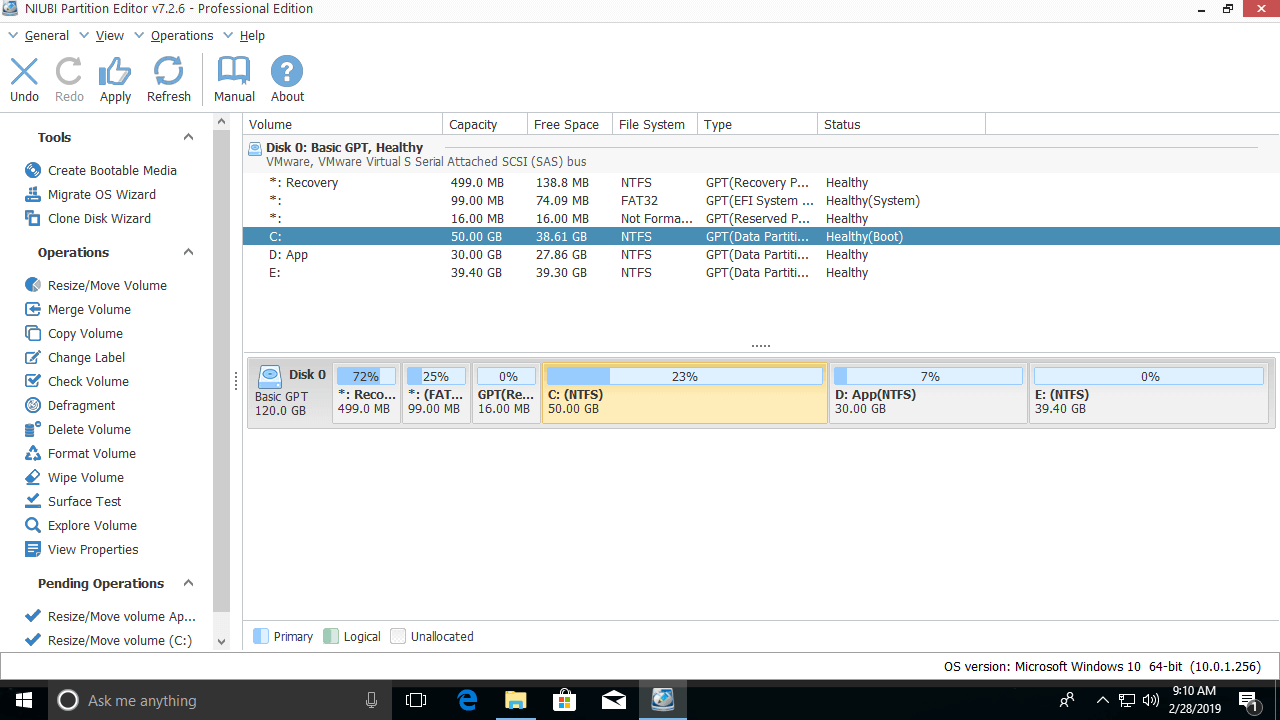
This program is designed to work in virtual mode to avoid mistakes. To modify real disk partitions, you need to click the "Apply" button on the top left to take effect.
Watch the video on how to move and merge unallocated space into the C drive:
Method 2: Shrink and Extend the Partition with NIUBI
If the contiguous partition D is a logical drive, as explained above, Disk Management is unable to extend the C drive by either shrinking or deleting D. However, it is very easy to solve this problem with NIUBI Partition Editor.
- Right-click the D drive and select "Resize/Move Volume"; drag the left border to the right in the pop-up window, then unallocated space will be created on the left.
- Follow step 2 above to add the unallocated space to the C drive.
If you've deleted D drive, recreate it in Disk Management and follow the same steps above.
Other Reasons Why You Cannot Extend a Volume in Windows 10/8/7
When you extend a data partition with Windows Disk Management, you may encounter additional issues.
- A FAT32 partition cannot be extended even if there is contiguous unallocated space on the right, because Disk Management can only extend an NTFS partition.
- Disk Management cannot extend a volume larger than 2TB on an MBR disk.
Additional methods when you cannot extend a volume in Windows 10/8/7:
- For NIUBI Partition Editor, there is no difference whether you use a FAT32 or an NTFS partition. If there is adjacent unallocated space, simply merge it with NIUBI.
- To extend a volume larger than 2TB, convert the MBR disk to GPT in advance with NIUBI.
- If you want to extend the E drive after shrinking D, you just need to run "Resize/Move Volume" for E and drag the left border to the left in the pop-up window.
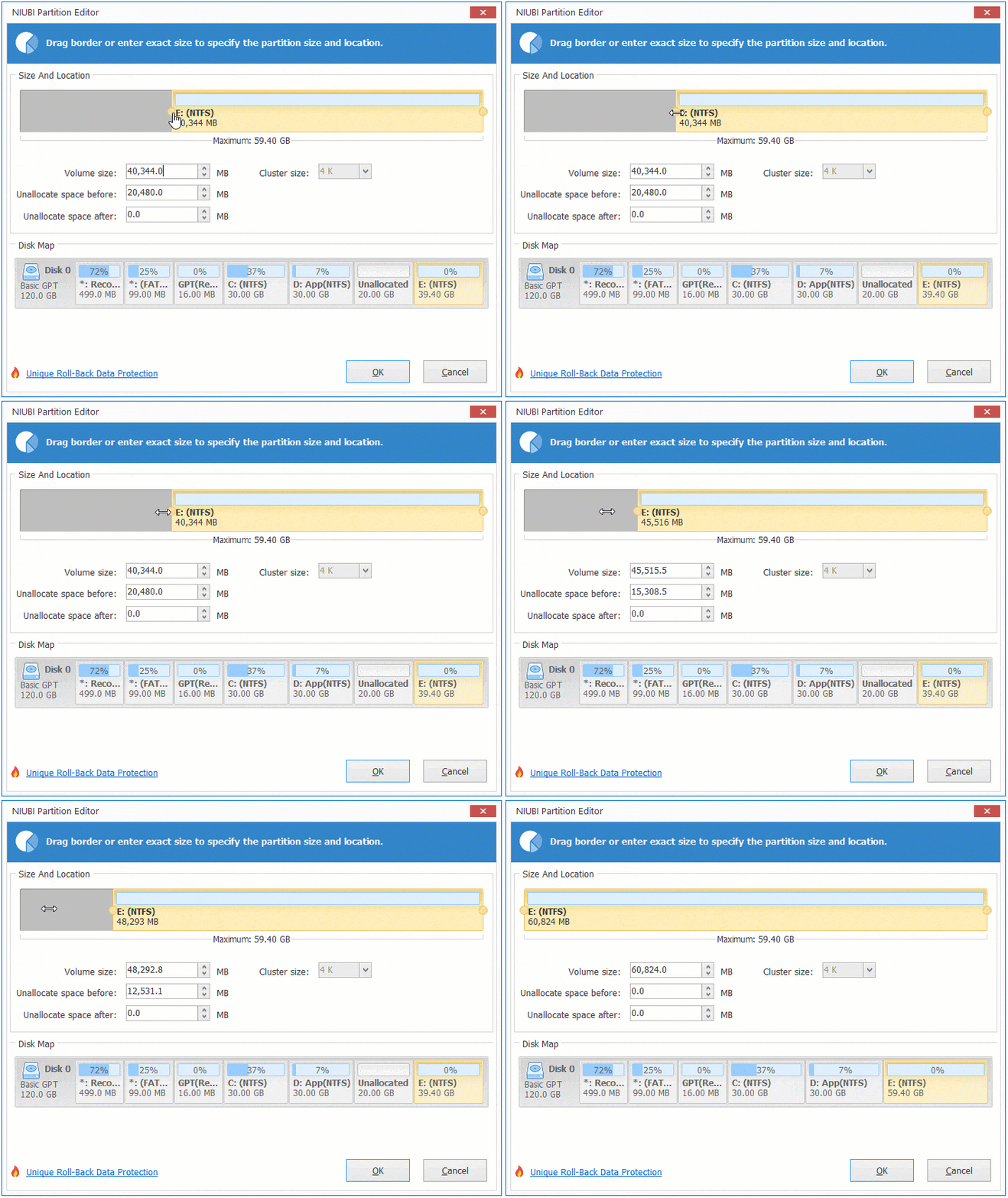
When you cannot extend a volume in Windows 10/8/7, run NIUBI Partition Editor and follow the corresponding method above. Besides shrinking, moving, and extending partitions, this tool helps you perform many other disk partition management operations such as copying, converting, merging, defragging, wiping, hiding partitions, scanning for bad sectors, etc.
 © 2009 - NIUBI Technology All Rights Reserved. |